Key Takeaways:
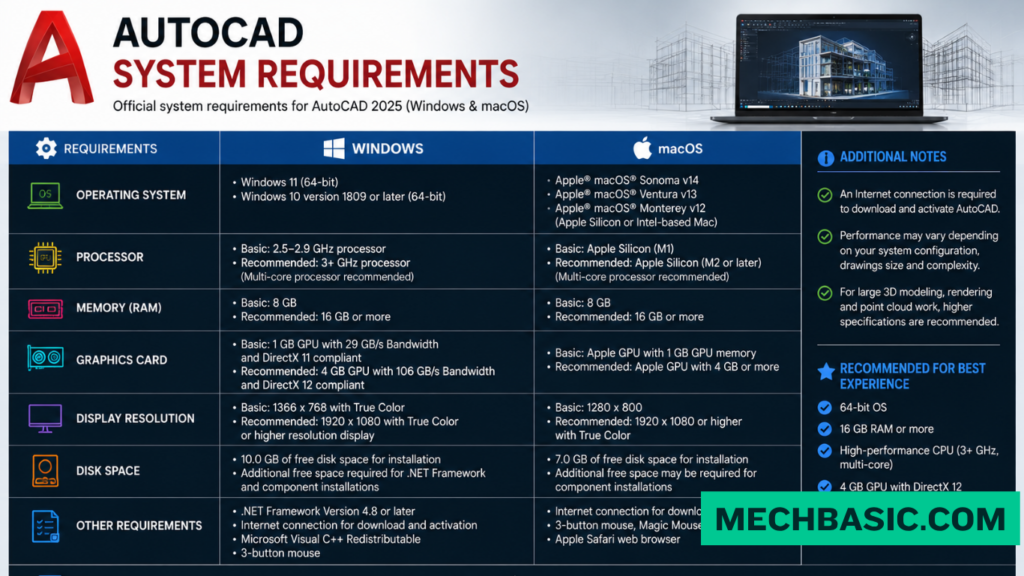
AutoCAD System Requirements
For AutoCAD 2026 on Windows, Autodesk recommends the following hardware for a comfortable professional workflow:
| Component | Basic | Recommended |
|---|---|---|
| Operating System | Windows 11 / 10 64-bit | Latest supported Windows 11 64-bit |
| Processor | ARM64 or x64, ~2.5–2.9 GHz | 3+ GHz processor |
| RAM | 8 GB | 16 GB or more |
| Graphics | 1 GB GPU, DirectX 11 | 4 GB+ dedicated GPU, DirectX 12 |
| Storage | SSD recommended | 512 GB–1 TB SSD |
| Display | 1920 × 1080 | 1920 × 1080 or higher |
| Internet | Required for installation/activation | Broadband connection |
Recommended Laptop for AutoCAD
For students and professional 2D/3D CAD users:
Core i5/i7 or Ryzen 5/7 → 16–32 GB RAM → 512 GB/1 TB SSD → 4–8 GB dedicated GPU → Windows 11
For Heavy AutoCAD Work
If you’re working with large 3D models, point clouds, complex drawings, or specialized toolsets, consider:
32 GB+ RAM → Core i7/i9 or Ryzen 7/9 → 8 GB+ dedicated GPU → 1 TB NVMe SSD
Key Takeaway
Basic AutoCAD → 8 GB RAM + integrated/entry GPU
Professional AutoCAD → 16 GB RAM + dedicated GPU ⭐
Heavy 3D CAD → 32 GB+ RAM + powerful dedicated GPU
For the exact requirements for your specific AutoCAD 2026 configuration, Autodesk’s requirements can vary by operating system and specialized toolset, so check the current official AutoCAD system requirements before purchasing a laptop.
In this article:
- AutoCAD System Requirements
- AutoCAD System Requirements
- Processor (CPU)
- RAM
- Graphics Card (GPU)
- Storage
- Display
- Recommended Laptop for AutoCAD
- For Heavy AutoCAD Work
- AutoCAD Performance Tips
- AutoCAD Hardware Recommendations
- Common Mistakes When Buying an AutoCAD Laptop
- Which AutoCAD Laptop Should You Choose?
- Frequently Asked Questions (FAQs)
- Conclusion
AutoCAD System Requirements
Choosing the right computer for AutoCAD is important for achieving smooth performance, especially when working with large drawings, complex 3D models, rendering, and multiple applications.
AutoCAD can run on many modern computers, but the ideal hardware depends on the type of work you perform. Basic 2D drafting requires considerably less hardware than professional 3D modeling and large engineering projects.
The most important components to consider are:
- Processor (CPU)
- RAM
- Graphics card (GPU)
- Storage
- Display
- Operating system
- Cooling system
For students and basic 2D drafting, a mid-range laptop can be sufficient. For professional engineering and heavy 3D AutoCAD work, a more powerful workstation-class laptop or desktop is recommended.
AutoCAD System Requirements
For a good AutoCAD experience, your computer should have a modern processor, sufficient RAM, a dedicated or capable graphics processor, and fast SSD storage.
| Component | Basic Use | Recommended |
|---|---|---|
| Processor | Modern 64-bit CPU | High-performance Intel Core / AMD Ryzen |
| RAM | 8 GB | 16 GB or more |
| Graphics | Integrated or basic GPU | Dedicated GPU |
| Storage | SSD recommended | 512 GB NVMe SSD or more |
| Display | 1080p | 1920 × 1080 or higher |
| Operating System | Supported 64-bit Windows | Latest supported 64-bit Windows |
| Internet | Required for some features | Reliable broadband connection |
Actual requirements can vary by AutoCAD release, operating system, and the features being used, so users should check Autodesk’s requirements for their specific version before purchasing hardware.
Autodesk Support: System Requirements for AutoCAD Products: Official specifications detailing minimum and recommended CPU speeds (3+ GHz), RAM (8 GB to 32 GB+ for 3D/specialized toolsets), DirectX 12 GPU requirements, and disk space.
Processor (CPU)
The CPU is one of the most important components for AutoCAD performance.
AutoCAD uses the processor heavily for many operations, particularly when working with:
- 2D drawings
- Regeneration
- Parametric operations
- Large drawing files
- Some 3D operations
- Calculation-intensive tasks
For basic AutoCAD work, a modern mid-range processor is usually sufficient.
Recommended CPU
Look for a recent:
- Intel Core processor
- AMD Ryzen processor
For professional work, prioritize a processor with strong single-core performance rather than choosing solely based on the number of CPU cores.
Good Choice
Modern Intel Core / AMD Ryzen processor with high clock performance
RAM
RAM affects how comfortably AutoCAD can handle large drawings and how well it performs alongside other applications.
8 GB RAM
Suitable for:
- Basic 2D drafting
- Small drawings
- Student projects
- Simple CAD work
16 GB RAM
Recommended for most AutoCAD users.
Suitable for:
- Professional 2D drafting
- Moderate 3D modeling
- Large drawings
- Multitasking
- AutoCAD + Excel + browser + other applications
32 GB RAM
Recommended for:
- Heavy 3D modeling
- Large assemblies
- Complex projects
- Multiple engineering applications
- AutoCAD combined with rendering or simulation software
Recommendation
16 GB → Best general-purpose choice
32 GB → Better for heavy professional workloads
Graphics Card (GPU)
The GPU becomes increasingly important when working with:
- 3D models
- Visual styles
- Large models
- Real-time display
- Rendering
- Multiple high-resolution monitors
For basic 2D AutoCAD, a powerful dedicated graphics card is usually unnecessary.
For professional 3D work, however, a dedicated GPU is recommended.
Suitable GPU Categories
For general AutoCAD:
- Modern integrated graphics
- Entry-level dedicated GPU
For professional 3D work:
- NVIDIA GeForce RTX
- NVIDIA RTX professional/workstation GPUs
- AMD Radeon GPUs
For specialized professional workflows, workstation-certified graphics hardware can provide advantages in compatibility and professional application support.
Storage
An SSD (Solid-State Drive) is strongly recommended for AutoCAD.
Compared with a traditional hard disk drive, an SSD provides faster:
- Windows startup
- Application startup
- File loading
- File saving
- Project access
Recommended Storage
512 GB NVMe SSD is a good starting point.
For professionals working with many CAD files, consider:
1 TB NVMe SSD or larger
Display
A good display can make CAD work more comfortable.
Recommended Resolution
1920 × 1080 (Full HD) is a practical minimum for most users.
For professional CAD work, a larger or higher-resolution display can provide more workspace.
Suitable options include:
- 15.6-inch Full HD
- 16-inch 1920 × 1200
- 16-inch or larger high-resolution displays
- External 24–27-inch monitor
A larger external monitor can be especially useful for engineers working with complex drawings.
Recommended Laptop for AutoCAD
For students, engineers, and general CAD users, a balanced laptop is usually better than buying the most expensive machine available.
Recommended Configuration
- CPU: Recent Intel Core or AMD Ryzen processor
- RAM: 16 GB
- GPU: Dedicated entry-level or mid-range GPU
- Storage: 512 GB NVMe SSD
- Display: 15.6-inch or larger Full HD display
- Operating System: Supported 64-bit Windows
- Cooling: Good thermal design
This configuration provides a strong balance between:
- Performance
- Portability
- Battery life
- Cost
- CAD capability
Ideal for
- AutoCAD 2D drafting
- Mechanical drawings
- Architectural drawings
- Civil drawings
- Student projects
- Moderate 3D modeling
- Engineering documentation
For Heavy AutoCAD Work
If you regularly work with large 3D models, complex drawings, rendering, or several engineering applications simultaneously, choose a more powerful system.
Recommended Configuration
- CPU: High-performance modern Intel Core / AMD Ryzen processor
- RAM: 32 GB or more
- GPU: Dedicated mid-range or high-performance GPU
- Storage: 1 TB NVMe SSD or more
- Display: High-resolution 16-inch or larger display
- Cooling: Advanced cooling system
- External Monitor: Recommended for desktop-style workflows
Suitable for
- Complex 3D modeling
- Large engineering drawings
- Architectural 3D work
- Large mechanical designs
- Advanced visualization
- Rendering
- Multiple CAD applications
- AutoCAD + other engineering software
- Professional design workflows
AutoCAD for Mechanical Engineering
Mechanical engineering students and professionals may benefit from a stronger configuration because AutoCAD may be used alongside other engineering applications.
Recommended
- Modern high-performance CPU
- 16–32 GB RAM
- Dedicated GPU
- 512 GB–1 TB SSD
If your workflow also includes Autodesk Inventor, SolidWorks, CATIA, ANSYS, or other simulation software, consider moving toward the 32 GB RAM and stronger-GPU category.
AutoCAD for Architecture
Architectural workflows can involve both 2D documentation and increasingly complex 3D models.
Recommended
- Modern high-performance CPU
- 16 GB RAM minimum
- 32 GB for heavier 3D work
- Dedicated GPU
- 1 TB SSD for large project libraries
For workflows involving rendering or BIM software, additional GPU and RAM capacity can be beneficial.
AutoCAD Performance Tips
Even with good hardware, software and drawing management can affect performance.
1. Use an SSD
Installing AutoCAD and your active project files on an SSD improves overall system responsiveness.
2. Keep Drivers Updated
Maintain supported graphics drivers and operating-system updates.
3. Close Unnecessary Applications
Closing applications that consume large amounts of RAM can improve performance when working with large drawings.
4. Keep Drawings Clean
Remove unnecessary objects, unused layers, blocks, and other drawing data when appropriate.
5. Use Appropriate Hardware
Do not overspend on a high-end GPU if your work consists almost entirely of simple 2D drafting.
AutoCAD Hardware Recommendations
| User Type | CPU | RAM | GPU | Storage |
|---|---|---|---|---|
| Beginner | Modern Core/Ryzen | 8 GB | Integrated/Basic | 512 GB SSD |
| Student | Modern Core/Ryzen | 16 GB | Integrated/Entry GPU | 512 GB SSD |
| Professional 2D | High-performance Core/Ryzen | 16 GB | Entry/Mid GPU | 512 GB–1 TB SSD |
| 3D CAD User | High-performance Core/Ryzen | 32 GB | Mid-range dedicated GPU | 1 TB SSD |
| Heavy CAD | High-performance CPU | 32 GB+ | High-performance GPU | 1 TB+ SSD |
| CAD + Rendering/Simulation | High-end CPU | 32–64 GB+ | High-performance GPU | 1–2 TB+ SSD |
Common Mistakes When Buying an AutoCAD Laptop
1. Buying Based Only on CPU Name
A processor’s model and generation matter more than simply seeing “Core i7” or “Ryzen 7.”
2. Choosing Too Little RAM
8 GB may become restrictive for professional multitasking.
16 GB is a better general target.
3. Buying a Very Powerful GPU for Simple 2D CAD
If you only create basic 2D drawings, spending heavily on a high-end GPU may provide little practical benefit.
4. Buying a Laptop Without an SSD
An SSD should be considered essential for a modern CAD workstation.
5. Ignoring Cooling
High-performance laptops can reduce performance under sustained workloads if their cooling system is inadequate.
Which AutoCAD Laptop Should You Choose?
For Students
16 GB RAM + modern CPU + 512 GB SSD
For 2D Drafting
16 GB RAM + modern high-performance CPU + SSD
For 3D AutoCAD
32 GB RAM + dedicated GPU + 1 TB SSD
For Heavy CAD
32 GB or more RAM + high-performance CPU + powerful dedicated GPU + 1 TB or larger SSD
Frequently Asked Questions (FAQs)
1. How much RAM is required for AutoCAD?
8 GB can be sufficient for basic work, while 16 GB is a good recommendation for most users. Heavy professional workflows can benefit from 32 GB or more.
2. Is a dedicated graphics card required for AutoCAD?
Not necessarily for basic 2D drafting. However, a dedicated GPU is recommended for demanding 3D modeling and visualization workflows.
3. Is 16 GB RAM enough for AutoCAD?
Yes. 16 GB is a strong general-purpose choice for students and many professional AutoCAD users.
4. Is 32 GB RAM necessary for AutoCAD?
Not for basic 2D drafting. It becomes more useful when working with large 3D models, multiple applications, rendering, or other demanding engineering software.
5. Is an SSD necessary for AutoCAD?
An SSD is strongly recommended because it improves overall system responsiveness and project file loading.
6. Is a gaming laptop good for AutoCAD?
A modern gaming laptop can be suitable for AutoCAD if it has a strong CPU, sufficient RAM, SSD storage, and a capable GPU. For professional environments, workstation-certified hardware may be preferable depending on the application and support requirements.
7. What is the best laptop specification for AutoCAD?
For most users, a good target is:
Modern high-performance CPU + 16 GB RAM + dedicated GPU + 512 GB or 1 TB NVMe SSD.
For heavy 3D work, move toward 32 GB RAM and a stronger GPU.
Conclusion
The ideal AutoCAD system requirements depend on the type of CAD work you perform.
For basic 2D drafting, you do not need an extremely expensive computer. A modern processor, 16 GB RAM, SSD storage, and capable graphics are enough for a comfortable experience.
For professional 3D modeling and heavy CAD work, a stronger configuration with 32 GB or more RAM, a high-performance CPU, a dedicated GPU, and a 1 TB or larger NVMe SSD is recommended.
Quick Recommendation
- Student AutoCAD Laptop → 16 GB RAM + 512 GB SSD
- Professional AutoCAD → 16–32 GB RAM + Dedicated GPU + 512 GB–1 TB SSD
- Heavy AutoCAD Work → 32 GB+ RAM + High-performance CPU + Powerful GPU + 1 TB+ NVMe SSD
The most important point is to choose hardware based on your actual workflow rather than simply buying the most expensive specifications available.
Latest articles:

Best Budget Workstation Laptops for SolidWorks and Heavy 3D Assembly Modeling
Best Budget Workstation Laptops for SolidWorks and Heavy 3D Assembly Modeling Overview What Does SOLIDWORKS…

SolidWorks Standard vs Professional vs Premium: Full Feature Comparison
SolidWorks Standard vs Professional vs Premium: Full Feature Comparison Overview: SOLIDWORKS Package Overview SOLIDWORKS comes…

SolidWorks 2026 License Cost: Perpetual vs Subscription Pricing Breakdown
SolidWorks 2026 License Cost: Perpetual vs Subscription Pricing Breakdown Overview: SOLIDWORKS 2026 License Options SOLIDWORKS…
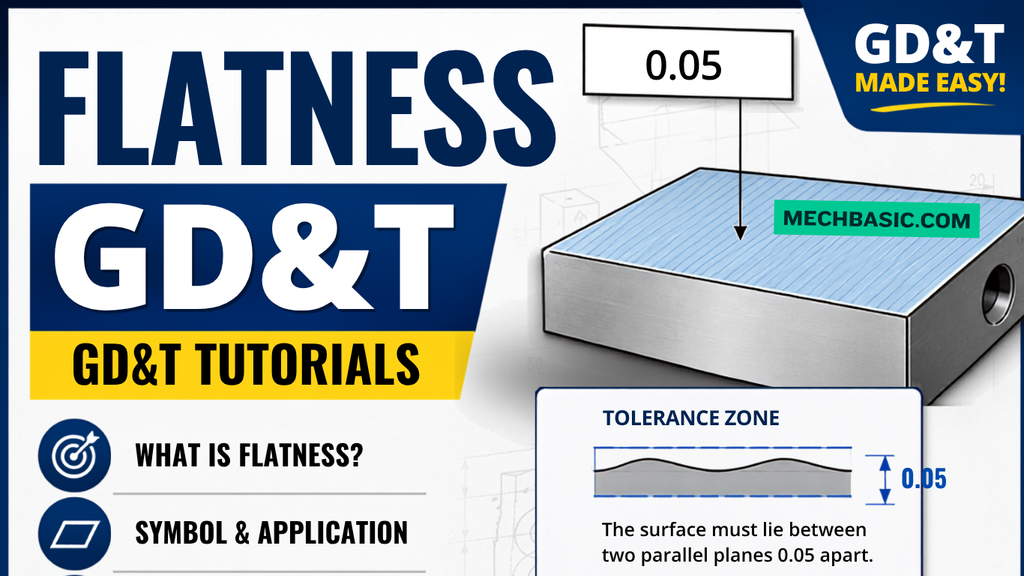
Flatness-GD&T | GD&T Tutorials

ANSI vs ISO Standards-Key Differences you need to know
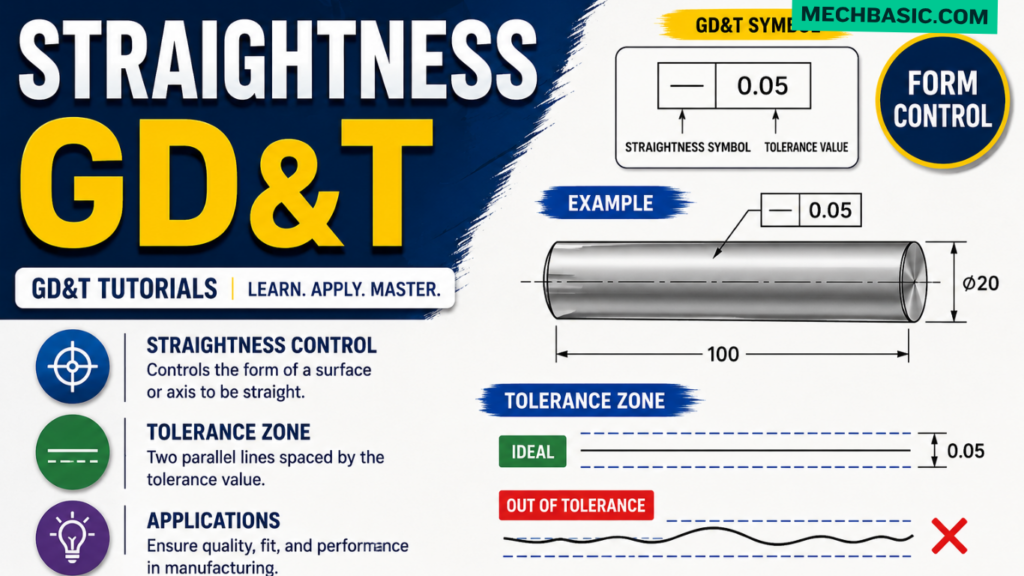
Straightness-GD&T | GD&T Tutorials
Categories: