Key Takeaways:
Best Ways to Import Excel Data into AutoCAD
The best method depends on whether you want to import data as a table or use Excel values to create CAD geometry.
1. Paste Excel Data as an AutoCAD Table
Best for BOMs, schedules, quantity tables, and design data.
Excel → Copy Cells → AutoCAD → Paste Special → AutoCAD Entities
Or use:
PASTESPEC → Paste Link
A linked table can update when the Excel data changes.
2. Use Data Links
For frequently updated Excel information:
Annotate → Tables → From Data Link
Then:
Create a New Excel Data Link → Select Excel File → Select Worksheet/Range → OK
This is one of the best options for maintaining a live connection between Excel and AutoCAD.
3. Import Excel Coordinates as CAD Points
If your Excel file contains coordinates such as:
| Point | X | Y | Z |
|---|---|---|---|
| P1 | 100 | 200 | 10 |
| P2 | 150 | 250 | 12 |
You can use the data to create points in AutoCAD. For larger surveying datasets, Civil 3D is generally a better choice.
4. Use Excel + AutoCAD Scripts
For repetitive tasks, Excel can generate AutoCAD commands or script/LISP input.
Example:
Excel Coordinates → Generate CAD Commands → Run Script → Create Geometry
This is useful for hundreds or thousands of points, circles, lines, or blocks.
Which Method Should You Use?
| Requirement | Best Method |
|---|---|
| Excel table in drawing | Paste Special |
| Automatically update Excel data | Data Link |
| Coordinates/Survey data | Points / Civil 3D |
| Thousands of repetitive objects | Excel + Script/LISP |
| BOM or parts list | Data Link |
| One-time simple data | Copy & Paste |
Key Takeaway
Excel → Data Link → AutoCAD Table
for normal engineering documentation.
Excel → Coordinates → Civil 3D Points
for surveying and site work.
Excel → Script/LISP → AutoCAD Geometry
for repetitive automation.
In this article:
- Best Ways to Import Excel Data in AutoCAD
- 1. Paste Excel Data as an AutoCAD Table
- 2. Use Data Links
- 3. Import Excel Coordinates as CAD Points
- 4. Use Excel + AutoCAD Scripts
- Excel to AutoCAD: Choosing the Right Method
- Which Method Should You Use?
- Advantages of Excel + AutoCAD Integration
- Frequently Asked Questions (FAQs)
- Conclusion
Best Ways to Import Excel Data in AutoCAD
Importing Excel data into AutoCAD is a common requirement for engineers, architects, surveyors, designers, and CAD professionals. Excel is often used to organize coordinates, dimensions, quantities, schedules, equipment information, and other engineering data, while AutoCAD is used to create accurate drawings and technical documentation.
There are several ways to transfer Excel data into AutoCAD. The best method depends on the type of information you are working with and whether you need a simple one-time transfer or a dynamic connection between Excel and AutoCAD.
Common methods include:
- Paste Excel Data as an AutoCAD Table
- Use Data Links
- Import Excel Coordinates as CAD Points
- Use Excel + AutoCAD Scripts
1. Paste Excel Data as an AutoCAD Table
One of the simplest methods is to copy data directly from Excel and paste it into AutoCAD as a table.
This method is particularly useful when the Excel data is mainly text and numerical information rather than coordinate data.
Typical Applications
- Equipment schedules
- Material lists
- Room schedules
- Quantity tables
- Part lists
- Design calculations
- Project information
How to Paste Excel Data
Step 1: Open the Excel spreadsheet.
Select the cells containing the required data.
Step 2: Copy the selected cells using:
Ctrl + C
Step 3: Open your AutoCAD drawing.
Step 4: Use the AutoCAD Paste or Paste Special options.
Depending on the required workflow, the Excel content can be inserted as an AutoCAD table or other supported object.
Step 5: Position the table in the required location.
Advantages
- Very easy to use
- Fast for small datasets
- Requires little setup
- Useful for documentation
- Good for one-time transfers
Limitations
- Not ideal for thousands of records
- Manual updates may be required
- Not the best method for coordinate data
- Formatting may require adjustment
Best For
Small tables and one-time Excel-to-AutoCAD transfers
2. Use Data Links
Data Links provide a more powerful way to connect Excel data with an AutoCAD table.
Instead of simply copying the data, a data link can maintain a relationship between the AutoCAD table and the external spreadsheet.
This is useful when Excel contains information that changes regularly.
Typical Applications
- Equipment schedules
- Bill of materials
- Project schedules
- Quantity information
- Component lists
- Engineering documentation
How to Create a Data Link
Step 1: Open the AutoCAD drawing.
Step 2: Use the DATALINK command.
Step 3: Create a new data link.
Step 4: Select the Excel file.
Step 5: Select the required worksheet or cell range.
Step 6: Configure the required data and formatting options.
Step 7: Insert the linked Excel data as an AutoCAD table.
The resulting table can be updated when the source Excel data changes.
Advantages
- Maintains a connection with Excel
- Useful for frequently changing data
- Reduces repetitive data entry
- Suitable for engineering schedules
- Helps maintain consistency between Excel and CAD documentation
Limitations
- Requires more setup than simple copy and paste
- External file relationships must be managed carefully
- Not the ideal solution for creating thousands of CAD points
Best For
Excel tables that need to remain connected to AutoCAD
3. Import Excel Coordinates as CAD Points
If your Excel spreadsheet contains X, Y, and possibly Z coordinates, a different approach is required.
This is common in:
- Land surveying
- Civil engineering
- Topographic mapping
- Site development
- GIS-related workflows
- Construction surveying
- Infrastructure projects
For example, Excel data might look like:
| Point | X | Y | Z |
|---|---|---|---|
| P001 | 1000.25 | 2000.50 | 25.40 |
| P002 | 1015.75 | 2010.25 | 26.10 |
| P003 | 1030.50 | 2025.80 | 27.20 |
The coordinate data can be converted into a format that AutoCAD can use to create points.
Basic Workflow
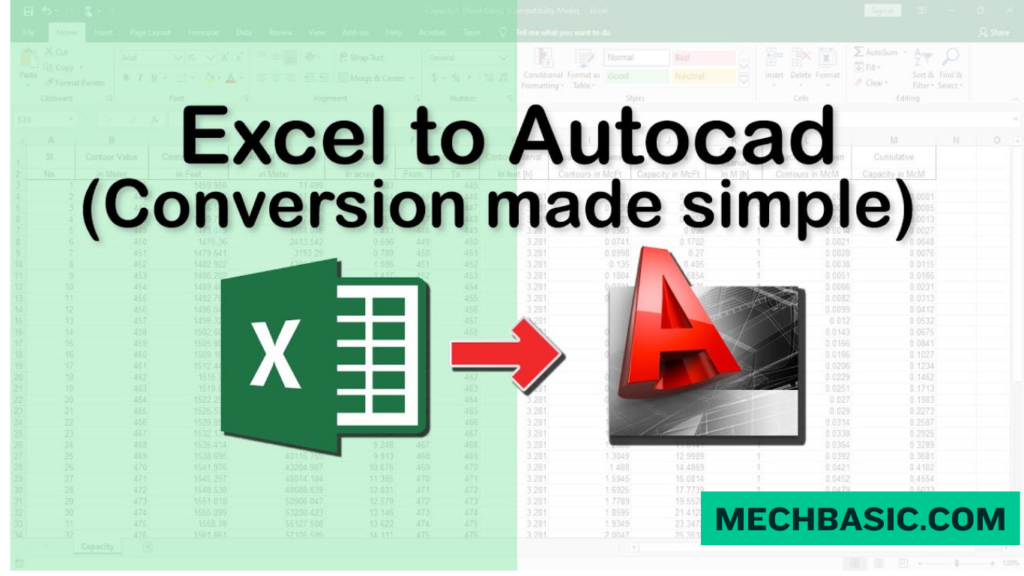
Excel Coordinates → Format Data → Create Point Commands → AutoCAD
For example, coordinate information can be transformed into AutoCAD command sequences.
A typical point command can use coordinates such as:
X,Y,Z
The resulting commands can then be executed in AutoCAD.
Typical Applications
- Survey points
- Property boundaries
- GPS coordinates
- Topographic points
- Utility locations
- Structural coordinates
- Equipment locations
Advantages
- Very useful for survey data
- Can handle large coordinate datasets
- Faster than manually creating points
- Suitable for repetitive coordinate-based work
- Can support X, Y, and Z information
Limitations
- Data must be formatted correctly
- Coordinate order must be checked carefully
- Units and coordinate systems must be verified
- Incorrect data can create points in the wrong location
Best For
Survey and coordinate-based Excel data
4. Use Excel + AutoCAD Scripts
For large or repetitive datasets, combining Excel with AutoCAD scripts can provide a highly efficient workflow.
Excel can be used to generate AutoCAD commands automatically.
For example, if Excel contains hundreds of coordinates, formulas can generate command strings for each row.
A simplified workflow is:
Excel Data → Excel Formula → AutoCAD Commands → Script File → AutoCAD
Example Workflow
Suppose Excel contains:
| Point | X | Y |
|---|---|---|
| P1 | 100 | 200 |
| P2 | 150 | 250 |
| P3 | 200 | 300 |
Excel can be used to generate a sequence of AutoCAD commands based on these values.
The resulting script can then be executed in AutoCAD.
Typical Applications
- Hundreds or thousands of points
- Repetitive geometry
- Coordinate plotting
- Automated labeling
- Repetitive CAD commands
- Large engineering datasets
Advantages
- Highly efficient for large datasets
- Reduces manual CAD operations
- Automates repetitive tasks
- Can process many records quickly
- Useful for advanced CAD workflows
Limitations
- Requires knowledge of AutoCAD commands
- Excel formulas may need careful construction
- Errors in generated commands can affect the drawing
- Requires testing before processing large datasets
Best For
Large datasets and repetitive CAD operations
Excel to AutoCAD: Choosing the Right Method
The correct method depends mainly on the type and size of your Excel data.
| Excel Data | Recommended Method |
|---|---|
| Small table | Copy/Paste as AutoCAD Table |
| Engineering schedule | Data Link |
| Equipment list | Data Link |
| Survey coordinates | Import Coordinates |
| GPS points | Import Coordinates |
| Hundreds of points | Excel + Script |
| Thousands of points | Excel + Script |
| Frequently changing table | Data Link |
| One-time data transfer | Copy/Paste |
Which Method Should You Use?
Use Paste Excel Data as an AutoCAD Table If:
- Your dataset is small.
- You only need a one-time transfer.
- The information is primarily tabular.
- You do not need automatic updates.
Best choice for: Simple tables and documentation.
Use Data Links If:
- Your Excel file changes frequently.
- The AutoCAD table should reflect Excel data.
- You are working with schedules or lists.
- Maintaining data consistency is important.
Best choice for: Connected Excel-to-AutoCAD tables.
Use Coordinate Import If:
- Your Excel file contains X, Y, or Z coordinates.
- You are working with survey data.
- You need to create CAD points.
- You are working on site or infrastructure drawings.
Best choice for: Survey and coordinate data.
Use Excel + AutoCAD Scripts If:
- You have hundreds or thousands of records.
- The task is repetitive.
- You need automation.
- You want to reduce manual CAD operations.
Best choice for: Large datasets and automation.
Advantages of Excel + AutoCAD Integration
Using Excel together with AutoCAD provides several benefits.
1. Faster Data Entry
Large amounts of information can be prepared in Excel and transferred to AutoCAD.
2. Better Data Organization
Excel provides powerful tools for sorting, filtering, calculating, and organizing data.
3. Reduced Manual Work
Automation can significantly reduce repetitive CAD operations.
4. Improved Accuracy
Data can be calculated and checked in Excel before being transferred to the drawing.
5. Easier Updates
Data Links allow certain AutoCAD tables to remain connected to their Excel source.
6. Supports Large Datasets
Excel can efficiently manage large amounts of structured data that would be inconvenient to enter manually in AutoCAD.
Common Excel-to-AutoCAD Applications
Excel and AutoCAD are commonly combined for:
- Land surveying
- Civil engineering
- Architectural documentation
- Equipment schedules
- Bill of materials
- Quantity calculations
- Coordinate plotting
- Site layouts
- Utility mapping
- Engineering documentation
- Construction drawings
- Automated CAD generation
Summary Table
| Method | Difficulty | Best Application | Automation |
|---|---|---|---|
| Paste as Table | Easy | Small tables | Low |
| Data Links | Moderate | Linked schedules | Medium |
| Coordinate Import | Moderate | Survey/CAD points | Medium |
| Excel + Scripts | Advanced | Large datasets | High |
Frequently Asked Questions (FAQs)
1. What is the easiest way to import Excel data into AutoCAD?
For simple tabular information, copying the Excel data and inserting it as an AutoCAD table is generally the easiest method.
2. Can Excel data be linked to AutoCAD?
Yes. AutoCAD Data Links can connect an AutoCAD table to an Excel spreadsheet, allowing the data to be updated when the source spreadsheet changes.
3. Can I import Excel coordinates into AutoCAD?
Yes. X, Y, and Z coordinate data from Excel can be formatted and used to create CAD points or other geometry.
4. What is the best method for thousands of Excel coordinates?
For large coordinate datasets, an automated workflow using Excel formulas and AutoCAD scripts can be much faster than manually entering the coordinates.
5. Can Excel automatically create AutoCAD commands?
Yes. Excel formulas can be used to generate text strings containing AutoCAD commands, which can then be processed as a script.
6. Which method is best for survey data?
For survey coordinates, use a coordinate-import workflow. For very large datasets, Excel combined with scripting or dedicated surveying/Civil 3D workflows can provide greater efficiency.
7. Should I use Data Links for coordinates?
Data Links are primarily useful for linking tabular information. They are generally not the first choice when the primary goal is to generate large numbers of CAD points from coordinates.
Conclusion
For simple tables, paste Excel data as an AutoCAD table. For information that changes regularly, use Data Links. For survey and coordinate information, import Excel coordinates as CAD points. For large and repetitive datasets, Excel combined with AutoCAD scripts provides a powerful automation workflow.
Quick Recommendation
- Small table → Paste as AutoCAD Table
- Frequently updated table → Data Links
- Survey coordinates → Import Coordinates
- Large/repetitive data → Excel + AutoCAD Scripts
Understanding these four methods can help CAD professionals choose the right Excel-to-AutoCAD workflow, reduce manual data entry, improve accuracy, and significantly increase drafting productivity.
Latest articles:

Best Budget Workstation Laptops for SolidWorks and Heavy 3D Assembly Modeling
Best Budget Workstation Laptops for SolidWorks and Heavy 3D Assembly Modeling Overview What Does SOLIDWORKS…

SolidWorks Standard vs Professional vs Premium: Full Feature Comparison
SolidWorks Standard vs Professional vs Premium: Full Feature Comparison Overview: SOLIDWORKS Package Overview SOLIDWORKS comes…

SolidWorks 2026 License Cost: Perpetual vs Subscription Pricing Breakdown
SolidWorks 2026 License Cost: Perpetual vs Subscription Pricing Breakdown Overview: SOLIDWORKS 2026 License Options SOLIDWORKS…
Flatness-GD&T | GD&T Tutorials

ANSI vs ISO Standards-Key Differences you need to know
Straightness-GD&T | GD&T Tutorials
Categories: