key Takeaways:
SOLIDWORKS: Part CommandManager Greyed Out
If the Part CommandManager is greyed out or most of the Part features are unavailable, the most common reason is that you are not in an editable Part document or SOLIDWORKS is waiting for an active command/sketch.
Common Causes & Solutions
1. You are in an Assembly or Drawing
- Check the document type.
- Part features such as Extruded Boss/Base, Cut-Extrude, Fillet, and Chamfer are primarily available in a Part (.SLDPRT) document.
- Open or create a Part: File → New → Part.
2. A Sketch is not active
- Select a plane or planar face.
- Click Sketch to enter Sketch mode.
- After creating the sketch, exit it and the Features commands should become available.
3. The Part is Read-Only
- Check whether the file is marked Read-Only.
- If using SOLIDWORKS PDM, you may need to Check Out the file before editing.
4. The Model is in Editing/Viewing Mode
- Press Esc a few times to cancel any active command.
- Make sure you are not editing a component, sketch, or another feature.
5. CommandManager Tabs Are Hidden
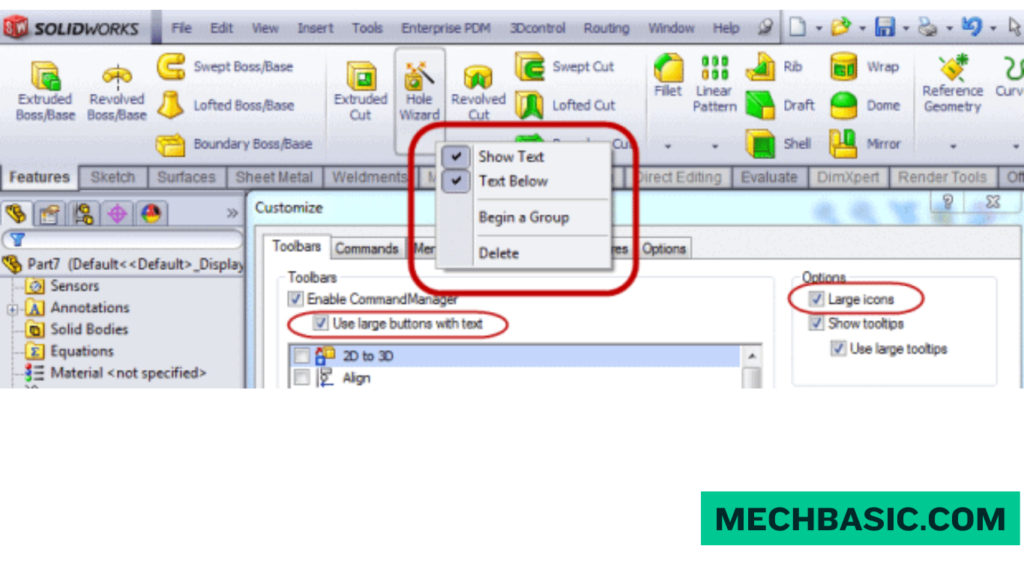
Right-click an empty area of the CommandManager and make sure Features, Sketch, and other required tabs are enabled.
6. SOLIDWORKS Is in Large Design Review / Viewing Mode
Some editing commands are unavailable in lightweight or review-only modes. Open the model in the normal editing mode.
Quick Fix
Try this sequence:
File → New → Part → Select Plane → Sketch → Draw Profile → Exit Sketch → Features → Extruded Boss/Base
If Features is still greyed out, check whether the file is read-only, PDM-locked, or opened in a review/viewing mode.
Key Takeaway
Part document → Editable → Active Sketch/Face → Normal Mode → Features available.
In this article:
- SOLIDWORKS Part CommandManager Greyed Out
- Common Causes & Solutions
- 1. No Part Document Is Open
- 2. You Are in the Wrong Document Type
- 3. The CommandManager Tab Is Hidden
- 4. You Are Editing a Sketch
- 5. You Are Editing Another Feature
- 6. No Sketch or Suitable Geometry Is Selected
- 7. The CommandManager Layout Has Changed
- 8. SOLIDWORKS Is in a Temporary Editing State
- 9. The Part Is Read-Only
- 10. SOLIDWORKS Has Encountered a Temporary UI Problem
- 1. No Part Document Is Open
- Quick Fix
- Quick Troubleshooting Table
- Best Quick Fix
SOLIDWORKS Part CommandManager Greyed Out
When the SOLIDWORKS Part CommandManager appears greyed out or its commands are unavailable, the cause is usually related to the active document, editing mode, CommandManager tabs, or software state.
Common Causes & Solutions
1. No Part Document Is Open
Many SOLIDWORKS part-modeling commands are available only when a Part document is active.
Solution
Go to:
File → New → Part
or press:
Ctrl + N
and select Part.
Then check whether commands such as:
- Sketch
- Extruded Boss/Base
- Extruded Cut
- Fillet
- Chamfer
are available.
2. You Are in the Wrong Document Type
If you are currently working in an Assembly or Drawing, part-specific commands may not be available.
Solution
Open or create a Part document:
File → New → Part
For an assembly, you can also edit a component directly by selecting the part and choosing Edit Part.
3. The CommandManager Tab Is Hidden
Sometimes the CommandManager itself or a specific tab has been disabled.
Solution
Right-click an empty area of the CommandManager.
Make sure:
CommandManager
is enabled.
Then check the available tabs, such as:
- Features
- Sketch
- Evaluate
- Sheet Metal
- Weldments
4. You Are Editing a Sketch
When you are inside Edit Sketch, many 3D part commands may appear unavailable.
Solution
Exit the sketch:
Exit Sketch
or click the Exit Sketch button.
Then return to the Features tab.
You should be able to access commands such as:
- Extruded Boss/Base
- Revolved Boss/Base
- Cut-Extrude
- Fillet
- Chamfer
5. You Are Editing Another Feature
SOLIDWORKS can temporarily restrict commands while you are editing a feature.
Solution
Finish or cancel the current operation.
Click:
✔ OK
or
✖ Cancel
Then check the CommandManager again.
6. No Sketch or Suitable Geometry Is Selected
Some commands require specific geometry before they become available.
For example, Extruded Boss/Base normally requires a suitable sketch or profile.
Solution
Create or select the required geometry first.
Example:
Sketch
↓
Select Plane
↓
Create Profile
↓
Exit Sketch
↓
Extruded Boss/Base
7. The CommandManager Layout Has Changed
The CommandManager can sometimes be customized accidentally.
Solution
Right-click the CommandManager and check the displayed tabs.
You can also restore the interface using the SOLIDWORKS customization options if the toolbar configuration has become corrupted or heavily customized.
8. SOLIDWORKS Is in a Temporary Editing State
Commands may become unavailable while SOLIDWORKS is:
- Rebuilding the model
- Editing a component
- Editing a sketch
- Editing a feature
- Showing a PropertyManager
- Performing another command
Solution
Finish the active command and allow the model to rebuild.
You can also press:
Esc
to cancel an active operation.
9. The Part Is Read-Only
A read-only file can restrict certain editing operations.
Solution
Check the file status and make sure you have permission to modify it.
If necessary:
File → Save As
and save a writable copy.
10. SOLIDWORKS Has Encountered a Temporary UI Problem
Occasionally, the CommandManager may stop responding correctly because of a temporary software or graphics/UI issue.
Solution
Try:
- Save your work.
- Close the document.
- Restart SOLIDWORKS.
- Reopen the Part file.
If the problem continues, check for available SOLIDWORKS updates/service packs and verify your graphics driver against SOLIDWORKS-supported hardware.
Quick Fix
If your SOLIDWORKS Part CommandManager is greyed out, try these steps in order:
Step 1
Make sure a Part document is open.
Step 2
Press Esc to exit any active command.
Step 3
If you are editing a sketch, click Exit Sketch.
Step 4
If you are editing a feature, click OK or Cancel.
Step 5
Right-click the CommandManager and make sure CommandManager is enabled.
Step 6
Select the Features tab.
Step 7
Select a sketch or appropriate geometry and test Extruded Boss/Base.
Step 8
If it is still greyed out, save your work and restart SOLIDWORKS.
Quick Troubleshooting Table
| Problem | Quick Solution |
|---|---|
| No document open | Create/open a Part |
| Assembly open | Open a Part or use Edit Part |
| Drawing open | Switch to a Part |
| Editing sketch | Exit Sketch |
| Editing feature | Finish/cancel feature |
| CommandManager hidden | Right-click → enable CommandManager |
| Wrong tab | Select Features |
| No suitable geometry | Create/select required sketch |
| Read-only file | Save a writable copy |
| Temporary UI issue | Restart SOLIDWORKS |
Best Quick Fix
For most cases:
Press Esc → Exit Sketch/Feature → Select the Part → Click Features → Select a sketch → Try Extruded Boss/Base.
If that doesn’t work, restart SOLIDWORKS and check whether the file is read-only or whether the CommandManager has been hidden/customized.
GoEngineer: Fixing Grayed-Out CommandManager & Inactive Modules: Walkthrough explaining how inactive licensing modules or add-ins cause toolbar icons to appear dimmed and unusable.
Latest articles:

Best Budget Workstation Laptops for SolidWorks and Heavy 3D Assembly Modeling
Best Budget Workstation Laptops for SolidWorks and Heavy 3D Assembly Modeling Overview What Does SOLIDWORKS…

SolidWorks Standard vs Professional vs Premium: Full Feature Comparison
SolidWorks Standard vs Professional vs Premium: Full Feature Comparison Overview: SOLIDWORKS Package Overview SOLIDWORKS comes…

SolidWorks 2026 License Cost: Perpetual vs Subscription Pricing Breakdown
SolidWorks 2026 License Cost: Perpetual vs Subscription Pricing Breakdown Overview: SOLIDWORKS 2026 License Options SOLIDWORKS…
Flatness-GD&T | GD&T Tutorials

ANSI vs ISO Standards-Key Differences you need to know
Straightness-GD&T | GD&T Tutorials
Related Tags:
Categories: