Key Takeaways:
How to Transfer Layouts to Another Drawing in AutoCAD
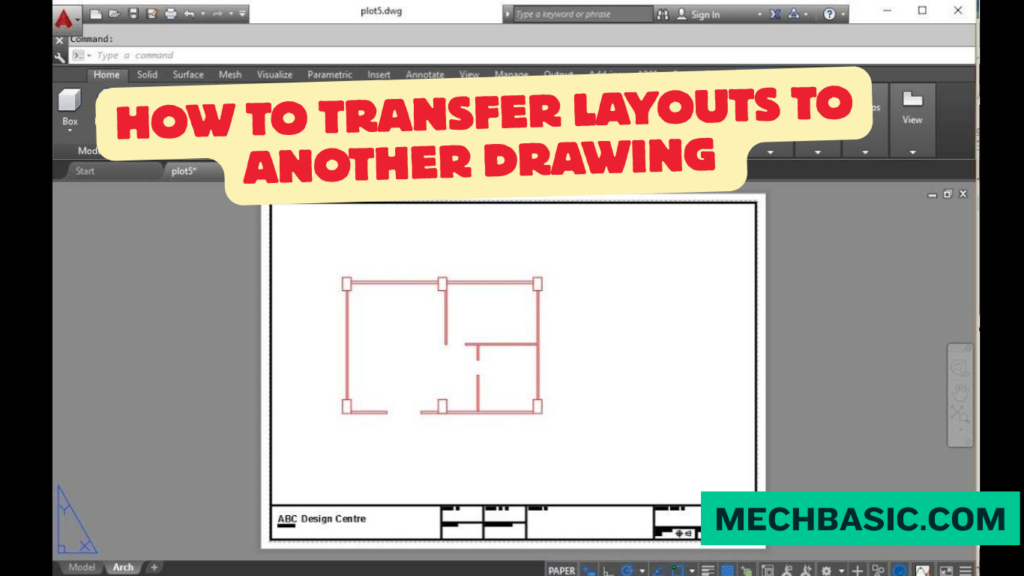
You can transfer a Layout (paper space) from one AutoCAD drawing to another without recreating it.
Method 1: Move or Copy Layout
- Open the source drawing and the destination drawing.
- In the source drawing, right-click the Layout tab you want to transfer.
- Select Move or Copy.
- In To drawing, select the destination drawing.
- Select the layout position.
- Check Create a copy if you want to keep the original layout.
- Click OK.
Method 2: Import a Layout from a Template
If your layout contains a standard title block, viewport, page setup, and plotting settings:
- Right-click a Layout tab.
- Select From Template…
- Choose a
.DWTfile. - Select the required layout.
- Click Open.
Method 3: Use the LAYOUT Command
Type:
LAYOUT → Copy
Then select the layout and specify the destination/name as prompted.
What Gets Transferred?
A copied layout can include:
- Title block
- Viewports
- Page setup
- Plot settings
- Paper size
- Layout-specific objects
- Layer viewport settings
Key Takeaway
Right-click Layout → Move or Copy → Select Destination Drawing → Create a Copy → OK
For a standard company drawing layout, saving it as a DWT template is usually the best approach because you can reuse the same layout across multiple drawings.
In this article:
- How to Transfer Layouts to Another Drawing in AutoCAD
- Method 1: Move or Copy Layout
- Method 2: Import a Layout from a Template
- Method 3: Use the LAYOUT Command
- What Gets Transferred?
- Layout Transfer vs Copying the Entire Drawing
- Best Method to Use
- Tips for Transferring Layouts
- Frequently Asked Questions (FAQs)
- Conclusion
How to Transfer Layouts to Another Drawing in AutoCAD
In AutoCAD, Layouts are used to prepare drawings for plotting and printing. A layout can contain paper size, title blocks, viewports, annotations, and page setup settings.
When working on multiple drawings, you may want to transfer an existing layout to another DWG file instead of creating the same layout from scratch.
AutoCAD provides several ways to do this, including Move or Copy, importing from a template, and using the LAYOUT command.
Autodesk Support: How to Import a Layout from One Drawing to Another: Official documentation detailing the standard methods to import layouts with viewports, title blocks, and page setups using the From Template dialog and DesignCente
Method 1: Move or Copy Layout
The easiest method is to copy a layout directly from one drawing to another.
Step 1: Open Both Drawings
Open:
- The source drawing containing the layout
- The destination drawing where you want to transfer it
Step 2: Right-Click the Layout Tab
At the bottom of the AutoCAD window, locate the layout you want to transfer.
For example:
Layout1
Right-click the layout tab.
Step 3: Select Move or Copy
Choose:
Move or Copy…
The Move or Copy dialog box will appear.
Step 4: Select the Destination Drawing
In the dialog box, select the destination drawing from the available drawing list.
Step 5: Choose the Position
Select where you want the copied layout to appear in the destination drawing.
Step 6: Create a Copy
Make sure:
Create a copy
is selected.
Then click:
OK
The layout will be copied into the destination drawing.
Important
If you do not select Create a copy, AutoCAD may move the layout rather than copy it.
For transferring a layout while keeping the original intact, always use:
Create a copy
Method 2: Import a Layout from a Template
You can also transfer a layout from a Drawing Template (.DWT).
This method is useful when your company or project uses standardized layouts.
Step 1: Right-Click a Layout Tab
In the destination drawing, right-click an existing layout tab.
Step 2: Select From Template
Choose:
From Template…
Step 3: Select the Template File
Browse to your:
.DWT
file.
Select the template containing the required layout.
Step 4: Select the Layout
If the template contains multiple layouts, AutoCAD will display them.
Select the layout you want to import.
Step 5: Click OK
AutoCAD creates the selected layout in your current drawing.
Why Use a Template?
Templates are particularly useful for maintaining consistent CAD standards.
A company template can contain:
- Standard title blocks
- Paper sizes
- Page setups
- Plot settings
- Layers
- Text styles
- Dimension styles
- Standard layouts
This allows multiple drawings to use the same documentation format.
Method 3: Use the LAYOUT Command
The LAYOUT command provides another way to manage and create layouts.
Step 1: Type LAYOUT
Enter:
LAYOUT
in the command line and press Enter.
Step 2: Choose the Template Option
Depending on the AutoCAD version and available options, use the appropriate Template option to create a layout from a drawing template.
Step 3: Select the Template
Choose the required .DWT file.
Step 4: Select the Layout
Choose the layout you want to import from the template.
Step 5: Confirm
AutoCAD adds the selected layout to the current drawing.
What Gets Transferred?
When you transfer a layout, AutoCAD can transfer important paper-space layout settings and objects, depending on the method and source.
Commonly transferred elements include:
1. Layout Settings
- Paper size
- Orientation
- Plot area
- Plot scale
- Plot style settings
- Printer/plotter settings
2. Paper-Space Objects
Objects located in paper space can be transferred, such as:
- Title blocks
- Borders
- Notes
- Labels
- Symbols
- Paper-space dimensions
3. Viewports
Layout viewports can also be transferred.
Their:
- Position
- Size
- Scale
- View orientation
can be retained.
4. Layout Name
The layout itself is added to the destination drawing, although you may need to rename it if a layout with the same name already exists.
Layout Transfer vs Copying the Entire Drawing
These are different operations.
Copy Layout
Transfers the paper-space setup and layout objects.
Copy Entire Drawing
Transfers the entire DWG, including:
- Model Space
- Layouts
- Layers
- Blocks
- Styles
- Other drawing data
If you only need the printing/documentation setup, transferring the layout is usually more appropriate.
Best Method to Use
| Method | Best For |
|---|---|
| Move or Copy | Quickly transferring a layout between open DWGs |
| From Template | Standardized company/project layouts |
| LAYOUT command | Creating layouts from templates |
| Copy Entire Drawing | When you need the complete drawing environment |
Tips for Transferring Layouts
1. Check the Viewport
After transferring the layout, double-check the viewport.
Make sure it displays the correct model-space geometry.
2. Check the Scale
Verify the viewport scale, such as:
- 1:1
- 1:2
- 1:50
- 1:100
- 1:200
3. Check the Page Setup
Confirm:
- Paper size
- Printer/plotter
- Orientation
- Plot scale
- Plot style
4. Check the Title Block
Make sure project information such as:
- Drawing number
- Project name
- Client
- Revision
- Date
has been updated.
5. Check External References
If the layout contains Xrefs, verify that the destination drawing can access the required referenced files.
Frequently Asked Questions (FAQs)
1. Can I copy a layout from one AutoCAD drawing to another?
Yes. Right-click the layout tab and use Move or Copy, then select the destination drawing and Create a copy.
2. Can I transfer a layout without copying the Model Space?
Yes. A layout can be transferred independently. The model-space geometry from the source drawing does not automatically come with it.
3. Can I copy a layout from a template?
Yes. Right-click a layout tab and select From Template, then select the required .DWT file and layout.
4. What happens to the viewport when I copy a layout?
The viewport can be transferred with the layout, including its paper-space position and settings. However, its displayed model-space content depends on the destination drawing.
5. Can I transfer a title block?
Yes. If the title block is part of the paper-space layout, it can be transferred along with the layout.
6. Which method is best for company standards?
Using a DWT template is generally the best approach when you need consistent layouts, title blocks, page setups, and drafting standards across many drawings.
Conclusion
Transferring layouts between AutoCAD drawings can save considerable drafting and documentation time.
Quick Workflow
For an existing DWG:
Right-Click Layout → Move or Copy → Select Destination Drawing → Create a Copy → OK
For a Standard Template:
Right-Click Layout → From Template → Select DWT → Select Layout → OK
A transferred layout mainly carries the paper-space environment, viewports, title blocks, and plotting/page setup information. It does not automatically transfer the source drawing’s Model Space geometry.
For repeated projects, maintaining a well-designed DWT template is usually the most efficient way to standardize AutoCAD layouts.
Latest articles:

Best Budget Workstation Laptops for SolidWorks and Heavy 3D Assembly Modeling
Best Budget Workstation Laptops for SolidWorks and Heavy 3D Assembly Modeling Overview What Does SOLIDWORKS…

SolidWorks Standard vs Professional vs Premium: Full Feature Comparison
SolidWorks Standard vs Professional vs Premium: Full Feature Comparison Overview: SOLIDWORKS Package Overview SOLIDWORKS comes…

SolidWorks 2026 License Cost: Perpetual vs Subscription Pricing Breakdown
SolidWorks 2026 License Cost: Perpetual vs Subscription Pricing Breakdown Overview: SOLIDWORKS 2026 License Options SOLIDWORKS…
Flatness-GD&T | GD&T Tutorials

ANSI vs ISO Standards-Key Differences you need to know
Straightness-GD&T | GD&T Tutorials
Categories: