Key Takeaways:
How to Change Units in SOLIDWORKS
Method 1: Change Units from the Status Bar ⭐ (Fastest)
- Open your Part, Assembly, or Drawing.
- Go to the bottom-right corner of the SOLIDWORKS window.
- Click the Unit System (e.g., MMGS, IPS, or MKS).
- Select the required unit system.
Method 2: Change Units Through Document Properties
- Go to Tools → Options.
- Select the Document Properties tab.
- Click Units.
- Choose the desired unit system and click OK.
Common Unit Systems
| Unit System | Use |
|---|---|
| MMGS | Millimeter, Gram, Second (Mechanical Engineering) |
| MKS | Meter, Kilogram, Second |
| CGS | Centimeter, Gram, Second |
| IPS | Inch, Pound, Second |
Set Units as Default
To use the same units for every new file:
- Set your preferred units.
- Save the file as a Part, Assembly, or Drawing Template (
.prtdot,.asmdot,.drwdot).
Key Takeaway
Status Bar → Unit System → Select Units ⭐
or
Tools → Options → Document Properties → Units → Apply
In this article:
How to Change Units in SOLIDWORKS
Changing units in SOLIDWORKS allows you to work in millimeters, centimeters, meters, inches, feet, or other supported unit systems. You can change units temporarily for a document or set them through the document properties for more control.
1. Change Units from the Status Bar
The quickest way to change units is through the status bar at the bottom of the SOLIDWORKS window.
Steps
- Open your SOLIDWORKS Part, Assembly, or Drawing.
- Look at the bottom-right corner of the SOLIDWORKS window.
- Find the current unit display, such as:
- MMGS
- IPS
- CGS
- MKS
- Click the unit display.
- Select the required unit system.
For example:
MMGS → IPS
changes the document from a metric millimeter/gram/second system to an inch/pound/second system.
Quick Method
Bottom-right Unit Display → Select Unit System
This is the fastest method when you simply want to switch the active document’s units.
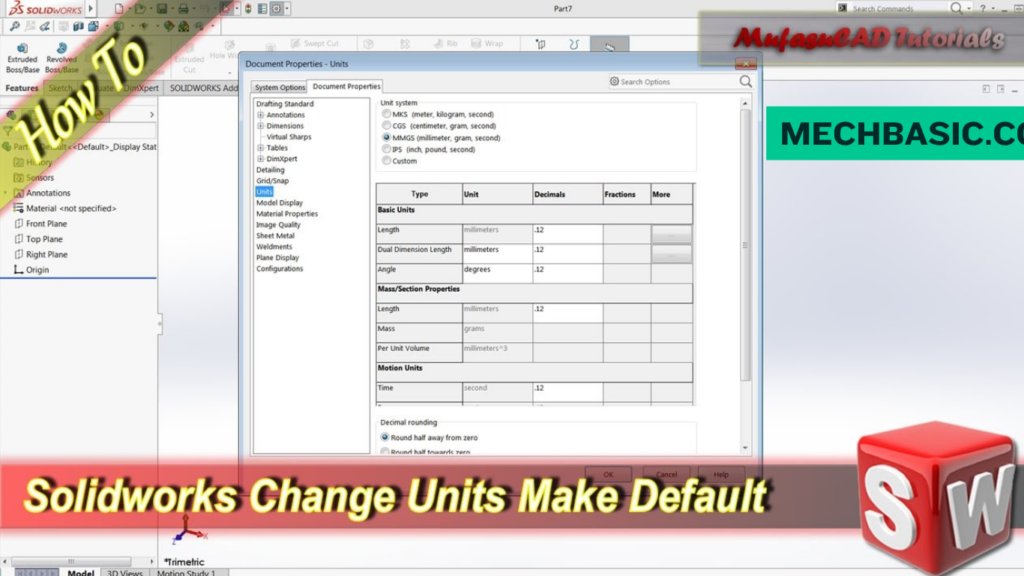
2. Change Units Through Document Properties
For more detailed control, use Document Properties.
Steps
- Open your SOLIDWORKS document.
- Go to:
Tools → Options
- Select the Document Properties tab.
- Select Units.
- Choose the desired unit system.
Common options include:
- MMGS
- CGS
- MKS
- IPS
- Custom
Custom Units
You can also select Custom when you want to control individual units.
For example:
- Length → mm
- Mass → kg
- Time → seconds
- Angle → degrees
Then click:
OK
The document will use the selected settings.
3. Common Unit Systems
SOLIDWORKS provides several commonly used unit systems.
| Unit System | Length | Mass | Common Use |
|---|---|---|---|
| MMGS | mm | g | Mechanical design |
| MKS | m | kg | SI engineering |
| CGS | cm | g | Scientific applications |
| IPS | inch | pound | US customary engineering |
| Custom | User-defined | User-defined | Specialized projects |
Most Common for Mechanical CAD
MMGS is widely used for mechanical design, especially when dimensions are specified in millimeters.
For example:
50 mm × 30 mm × 20 mm
4. Set Units as Default
If you frequently create new SOLIDWORKS parts, you can save your preferred units in a template.
This is better than changing the units manually every time you create a new file.
Steps
- Create a new Part document.
- Set the required units, such as MMGS.
- Configure any other document settings you want.
- Go to:
File → Save As
- Choose the appropriate SOLIDWORKS template format.
- Save the template.
- Use this template when creating future parts.
You can similarly create templates for:
- Parts
- Assemblies
- Drawings
Example
Create:
Mechanical Part Template → MMGS
Then every new part created from that template starts with your preferred unit system.
Which Unit System Should You Use?
Mechanical Engineering
MMGS
is usually a good choice when working with metric mechanical components.
US-Based Manufacturing
IPS
is commonly used when drawings and manufacturing specifications are in inches.
Scientific/SI Work
MKS
may be appropriate for applications using meters and kilograms.
Specialized Projects
Use Custom Units when different quantities require specific unit conventions.
Quick Reference
Fastest Way
Bottom-right Unit Display → Select MMGS / IPS / MKS / CGS
Detailed Way
Tools → Options → Document Properties → Units
Set as Default
Set units → Save as Part/Assembly/Drawing Template
Conclusion
Changing units in SOLIDWORKS is simple:
Quick Change
→ Status Bar → Unit System
Detailed Settings
→ Tools → Options → Document Properties → Units
Default Units
→ Set your preferred units → Save as a Template
For most metric mechanical-design work, MMGS is a practical choice. If you’re working with inch-based engineering drawings, IPS is generally more appropriate.
SOLIDWORKS Design Help: Document Properties – Units: Official Dassault Systèmes documentation detailing unit system choices (MMGS, IPS, MKS, CGS), custom unit creation, and precision decimal control.
Latest articles:

Best Budget Workstation Laptops for SolidWorks and Heavy 3D Assembly Modeling
Best Budget Workstation Laptops for SolidWorks and Heavy 3D Assembly Modeling Overview What Does SOLIDWORKS…

SolidWorks Standard vs Professional vs Premium: Full Feature Comparison
SolidWorks Standard vs Professional vs Premium: Full Feature Comparison Overview: SOLIDWORKS Package Overview SOLIDWORKS comes…
SolidWorks 2026 License Cost: Perpetual vs Subscription Pricing Breakdown
SolidWorks 2026 License Cost: Perpetual vs Subscription Pricing Breakdown Overview: SOLIDWORKS 2026 License Options SOLIDWORKS…
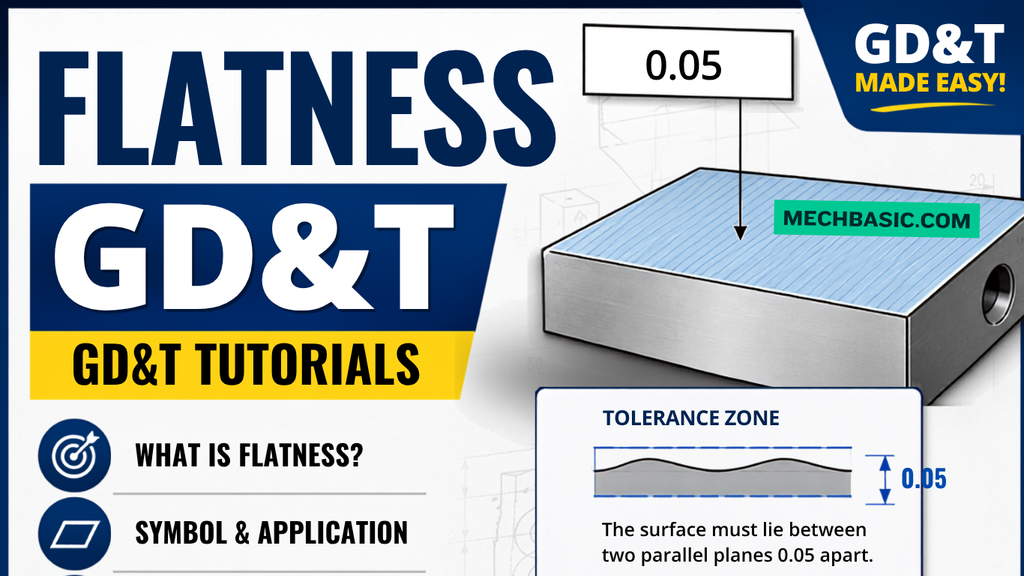
Flatness-GD&T | GD&T Tutorials

ANSI vs ISO Standards-Key Differences you need to know
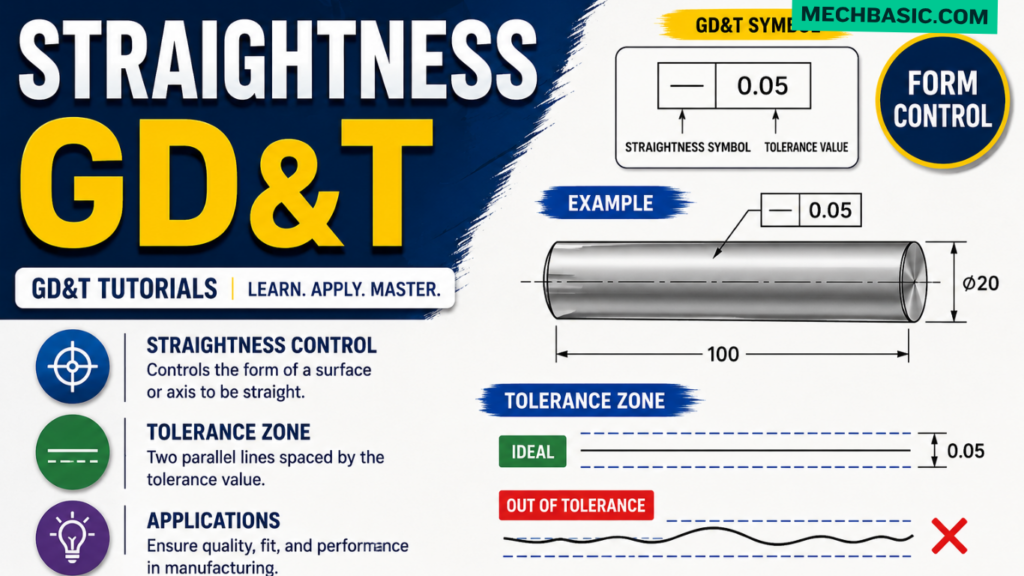
Straightness-GD&T | GD&T Tutorials
Related Tags:
Categories: