SOLIDWORKS System Requirements
Operating System
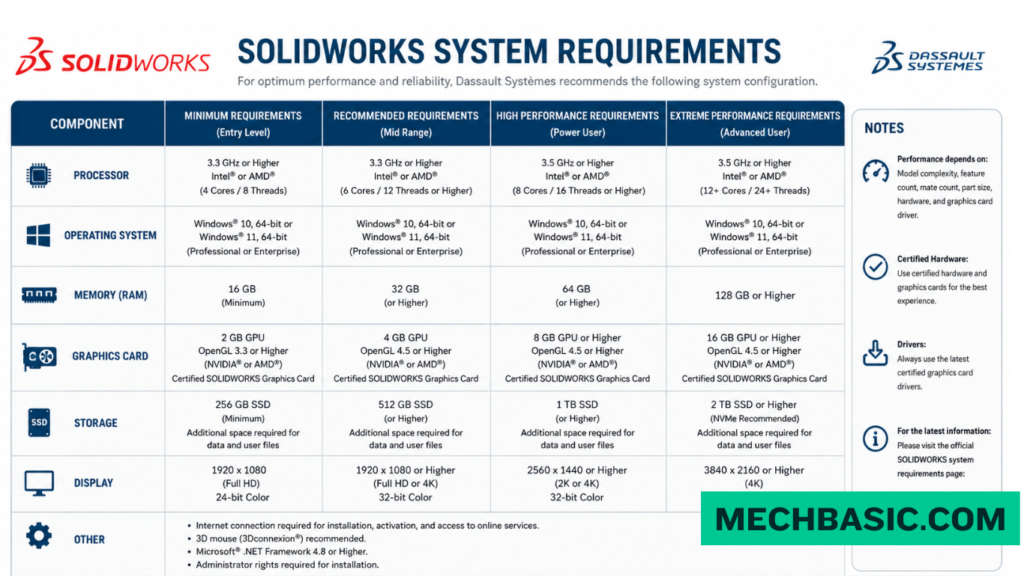
SOLIDWORKS is primarily designed to run on Windows 10 and Windows 11 64-bit. macOS does not have native support for the full SOLIDWORKS desktop application.
Processor (CPU)
A modern 64-bit Intel or AMD processor with good single-core performance is recommended. Higher-performance CPUs are beneficial for large assemblies and complex simulations.
RAM
- Minimum: 16 GB
- Recommended: 32 GB or more for large assemblies, simulation, and professional use.
Graphics Card (GPU)
Use a SOLIDWORKS-certified professional graphics card for the best stability and performance. Dedicated GPUs are strongly recommended for 3D modeling and large assemblies.
Storage
An SSD is recommended for faster application startup, file opening, rebuilding, and saving. Keep sufficient free space for models, assemblies, simulations, and temporary files.
Internet Connection
An internet connection may be required for installation, activation, licensing, updates, and some cloud-connected SOLIDWORKS services.
Recommended Engineering PC
Windows 11 64-bit → Modern Intel/AMD CPU → 32 GB RAM → Certified GPU → 512 GB–1 TB SSD
Key Takeaway
For basic CAD: 16 GB RAM + SSD + dedicated GPU
For professional CAD: 32 GB+ RAM + certified GPU + powerful CPU + NVMe SSD
For large assemblies/FEA: 32–64 GB+ RAM + high-performance CPU/GPU
For the exact current certified GPU, driver, CPU, and OS compatibility list, check the official SOLIDWORKS System Requirements page, because supported hardware and Windows versions can change between releases.
In this article:
- SOLIDWORKS System Requirements
- 1. Operating System
- 2. Processor (CPU)
- 3. RAM
- 4. Graphics Card (GPU)
- 5. Storage
- 6. Internet Connection
- 7. Recommended Engineering PC
- SOLIDWORKS PC Requirements by User
- Laptop vs. Desktop for SOLIDWORKS
- Recommended Engineering PC
- Most Important Hardware for SOLIDWORKS
- Frequently Asked Questions (FAQs)
- Conclusion
SOLIDWORKS System Requirements
Before installing SOLIDWORKS, it is important to make sure your computer meets the required hardware and software specifications. SOLIDWORKS performance depends heavily on the CPU, RAM, graphics card, storage, and the complexity of your models and assemblies.
A computer that works well for simple parts may struggle with large assemblies, complex surfaces, simulation, rendering, or detailed drawings.
SOLIDWORKS System Requirements: Official compatibility charts for Windows operating systems, Microsoft SQL Server, Office, virtual environments, and minimum hardware specifications.
1. Operating System
For current SOLIDWORKS releases, Windows 11 64-bit is the safest choice for a new engineering workstation, provided your specific SOLIDWORKS version supports it.
Recommended
- Windows 11 64-bit
- Professional/business editions are often preferable in managed engineering environments.
Important
SOLIDWORKS support varies by version and service pack, so always check the official system requirements for the exact release you plan to install.
2. Processor (CPU)
The CPU has a major influence on many SOLIDWORKS operations, particularly:
- Sketch solving
- Feature rebuilds
- Part modeling
- Assembly operations
- Drawing updates
Recommended
For a new engineering PC, look for a modern:
- Intel Core i7 / Core Ultra 7 or higher
- AMD Ryzen 7 or higher
For demanding professional workloads:
- Intel Core i9 / Core Ultra 9
- AMD Ryzen 9
What Matters Most?
SOLIDWORKS does not simply become faster because a CPU has more cores. Many everyday modeling operations benefit strongly from high single-core performance and high clock speed.
Recommendation
For general mechanical CAD:
Modern high-performance CPU + strong single-core performance
is usually more useful than buying an extremely high-core-count processor solely for SOLIDWORKS modeling.
3. RAM
RAM becomes increasingly important as assemblies and models become larger.
Minimum for Learning
16 GB RAM
Suitable for:
- Students
- Basic parts
- Small assemblies
- Learning SOLIDWORKS
Recommended
32 GB RAM
Good for:
- Mechanical design
- Medium assemblies
- Engineering drawings
- Sheet metal
- General professional use
Heavy SOLIDWORKS Work
64 GB RAM or more
Recommended when working with:
- Large assemblies
- Complex models
- Simulation
- Rendering
- Multiple engineering applications simultaneously
RAM Recommendation
| Workload | RAM |
|---|---|
| Basic learning | 16 GB |
| Mechanical design | 32 GB |
| Professional/large assemblies | 64 GB |
| Very demanding workflows | 64–128 GB+ |
4. Graphics Card (GPU)
The GPU is responsible for much of the 3D viewport and graphics display performance.
For professional SOLIDWORKS work, a supported workstation-class GPU is generally preferable.
Recommended
Look for supported professional graphics cards such as:
- NVIDIA RTX professional/workstation GPUs
- AMD Radeon Pro GPUs
The exact supported models depend on the SOLIDWORKS release.
Why a Certified GPU?
A supported/certified graphics card can provide:
- Better graphics stability
- Better viewport performance
- Professional driver support
- Improved compatibility with SOLIDWORKS features
Check the official hardware certification list before purchasing.
Important
Don’t choose a GPU based only on its gaming benchmark score. SOLIDWORKS-certified hardware and drivers are more relevant for professional CAD work.
5. Storage
SOLIDWORKS itself does not require an enormous amount of storage, but CAD projects, simulation files, libraries, and installation files can consume significant space.
Recommended
1 TB NVMe SSD
This provides a good balance for most engineering users.
Heavy Professional Work
Consider:
2 TB NVMe SSD
if you maintain:
- Large CAD libraries
- Multiple projects
- Simulation results
- Rendering files
- CAM data
- Engineering documentation
Why SSD?
An NVMe SSD provides much faster:
- Windows startup
- SOLIDWORKS startup
- File opening
- File saving
- Project loading
than a traditional HDD.
Recommended Storage
Primary Drive:
1–2 TB NVMe SSD
Backup:
Separate SSD/HDD, NAS, server, or approved cloud/PDM storage.
6. Internet Connection
An internet connection may be required for:
- Downloading SOLIDWORKS
- Activating/licensing certain installations
- Installing updates
- Accessing online services
- Downloading documentation and resources
Recommended
A stable broadband connection is sufficient for normal installation and online services.
Important
Internet speed is generally not the main factor affecting day-to-day SOLIDWORKS modeling performance. Your CPU, RAM, GPU, and storage have a much greater impact on local CAD performance.
7. Recommended Engineering PC
For a student or professional mechanical engineer buying a new PC, a strong general-purpose configuration would be:
Recommended Specification
Operating System
→ Windows 11 64-bit
CPU
→ Intel Core Ultra 7 / Core i7-class or AMD Ryzen 7-class modern processor
RAM
→ 32 GB
GPU
→ Supported/certified professional workstation GPU
Storage
→ 1 TB NVMe SSD
Display
→ 24–27 inch Full HD or QHD monitor
Internet
→ Reliable broadband connection
Ideal Professional Configuration
For heavier workloads:
Windows 11 64-bit
High-performance Core Ultra 9 / Core i9 or Ryzen 9-class CPU
64 GB RAM
Professional workstation GPU
2 TB NVMe SSD
This provides considerably more headroom for large assemblies, simulation, rendering, and multitasking.
SOLIDWORKS PC Requirements by User
| User | CPU | RAM | GPU | Storage |
|---|---|---|---|---|
| Beginner/Student | Modern Core i5/Ryzen 5-class | 16 GB | Supported GPU | 512 GB SSD |
| Mechanical Designer | Core i7/Core Ultra 7/Ryzen 7-class | 32 GB | Professional GPU | 1 TB NVMe |
| Professional Engineer | High-performance i7/i9/Core Ultra/Ryzen 7/9-class | 32–64 GB | Certified workstation GPU | 1–2 TB NVMe |
| Heavy Assembly/Simulation | High-performance i9/Core Ultra 9/Ryzen 9-class | 64 GB+ | Higher-end workstation GPU | 2 TB+ NVMe |
These are practical buying guidelines, not official minimum requirements.
Laptop vs. Desktop for SOLIDWORKS
SOLIDWORKS Laptop
A laptop is useful if you need:
- College work
- Travel
- Site visits
- Portable CAD
- Remote engineering work
Recommended Laptop
CPU: Core Ultra 7 / Ryzen 7-class or better
RAM: 32 GB
GPU: Professional or supported discrete GPU
Storage: 1 TB NVMe SSD
Display: 15–16 inch QHD or similar
SOLIDWORKS Desktop
A desktop is generally preferable for demanding professional work because it offers:
- Better cooling
- Higher sustained performance
- More RAM capacity
- More powerful GPU options
- Easier upgrades
- Better performance per dollar
For a fixed engineering workstation:
Desktop > Laptop
when maximum performance and upgradeability are priorities.
Recommended Engineering PC
If you want one balanced specification for SOLIDWORKS, AutoCAD, engineering drawings, assemblies, and general mechanical design, I would target:
Engineering CAD PC
OS: Windows 11 64-bit
CPU: Intel Core Ultra 7 / AMD Ryzen 7-class or better
RAM: 32 GB
GPU: SOLIDWORKS-certified professional GPU
Storage: 1 TB NVMe SSD
Monitor: 27-inch QHD
Backup: External/NAS/cloud/PDM backup
For Heavy Engineering
Upgrade to:
64 GB RAM + 2 TB NVMe + higher-end workstation GPU + Core Ultra 9/Ryzen 9-class CPU
Most Important Hardware for SOLIDWORKS
If your budget is limited, prioritize your money roughly in this order:
1. CPU
Important for modeling and rebuild performance.
2. RAM
32 GB is a very useful target for professional work.
3. GPU
Choose a supported/certified GPU appropriate to your assembly size.
4. NVMe SSD
A major improvement over HDD for system and project responsiveness.
5. Monitor
A larger QHD display can significantly improve CAD productivity.
Frequently Asked Questions (FAQs)
1. How much RAM do I need for SOLIDWORKS?
16 GB is reasonable for learning, while 32 GB is a strong recommendation for general professional mechanical design. Consider 64 GB or more for large assemblies and demanding simulation workloads.
2. Is a dedicated graphics card required?
For serious 3D SOLIDWORKS work, a dedicated GPU is strongly recommended. Professional users should consider SOLIDWORKS-certified workstation graphics hardware.
3. Is 512 GB SSD enough?
It can be enough for a student, but 1 TB NVMe SSD is a better general recommendation because CAD projects and engineering software can quickly consume storage.
4. Is an i5 enough for SOLIDWORKS?
A modern i5/Core 5-class processor can be sufficient for learning and smaller models. For professional mechanical design, a higher-performance Core Ultra 7/i7 or Ryzen 7-class CPU provides more headroom.
5. Is 16 GB RAM enough?
Yes for basic learning and smaller projects. For professional use, 32 GB is the better target.
6. Do I need a workstation GPU?
Not necessarily for learning. For professional engineering, however, a SOLIDWORKS-certified workstation GPU is preferable for compatibility, stability, and supported features.
Conclusion
A good SOLIDWORKS computer does not need to be the most expensive PC available. The key is to balance CPU performance, RAM, certified graphics hardware, and fast NVMe storage.
Best General Recommendation
- Windows 11 64-bit
- Modern Core Ultra 7 / Ryzen 7-class CPU
- 32 GB RAM
- SOLIDWORKS-certified professional GPU
- 1 TB NVMe SSD
- 27-inch QHD monitor
For large assemblies, simulation, rendering, and advanced engineering work, move toward 64 GB RAM, a higher-end CPU/GPU, and 2 TB NVMe storage.
Always check the official SOLIDWORKS system requirements and hardware certification list for the exact version you intend to install, because supported operating systems and hardware can change between releases.
Latest articles:

Best Budget Workstation Laptops for SolidWorks and Heavy 3D Assembly Modeling
Best Budget Workstation Laptops for SolidWorks and Heavy 3D Assembly Modeling Overview What Does SOLIDWORKS…
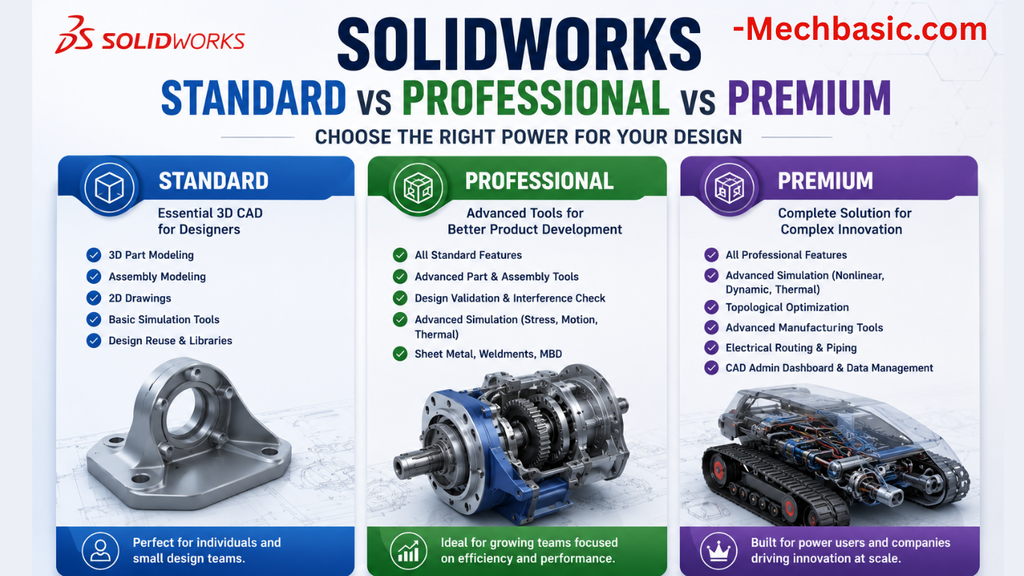
SolidWorks Standard vs Professional vs Premium: Full Feature Comparison
SolidWorks Standard vs Professional vs Premium: Full Feature Comparison Overview: SOLIDWORKS Package Overview SOLIDWORKS comes…
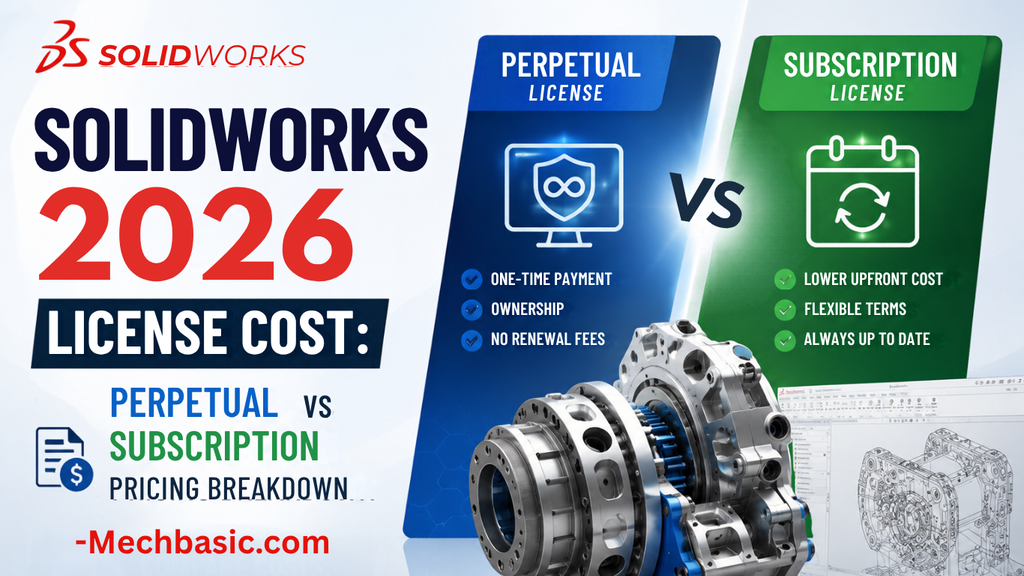
SolidWorks 2026 License Cost: Perpetual vs Subscription Pricing Breakdown
SolidWorks 2026 License Cost: Perpetual vs Subscription Pricing Breakdown Overview: SOLIDWORKS 2026 License Options SOLIDWORKS…
Flatness-GD&T | GD&T Tutorials

ANSI vs ISO Standards-Key Differences you need to know
Straightness-GD&T | GD&T Tutorials
Related Tags:
Categories: