Key Takeaways:
CAD Sheet Switching Time:
CAD software should normally switch between drawing sheets or layouts in less than 1 second for small to medium drawings. For larger or more complex files, switching may take 1–3 seconds, while delays of more than 5 seconds usually indicate performance issues such as large file size, excessive viewports, or hardware limitations.
Causes of Slow Sheet Switching:
Slow sheet switching can be caused by large drawing files, multiple viewports, external references (Xrefs), high-resolution images, insufficient RAM, outdated graphics drivers, or slow storage devices.
How to Improve Performance:
Improve switching speed by cleaning the drawing using PURGE and AUDIT, reducing unnecessary viewports and Xrefs, using an SSD, updating graphics drivers, and ensuring the computer has adequate RAM and hardware resources.
In this article:
How Long should it take for CAD to switch sheets
In most modern CAD software (such as AutoCAD), switching between layout sheets should typically take:
- Instant to 1 second for normal drawings.
- 1–3 seconds for large or complex drawings.
- More than 5 seconds consistently is usually a sign of a performance issue (large Xrefs, heavy hatches, insufficient RAM, slow storage, graphics settings, etc.).
Causes of Slow Sheet Switching:
Slow sheet switching in CAD is usually caused by the program having to regenerate or reload information for each layout. Common causes include:
- Large drawing files – High object counts, dense hatch patterns, or complex geometry increase regeneration time.
- Many or complex viewports – Each layout viewport may need to recalculate and display the model. Multiple viewports or shaded/realistic visual styles are especially demanding.
- External references (Xrefs) – If the drawing references many external files, especially over a network, switching layouts can be delayed while they are checked or reloaded.
- High-resolution images or PDFs – Embedded raster images, PDF underlays, and point clouds require additional processing.
- Network storage – Opening files from a server, cloud sync folder, or VPN can slow access compared with a local SSD.
- Insufficient hardware resources
- Low RAM causing paging to disk.
- Older or slower CPU.
- Outdated or unsupported graphics card.
- Slow HDD instead of an SSD.
- Graphics driver issues – Outdated or incompatible GPU drivers can reduce display performance.
- Layout regeneration settings – Some CAD settings force layouts to regenerate every time you switch tabs.
- Background processes – Antivirus scans, cloud synchronization, or background plotting can consume CPU, memory, or disk resources.
- Corrupt or bloated drawings – Excessive unused layers, blocks, scales, or database errors can slow performance.
How to Improve Performance:
1. Optimize the Drawing
- Run AUDIT to repair drawing errors.
- Run PURGE to remove unused layers, blocks, linetypes, and styles.
- Use -PURGE to remove registered applications (RegApps) if the drawing has become bloated.
- Remove duplicate objects with OVERKILL (if available).
2. Reduce Viewport Complexity
- Minimize the number of viewports on each layout.
- Avoid unnecessary shaded or realistic viewports; use 2D Wireframe when possible.
- Freeze unnecessary layers in individual viewports.
3. Manage External References
- Keep Xrefs on a local SSD when possible.
- Detach or unload Xrefs that aren’t needed.
- Clean up missing or broken Xref paths.
4. Optimize Images and Underlays
- Reduce the size and resolution of attached images.
- Remove unused PDF underlays.
- Unload point clouds or large raster files when they’re not needed.
5. Improve Hardware Performance
- Use an SSD instead of a hard drive.
- Increase available RAM (16 GB minimum is common for larger drawings; 32 GB or more may help with very large projects).
- Keep your graphics driver up to date.
- Enable Hardware Acceleration if your CAD software supports it.
6. Adjust CAD Settings
- Turn off automatic regeneration where appropriate.
- Disable unnecessary visual effects (smooth line display, high-quality geometry, etc.).
- Limit background plotting if it impacts performance.
7. Close Background Applications
- Close web browsers, Teams, cloud sync tools, or other applications that consume RAM or CPU.
- Exclude project folders from real-time antivirus scanning if your IT policy allows.
8. Keep Files Local While Working
- Work from a local drive and copy files back to the server after editing, especially if your network is slow.
9. Split Very Large Projects
- Separate extremely large drawings into smaller files with Xrefs instead of keeping everything in one DWG.
10. Update Software
- Install the latest updates and service packs for your CAD application.
- Ensure Windows and graphics drivers are current.
Conclusion:
Improving CAD sheet-switching performance requires a combination of optimized drawings, efficient viewport and Xref management, appropriate software settings, and capable hardware. Regular maintenance tasks such as auditing and purging drawings, reducing unnecessary complexity, and keeping software and drivers up to date can significantly reduce layout switching times. By following these best practices, users can achieve smoother navigation between sheets, increase productivity, and minimize delays when working on large or complex CAD projects.
Latest articles:

SolidWorks 2026 License Cost: Perpetual vs Subscription Pricing Breakdown
SolidWorks 2026 License Cost: Perpetual vs Subscription Pricing Breakdown Overview: SOLIDWORKS 2026 License Options SOLIDWORKS…

Flatness-GD&T | GD&T Tutorials

ANSI vs ISO Standards-Key Differences you need to know
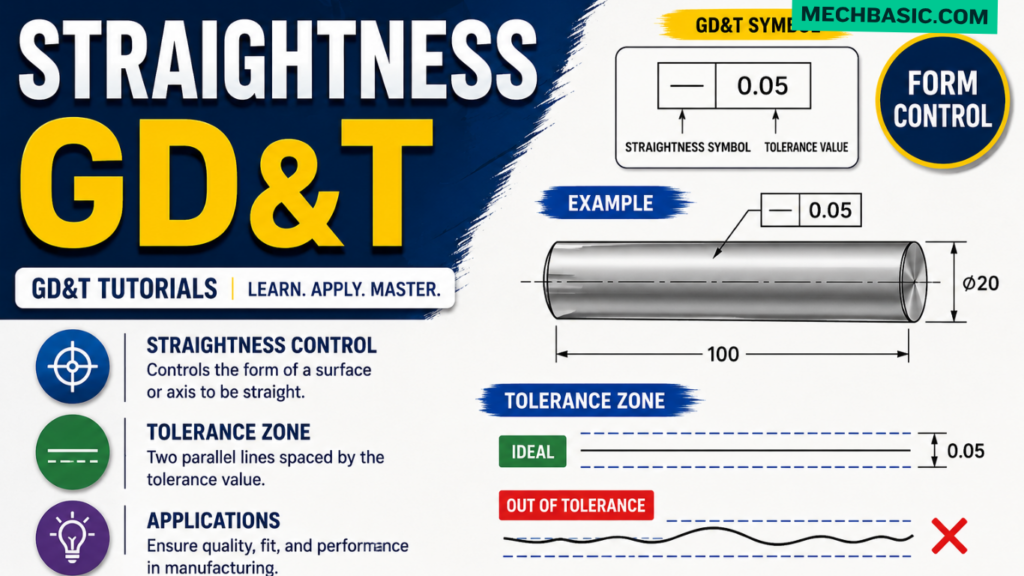
Straightness-GD&T | GD&T Tutorials
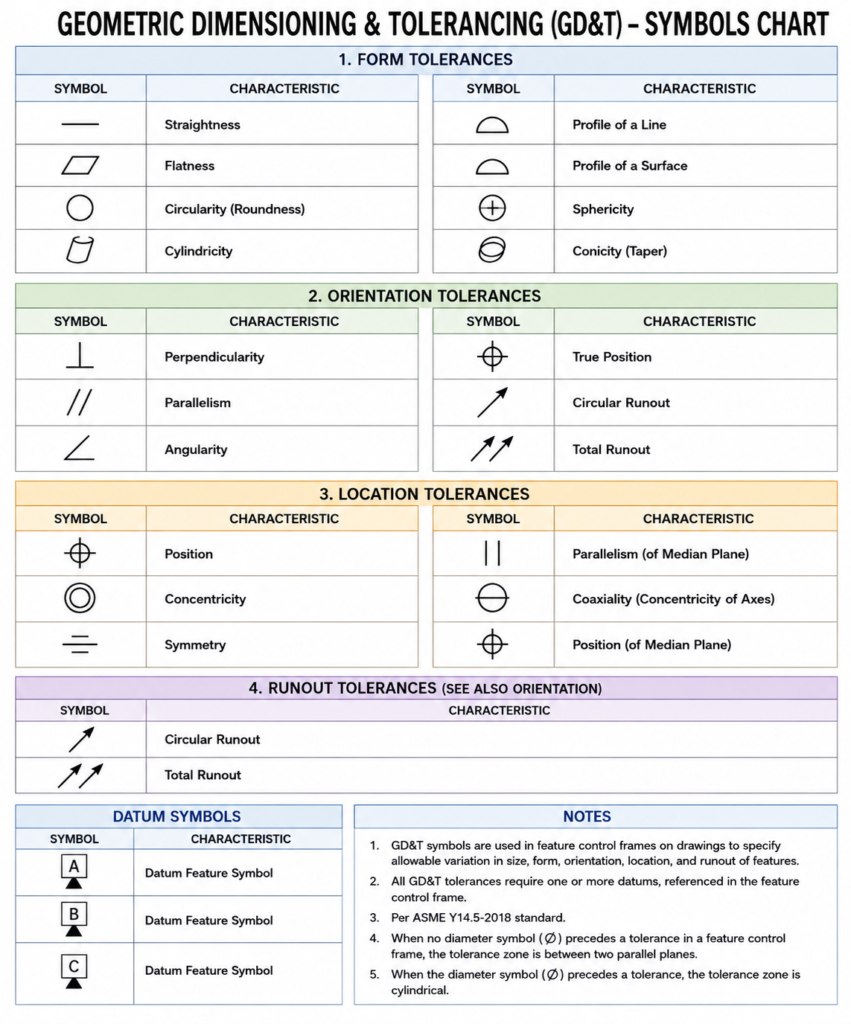
GD&T Symbols chart- Free download | GD&T
Geometric Dimensioning and Tolerancing (GD&T) is a standardized system used in engineering drawings to define…
GD&T Symbols, Basics and full form
Categories: