Key Takeaways:
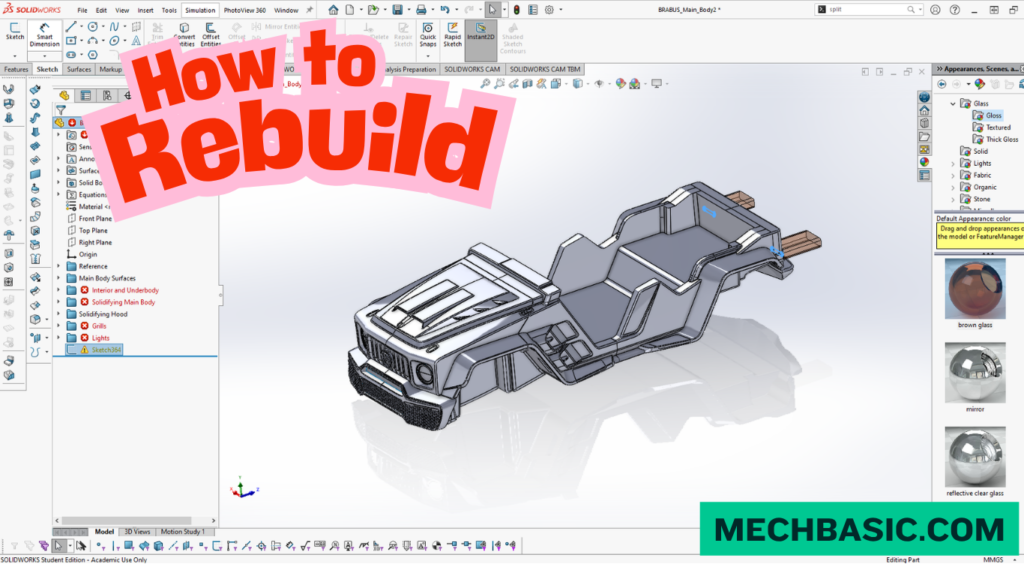
How to Rebuild Only Certain Things in SOLIDWORKS
SOLIDWORKS normally rebuilds the model from the feature tree, but you can control which features are rebuilt to improve performance and save time.
1. Force Rebuild
Use Ctrl + Q to perform a Force Rebuild, which rebuilds the entire model from the first feature to the last.
2. Regular Rebuild
Use Ctrl + B to rebuild only the features that SOLIDWORKS identifies as needing an update.
3. Roll Back the Feature Tree
Drag the rollback bar to a specific location in the FeatureManager Design Tree. This allows you to work on or modify only the features before that point.
4. Edit a Specific Feature
Right-click a feature and select Edit Feature or Edit Sketch. After making changes, SOLIDWORKS updates the affected downstream features.
5. Freeze Features
Use the Freeze Bar to prevent selected features from rebuilding. This is especially useful for large models with complex or time-consuming features.
6. Lightweight / Large Assembly Options
For assemblies, use Lightweight Components or Large Design Review to reduce unnecessary rebuilding and improve performance.
Key Takeaway
Ctrl + B → Normal Rebuild
Ctrl + Q → Force Rebuild
Rollback Bar → Work on selected feature range
Freeze Bar → Prevent features from rebuilding
In this article:
How to Rebuild Only Certain Things in SOLIDWORKS
SOLIDWORKS provides several ways to rebuild, update, or selectively process model features. This is especially useful when working with large parts, complex feature trees, or large assemblies, where rebuilding the entire model can take significant time.
SOLIDWORKS Help: Freezing Features: Official documentation on enabling, dragging, and managing the Freeze Bar in the FeatureManager tree.
1. Force Rebuild
A Force Rebuild recalculates the active model and its features, even when SOLIDWORKS does not think a rebuild is necessary.
Shortcut
Ctrl + Q
How to Use
- Open your Part or Assembly.
- Press Ctrl + Q.
- SOLIDWORKS rebuilds the model from the feature tree.
When to Use
Use Force Rebuild when:
- Changes don’t appear correctly.
- Features have outdated results.
- External references have changed.
- You suspect the model needs a complete recalculation.
- A normal rebuild doesn’t solve the problem.
Important
Ctrl + Q is not a “rebuild only this feature” command. It forces a broader rebuild of the model.
2. Regular Rebuild
A regular rebuild updates features that SOLIDWORKS determines need to be recalculated.
Shortcut
Ctrl + B
How to Use
Press:
Ctrl + B
SOLIDWORKS rebuilds the necessary features in the active document.
When to Use
Regular rebuild is useful after:
- Changing dimensions
- Editing sketches
- Modifying features
- Changing configurations
- Updating model references
Ctrl + B vs. Ctrl + Q
| Command | Shortcut | Purpose |
|---|---|---|
| Rebuild | Ctrl + B | Rebuilds features that need updating |
| Force Rebuild | Ctrl + Q | Forces a more complete rebuild |
Tip: Start with Ctrl + B. Use Ctrl + Q when the model still doesn’t update correctly.
3. Roll Back the Feature Tree
The Rollback Bar allows you to temporarily move backward through the FeatureManager Design Tree.
This is one of the best ways to work on only part of a model.
How It Works
Suppose your feature tree contains:
Sketch
↓
Extrude
↓
Fillet
↓
Hole
↓
Chamfer
If you roll the tree back before Hole, SOLIDWORKS temporarily suppresses the features below that point.
Steps
- Locate the Rollback Bar in the FeatureManager.
- Drag it upward to the desired location.
- Work on the earlier features.
- Move the Rollback Bar back to the bottom when finished.
Benefits
Rollback is useful for:
- Editing earlier features
- Troubleshooting feature failures
- Understanding model history
- Reducing the amount of active geometry
- Working with complex models
4. Edit a Specific Feature
If you only need to change one feature, you don’t normally need to rebuild everything manually.
Steps
- Find the feature in the FeatureManager Design Tree.
- Right-click it.
- Select:
Edit Feature
- Change the required parameters.
- Click OK.
SOLIDWORKS updates the affected model based on the change.
Example
Suppose you have:
Extrude → Fillet → Hole → Chamfer
If you change the Extrude depth from:
50 mm → 60 mm
SOLIDWORKS updates dependent features as necessary.
Tip
If you only want to modify a feature’s dimensions, Edit Feature is generally better than manually rebuilding the entire model.
5. Freeze Features
The Freeze bar can prevent selected features from being rebuilt.
This is particularly useful for large or complicated models.
What Does Feature Freeze Do?
When features above the Freeze bar are frozen, SOLIDWORKS does not normally rebuild those features when later changes are made.
This can significantly improve performance.
How to Enable It
Go to:
Tools → Options → System Options → General
and enable the Freeze bar option if it isn’t already available.
A yellow Freeze bar appears in the FeatureManager Design Tree.
Example
Imagine a part has:
50 complex features
You rarely change the first 30 features.
You can freeze those features and continue working on the later portion of the model.
Benefits
- Faster rebuilds
- Better performance
- Useful for complex parts
- Reduces unnecessary recalculation
Important
Use feature freeze carefully. If you later need to modify a frozen feature, you must unfreeze it first.
6. Lightweight / Large Assembly Options
For large assemblies, the biggest performance gains may come from controlling how components are loaded rather than rebuilding every component in full detail.
SOLIDWORKS provides assembly performance options such as:
- Lightweight components
- Large Design Review
- Large Assembly Settings
- Resolved components
- SpeedPak
Lightweight Components
A lightweight component loads only the information necessary for the current assembly operation rather than fully loading every component.
Benefits
- Faster assembly opening
- Lower memory usage
- Better performance with large assemblies
Example
An assembly contains:
500 components
Loading every component fully can take considerable time.
Using lightweight components can reduce the amount of data that SOLIDWORKS needs to process.
Large Design Review
Large Design Review (LDR) is designed for quickly opening and reviewing very large assemblies.
It is useful when you mainly need to:
- View the assembly
- Navigate
- Inspect components
- Review structure
- Measure
- Perform limited assembly operations
It is not intended to replace fully resolved assembly editing.
SpeedPak
SpeedPak creates a simplified representation of an assembly or subassembly.
It can be particularly useful when working with complex assemblies while still needing access to important geometry.
Which Method Should You Use?
| Situation | Best Method |
|---|---|
| Model isn’t updating | Ctrl + B |
| Force complete rebuild | Ctrl + Q |
| Work on earlier features | Rollback Bar |
| Change one feature | Edit Feature |
| Reduce part rebuild time | Freeze Features |
| Large assembly | Lightweight |
| Very large assembly review | Large Design Review |
| Complex subassembly | SpeedPak |
Quick Performance Strategy
For a large SOLIDWORKS model, use this order:
1. Edit only the feature you need
↓
2. Use Ctrl + B
↓
3. Use Ctrl + Q if the update is incorrect
↓
4. Roll back the tree for troubleshooting
↓
5. Freeze stable features
↓
6. Use Lightweight / SpeedPak / Large Design Review for large assemblies
This approach avoids unnecessary rebuilding and can make SOLIDWORKS much more responsive.
Important Difference
A common misconception is that SOLIDWORKS has a simple command such as “rebuild only this one feature.”
In practice, changing a feature can require dependent downstream features to update. SOLIDWORKS manages those dependencies automatically.
Therefore:
Edit Feature = change a specific feature
Rollback = temporarily work with only part of the feature history
Freeze = prevent selected earlier features from rebuilding
Ctrl + B = normal rebuild
Ctrl + Q = force rebuild
Lightweight/LDR/SpeedPak = improve large-assembly performance
Conclusion
If your goal is to rebuild only certain things in SOLIDWORKS, the most useful tools are Edit Feature, Rollback, and Freeze Features.
For everyday work:
Edit Feature → Ctrl + B
For troubleshooting:
Rollback → Edit → Test → Restore
For complex parts:
Freeze Features
For large assemblies:
Lightweight → SpeedPak → Large Design Review
And when the model appears out of date or incorrect:
Ctrl + Q → Force Rebuild.
Latest articles:

Best Budget Workstation Laptops for SolidWorks and Heavy 3D Assembly Modeling
Best Budget Workstation Laptops for SolidWorks and Heavy 3D Assembly Modeling Overview What Does SOLIDWORKS…
SolidWorks Standard vs Professional vs Premium: Full Feature Comparison
SolidWorks Standard vs Professional vs Premium: Full Feature Comparison Overview: SOLIDWORKS Package Overview SOLIDWORKS comes…
SolidWorks 2026 License Cost: Perpetual vs Subscription Pricing Breakdown
SolidWorks 2026 License Cost: Perpetual vs Subscription Pricing Breakdown Overview: SOLIDWORKS 2026 License Options SOLIDWORKS…
Flatness-GD&T | GD&T Tutorials

ANSI vs ISO Standards-Key Differences you need to know
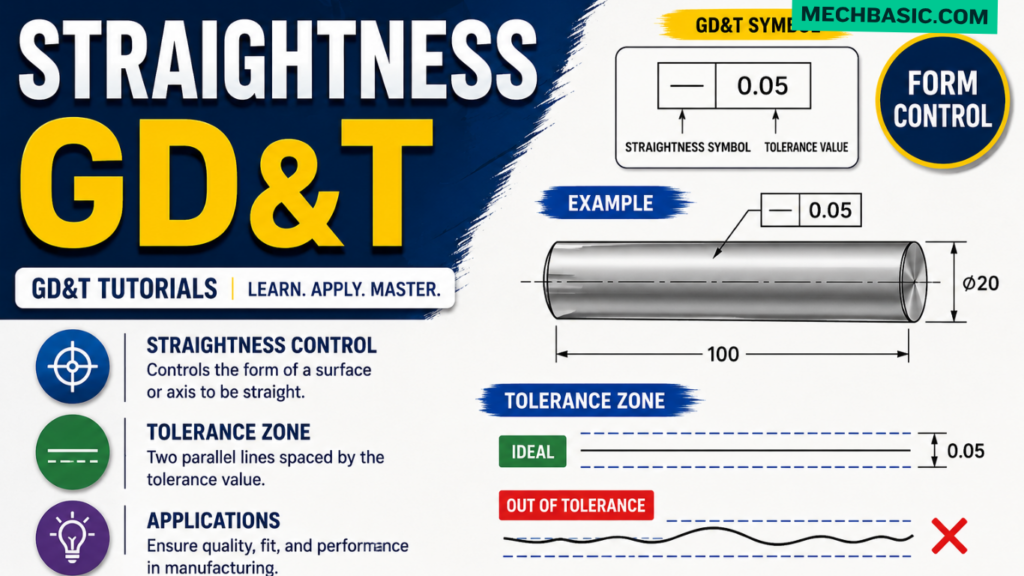
Straightness-GD&T | GD&T Tutorials
Related Tags:
Categories: