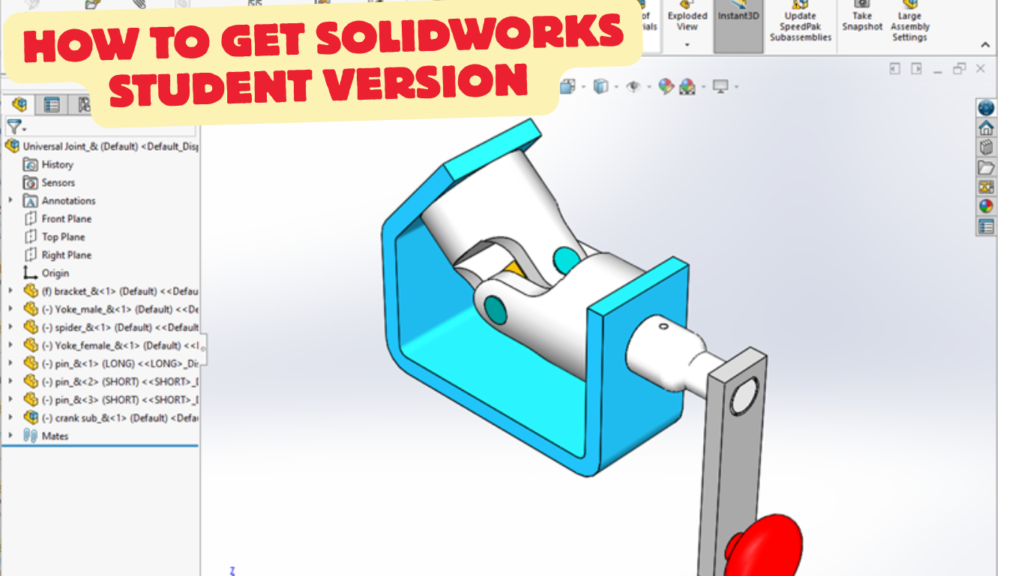
How to Get SOLIDWORKS Student Version
SOLIDWORKS currently offers a free student version in India. The free SOLIDWORKS Design Standard for Students is available to qualifying students and provides 1 year of access.
Steps to Get the Free Version
1. Go to the official SOLIDWORKS Student page
2. Click “Get started for FREE”
3. Complete the student sign-up form
- Enter your name and email.
- Enter your school/college/university information.
- Complete the student verification details.
4. Get your download information
After registration, SOLIDWORKS provides a download link and a unique serial number for installation.
5. Download and install SOLIDWORKS
Download the installer, run it on your Windows PC, and enter the provided serial number when requested.
6. Activate your license
Complete the activation during installation. The free student access is valid for 1 year; eligible students can sign up again when it expires.
What You Get
Free Design Standard:
✅ 3D CAD
✅ Part & assembly modeling
✅ Engineering drawings
✅ Sheet metal
✅ Weldments
✅ Local file storage
❌ SOLIDWORKS Simulation
❌ SOLIDWORKS CAM
❌ Visualize
The free version is intended for individual student use.
If Your College Has SOLIDWORKS
This is even better: if your college/university has a SOLIDWORKS EDU license, you may be able to get SOLIDWORKS Design Premium for Students at no extra cost, including Simulation, CAM, Visualize, and other tools. Ask your CAD instructor or department for a Student Access/home-use license.
Best Option for an Engineering Student
College license available? → Get Design Premium FREE through college
No college license? → Get Design Standard FREE
Need FEA/CAM? → Consider Design Premium for Students
In this article:
- How to Get SOLIDWORKS Student Version
- 1. Check Your Eligibility
- 2. Check Your School or University
- 3. Create a SOLIDWORKS Account
- 4. Obtain the Student License
- 5. Download SOLIDWORKS
- 6. Install SOLIDWORKS
- 7. Activate Your License
- 8. Verify the Installation
- 9. Set Up SOLIDWORKS for Learning
- 10. Start Learning SOLIDWORKS
- Student Version vs. Commercial SOLIDWORKS
- Frequently Asked Questions (FAQs)
How to Get SOLIDWORKS Student Version
SOLIDWORKS Student Edition is designed to help students learn 3D CAD modeling, mechanical design, assemblies, drawings, simulation, and product development in an educational environment.
The exact student offering, eligibility, and access method can vary depending on your school, university, or educational program.
SOLIDWORKS Student Edition Installation Instructions Guide: Official step-by-step PDF guide on system checks, downloading the installation manager, entering serial numbers, and activating free student exam vouchers (CSWA/CSWP).
1. Check Your Eligibility
Before getting SOLIDWORKS Student Edition, confirm that you are eligible.
You may qualify if you are:
- A student at a school, college, or university
- Enrolled in an engineering or design program
- Taking a CAD or mechanical-design course
- Participating in an educational program that provides SOLIDWORKS access
Some institutions provide SOLIDWORKS directly through their school or university license.
Important
A normal commercial SOLIDWORKS license and a student license are different. Student licenses are generally intended for learning and educational use, not commercial production work.
2. Check Your School or University
The first place to check is your educational institution.
Ask your:
- Engineering department
- CAD laboratory
- Mechanical engineering faculty
- IT department
- Computer laboratory administrator
Your institution may already provide SOLIDWORKS to students.
If your school provides access, you may receive:
- A serial number
- Installation instructions
- A SOLIDWORKS account invitation
- Access through a school portal
- Campus computer-lab access
This can be the easiest option because the institution manages the license.
3. Create a SOLIDWORKS Account
If your student program requires an online account, you may need to create or use a 3DEXPERIENCE/SOLIDWORKS account.
You may be asked for information such as:
- Name
- Email address
- Educational institution
- Student status
- License or access information
Use your school/university email address when your institution requires it.
4. Obtain the Student License
Student access can be provided through different educational programs.
Depending on the program, you may receive:
Student license/access information
↓
Account activation
↓
Software download
↓
Installation
↓
License activation
Always follow the licensing instructions associated with your specific student program.
5. Download SOLIDWORKS
Once your student access has been confirmed, download the appropriate software from the official SOLIDWORKS/3DEXPERIENCE student resources provided with your license.
Before Installing
Check:
- Operating system compatibility
- Available disk space
- RAM
- Graphics hardware
- Internet connection
- Required Microsoft components
- Your license/access information
6. Install SOLIDWORKS
After downloading the installation files:
Step 1
Run the SOLIDWORKS installation program.
Step 2
Select the appropriate installation option.
For an individual student computer, this will typically involve a standalone/individual installation rather than a network-server installation.
Step 3
Enter the required license or serial information.
Step 4
Choose the products you are entitled to use.
Step 5
Select the installation location.
Step 6
Start the installation.
The installation can take some time because SOLIDWORKS may include several components.
7. Activate Your License
After installation, SOLIDWORKS may require activation.
Follow the activation process associated with your student license.
You may need:
- Internet access
- SOLIDWORKS account credentials
- Student serial number or entitlement
Important
Do not use unofficial activation tools, cracked versions, or unauthorized serial numbers. Apart from licensing issues, unofficial software can expose your computer to malware and corrupted installations.
8. Verify the Installation
After installation, launch SOLIDWORKS and verify that:
- The software opens correctly
- Your student license is recognized
- You can create a new Part
- You can create an Assembly
- You can create a Drawing
- The required educational products are available
Create a simple test model such as:
Sketch → Extruded Boss → Fillet → Save
This confirms that your installation is working correctly.
9. Set Up SOLIDWORKS for Learning
After installation, configure a few basic settings.
Recommended Settings
Units
→ MMGS for metric mechanical engineering
Display
→ Shaded With Edges
Backup/Recovery
→ Enable Auto-Recover
Templates
→ Create Part, Assembly, and Drawing templates
Shortcuts
→ Learn the S key Shortcut Bar
File Organization
SOLIDWORKS
├── Parts
├── Assemblies
├── Drawings
├── Projects
├── Templates
└── Practice
This makes your student projects much easier to manage.
10. Start Learning SOLIDWORKS
After installation, learn the software in a structured order.
Beginner Learning Path
1. Sketching
↓
2. Extrude & Cut
↓
3. Fillet & Chamfer
↓
4. Patterns
↓
5. Reference Geometry
↓
6. Advanced Part Modeling
↓
7. Assemblies
↓
8. Engineering Drawings
↓
9. Sheet Metal
↓
10. Simulation
This approach gives you a strong foundation for mechanical CAD.
Student Version vs. Commercial SOLIDWORKS
| Feature | Student Version | Commercial Version |
|---|---|---|
| Learning | ⭐⭐⭐⭐⭐ | ⭐⭐⭐⭐⭐ |
| Educational projects | ⭐⭐⭐⭐⭐ | ⭐⭐⭐⭐⭐ |
| Professional production work | Generally not intended | ⭐⭐⭐⭐⭐ |
| Mechanical modeling | ✅ | ✅ |
| Assemblies | ✅ | ✅ |
| Drawings | ✅ | ✅ |
| Simulation | Depends on entitlement | Depends on license |
| Commercial use | ❌ Generally restricted | ✅ |
| Intended users | Students/educators | Companies/professionals |
The exact features and restrictions depend on the specific educational license.
Frequently Asked Questions (FAQs)
1. Is SOLIDWORKS Student Edition free?
Not necessarily. Some schools provide it as part of their educational license, while individual student offerings may have a fee. Availability and pricing depend on the current program.
2. Can I use SOLIDWORKS Student Edition for a job?
You can use it to learn and build your CAD skills, but student licenses generally have restrictions on commercial use. Use the commercial license required by your employer for professional production work.
3. Can I install SOLIDWORKS Student Edition on my laptop?
Depending on your student entitlement, you may be able to install it on your personal computer. Follow the installation and licensing terms associated with your specific program.
4. Can I use my college email?
Yes, and some educational programs may specifically require or verify an institutional email address.
5. What should I learn first?
Start with:
Sketching → Part Modeling → Assemblies → Drawings
Then move into Sheet Metal, Weldments, Simulation, and advanced modeling.
6. Is SOLIDWORKS good for mechanical engineering students?
Yes. It is particularly useful for learning 3D mechanical design, assemblies, engineering drawings, product development, and manufacturing-oriented CAD workflows.
Latest articles:
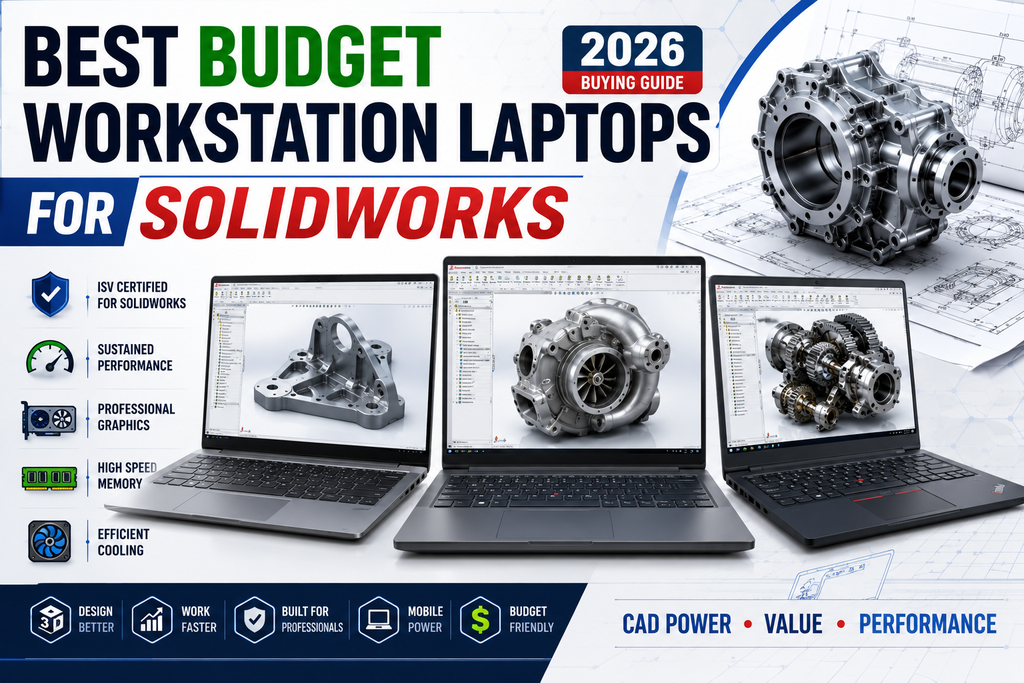
Best Budget Workstation Laptops for SolidWorks and Heavy 3D Assembly Modeling
Best Budget Workstation Laptops for SolidWorks and Heavy 3D Assembly Modeling Overview What Does SOLIDWORKS…
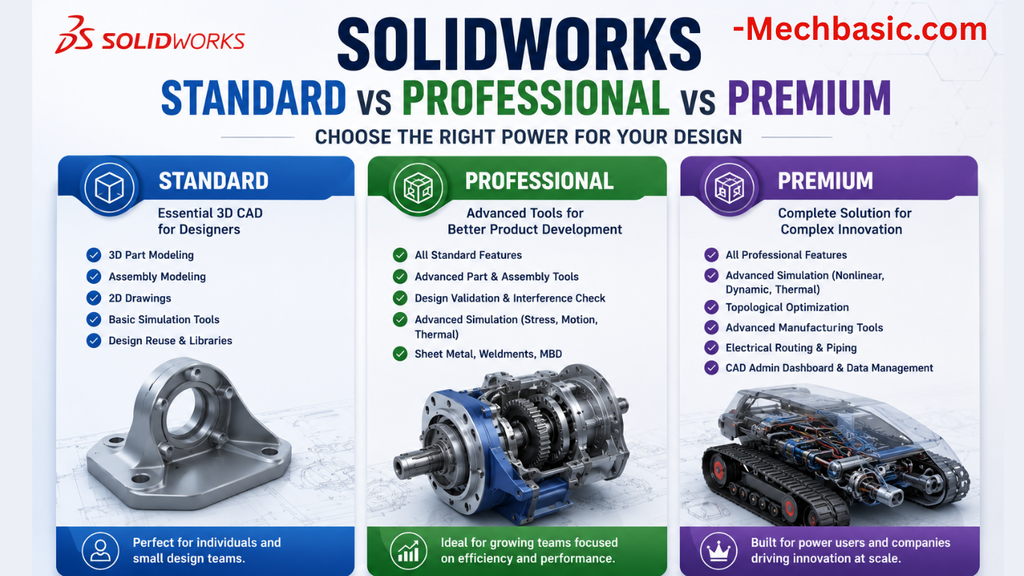
SolidWorks Standard vs Professional vs Premium: Full Feature Comparison
SolidWorks Standard vs Professional vs Premium: Full Feature Comparison Overview: SOLIDWORKS Package Overview SOLIDWORKS comes…
SolidWorks 2026 License Cost: Perpetual vs Subscription Pricing Breakdown
SolidWorks 2026 License Cost: Perpetual vs Subscription Pricing Breakdown Overview: SOLIDWORKS 2026 License Options SOLIDWORKS…
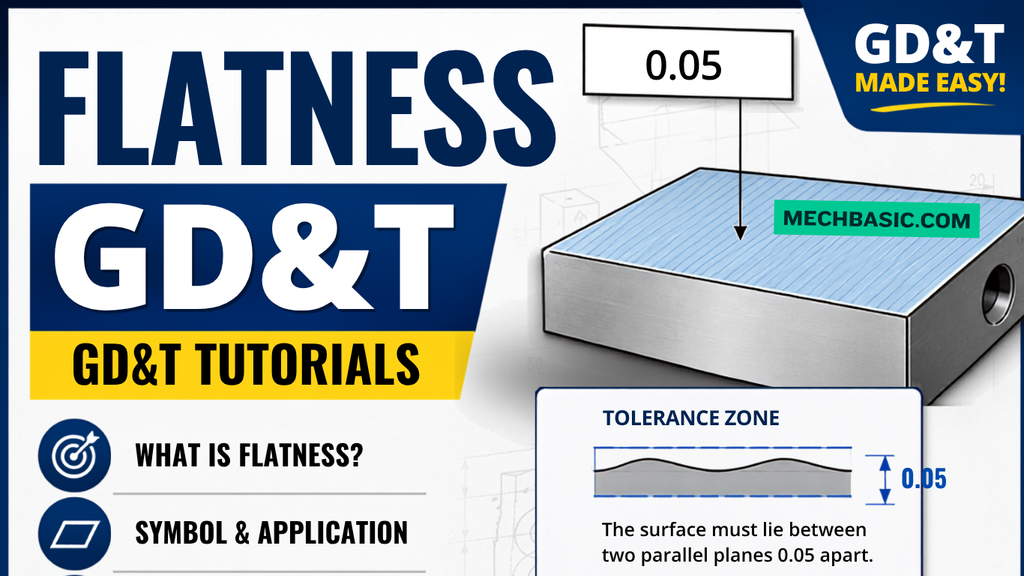
Flatness-GD&T | GD&T Tutorials
ANSI vs ISO Standards-Key Differences you need to know
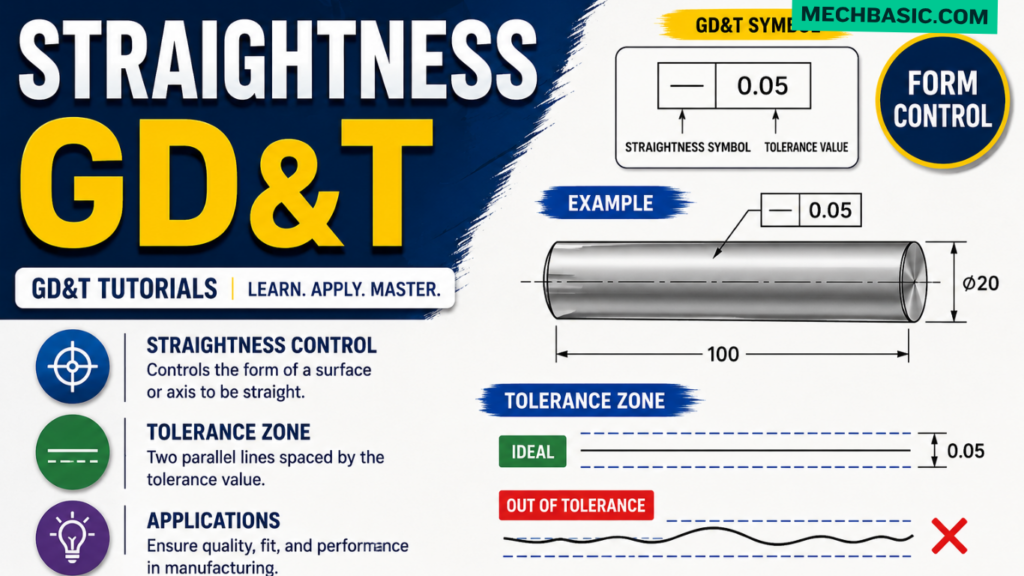
Straightness-GD&T | GD&T Tutorials
Related Tags:
Categories: