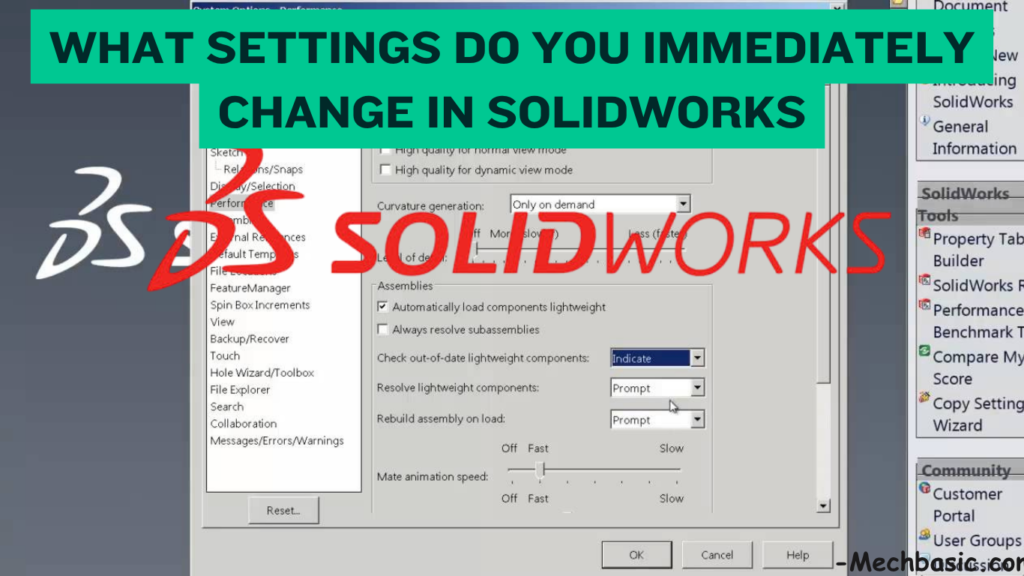
Key Takeaways:
SolidWorks Settings to Change Immediately
1. Document Units
Set the correct unit system such as MMGS (mm, g, s) for most mechanical engineering projects.
2. System Options
Configure important options for performance, file locations, backups, and display settings to match your workflow.
3. Graphics & Display
Adjust Image Quality, anti-aliasing, display style, and graphics performance to balance model quality and system speed.
4. Sketch Settings
Enable useful options such as Automatic Relations, Sketch Snapping, and Fully Define Sketch workflows for accurate and efficient modeling.
5. File Locations & Templates
Set standard locations for part, assembly, drawing templates, sheet formats, weldment profiles, and design libraries.
6. Backup & Recovery
Enable Auto-recover and backup options and choose a suitable backup location to protect against data loss.
7. Performance Settings
Configure Large Assembly Settings, lightweight components, display performance, and rebuild options when working with complex models.
8. Mouse & Keyboard Shortcuts
Customize keyboard shortcuts, mouse gestures, and shortcut bars for frequently used commands.
Key Takeaway
Units → System Options → Graphics → Sketch → File Locations → Backup → Performance → Shortcuts
In this article:
SolidWorks Settings to Change Immediately
When you install SOLIDWORKS for the first time, changing a few default settings can make modeling faster, improve performance, and reduce the risk of losing work.
The most useful settings are found under:
Tools → Options
These settings can be configured at both the Document Properties and System Options levels.
1. Document Units
Set your units before starting a new project.
Steps
Go to:
Tools → Options → Document Properties → Units
Choose the appropriate unit system.
Common Options
- MMGS – millimeter, gram, second
- MKS – meter, kilogram, second
- CGS – centimeter, gram, second
- IPS – inch, pound, second
- Custom – individually selected units
Recommended
For most metric mechanical-design work:
MMGS
For inch-based designs:
IPS
Quick Tip
You can also change units from the bottom-right status bar.
2. System Options
System Options control SOLIDWORKS behavior across documents.
Go to:
Tools → Options → System Options
Useful areas include:
- General
- Performance
- Assemblies
- External References
- File Locations
- Backup/Recover
- Messages/Errors
- Display/Selection
Recommended
Review the System Options after installation rather than relying entirely on the default settings.
3. Graphics & Display
Graphics settings have a major effect on how smoothly SOLIDWORKS displays models.
Go to:
Tools → Options → System Options → Performance
and:
Tools → Options → System Options → Display/Selection
Useful Settings
For graphics-heavy models:
- Use a SOLIDWORKS-certified graphics card/driver where possible.
- Keep graphics drivers updated according to SOLIDWORKS-certified compatibility.
- Avoid unnecessary visual effects when working with large assemblies.
- Use simplified display modes when performance becomes slow.
Display Modes
Common options include:
- Shaded
- Shaded With Edges
- Hidden Lines Removed
- Hidden Lines Visible
- Wireframe
Recommended
For everyday modeling:
Shaded With Edges
For large assemblies:
Shaded or simplified display modes can improve responsiveness.
4. Sketch Settings
Good sketch settings make it easier to create accurate and fully constrained models.
Go to:
Tools → Options → System Options → Sketch
Useful Settings
Consider enabling or configuring:
- Automatic relations
- Inferencing
- Snap behavior
- Grid/display options
- Dimension input
- Sketch visibility
Automatic Relations
SOLIDWORKS can automatically detect relationships such as:
- Horizontal
- Vertical
- Coincident
- Tangent
- Parallel
- Perpendicular
This can significantly speed up sketch creation.
Recommended
Keep Automatic Relations enabled unless you have a specific reason to disable them.
5. File Locations & Templates
Correct file locations help keep your CAD projects organized.
Go to:
Tools → Options → System Options → File Locations
You can define locations for:
- Document Templates
- Sheet Formats
- Weldment Profiles
- Design Library
- Custom Properties
- BOM templates
- Hole Wizard data
Templates
Create customized templates for:
Part
Assembly
Drawing
For example:
Mechanical Part – MMGS
can contain your preferred:
- Units
- Drafting standards
- Custom properties
- Document settings
Recommended Workflow
Configure settings
↓
Save as template
↓
Use template for new projects
This prevents you from repeatedly changing the same settings.
6. Backup & Recovery
This is one of the most important settings to configure.
Go to:
Tools → Options → System Options → Backup/Recover
Enable options for:
- Auto-recovery information
- Backup copies
- Temporary recovery files
Why It Matters
SOLIDWORKS files can contain hours or even days of design work.
A backup/recovery strategy can protect you against:
- Software crashes
- Power failures
- Windows problems
- Accidental file closure
- Corrupted working files
Recommended
Configure Auto-recovery and save backup copies to a suitable location.
Also remember:
Auto-recovery is not a replacement for regular file backups.
For important projects, maintain copies using a reliable company/server/cloud backup system.
7. Performance Settings
Performance settings become especially important when working with:
- Large assemblies
- Complex parts
- Imported CAD models
- Large drawings
- High-resolution graphics
Go to:
Tools → Options → System Options → Performance
Useful Performance Features
Depending on your SOLIDWORKS version and workflow, consider using:
- Lightweight components
- Large Assembly Settings
- Large Design Review
- Level of Detail controls
- SpeedPak
- Simplified configurations
Lightweight Components
Useful for large assemblies because components can be loaded with less information.
Large Design Review
Useful when you mainly need to view and inspect very large assemblies rather than fully edit every component.
SpeedPak
Creates a simplified representation of complex assemblies and can improve assembly performance.
8. Mouse & Keyboard Shortcuts
Keyboard shortcuts can dramatically speed up everyday SOLIDWORKS work.
Useful Shortcuts
| Shortcut | Function |
|---|---|
| Ctrl + S | Save |
| Ctrl + Z | Undo |
| Ctrl + Y | Redo |
| Ctrl + B | Rebuild |
| Ctrl + Q | Force Rebuild |
| Ctrl + N | New document |
| Ctrl + O | Open |
| Ctrl + P | |
| Spacebar | View Orientation |
| F | Zoom to Fit |
| Esc | Cancel/Exit command |
Mouse Gestures
SOLIDWORKS also supports Mouse Gestures.
You can assign frequently used commands to mouse movements.
For example:
Right-click + gesture
↓
Select common command
This can reduce the amount of toolbar navigation required.
Recommended SOLIDWORKS Setup
For a typical mechanical-design user, a good starting configuration is:
| Setting | Recommendation |
|---|---|
| Units | MMGS for metric work |
| Automatic Sketch Relations | Enabled |
| Graphics | Certified GPU/driver where possible |
| Display | Shaded With Edges |
| Auto-Recovery | Enabled |
| Backup | Enabled |
| Templates | Customized |
| Large Assemblies | Lightweight / appropriate performance modes |
| Rebuild | Ctrl + B |
| Force Rebuild | Ctrl + Q |
| Mouse Gestures | Customize frequently used commands |
| Keyboard Shortcuts | Customize to your workflow |
Best Settings to Change First
If you have just installed SOLIDWORKS and don’t want to change dozens of options, start with these:
1. Set Units
MMGS / IPS
2. Configure Auto-Recovery
Tools → Options → System Options → Backup/Recover
3. Create Templates
Part + Assembly + Drawing
4. Check Graphics
Use a compatible/certified graphics configuration where possible.
5. Enable Useful Sketch Relations
Automatic Relations
6. Configure Performance
Especially for large assemblies.
7. Customize Shortcuts
Assign commands you use frequently.
Conclusion
Changing the right SOLIDWORKS settings immediately after installation can make your workflow faster, more reliable, and easier to manage.
GoEngineer Performance Tuning Guide: Step-by-step instructions on adjusting System Options, Document Properties, and hardware settings for maximum speed.
The most important areas to configure are:
Document Units
→ System Options
→ Graphics & Display
→ Sketch Settings
→ File Locations & Templates
→ Backup & Recovery
→ Performance
→ Mouse & Keyboard Shortcuts
For most mechanical-design users, the best starting setup is MMGS + automatic sketch relations + reliable Auto-Recovery/backup + customized templates + appropriate graphics/performance settings + personalized shortcuts.
Latest articles:
Flatness-GD&T | GD&T Tutorials

ANSI vs ISO Standards-Key Differences you need to know
Straightness-GD&T | GD&T Tutorials
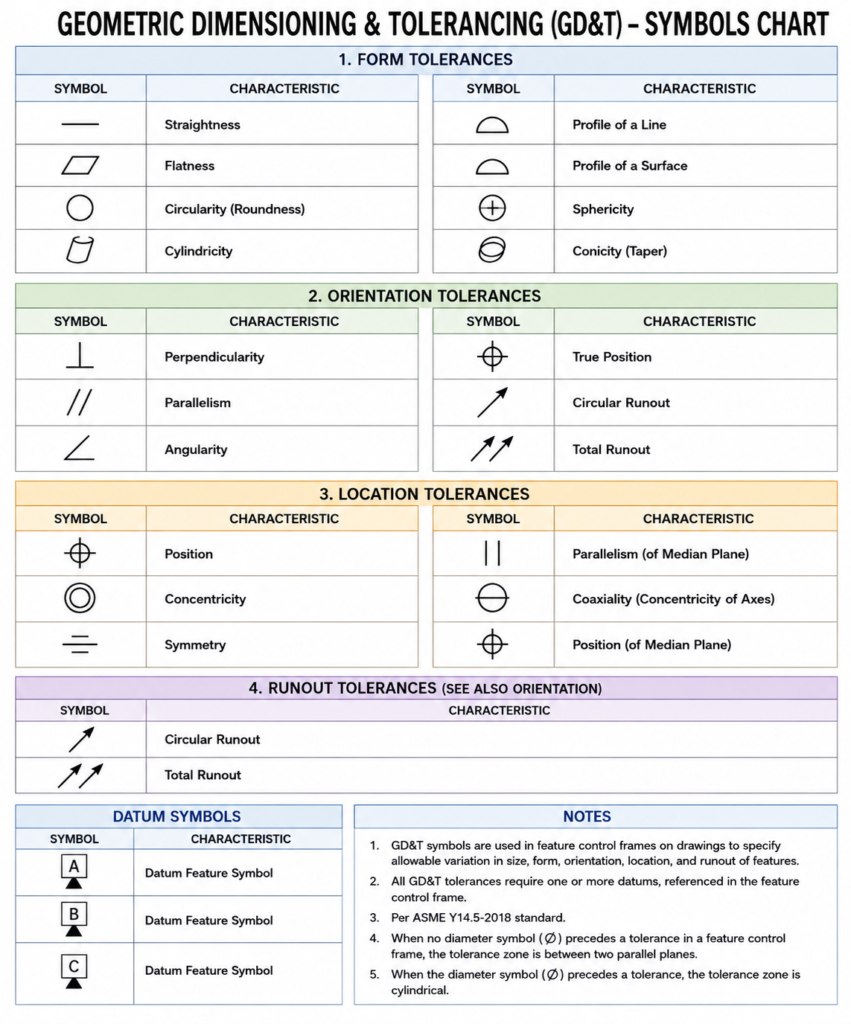
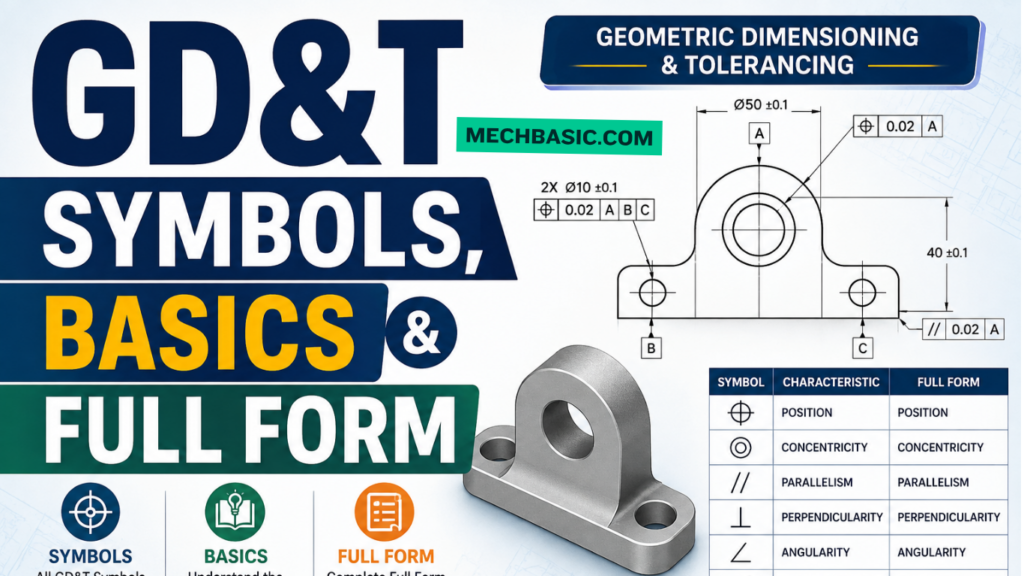
GD&T Symbols chart- Free download | GD&T
Geometric Dimensioning and Tolerancing (GD&T) is a standardized system used in engineering drawings to define…
GD&T Symbols, Basics and full form

Can I convert a DXF to STL?
Can I convert a DXF to STL? Can I Convert a DXF to STL? Yes,…
Related Tags:
Categories: