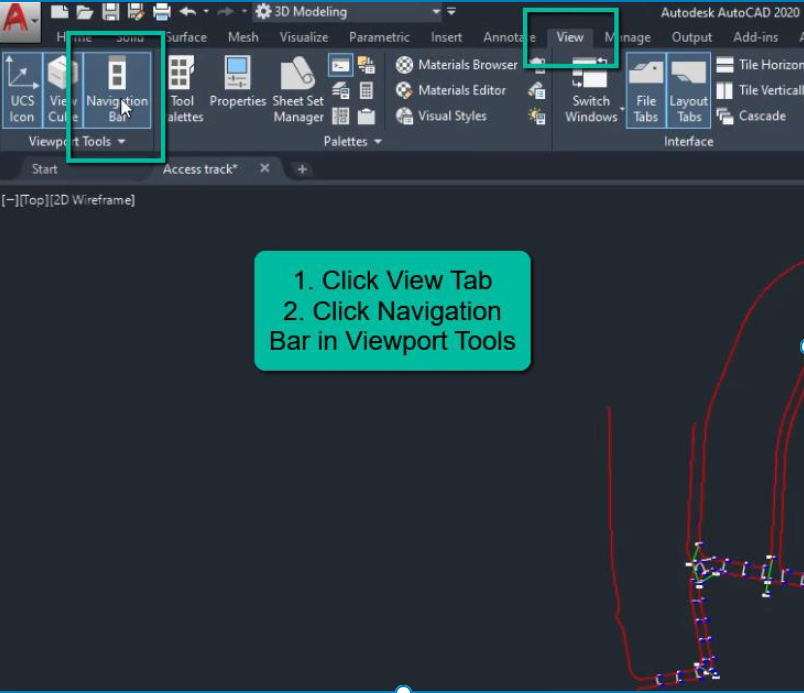
To display the Navigation Bar in AutoCAD, type NAVBAR in the command line and press Enter.
Then enter 1 to turn it on (or 0 to turn it off).
The Navigation Bar will appear on the side of the drawing area for easy access to viewing tools.
If the Navigation Bar (Pan, Zoom, Orbit tools) is missing in AutoCAD, you can turn it back on in several ways:
Method 1: Use the NAVBAR command
- Click the command line.
- Type:
NAVBAR - Press Enter.
- Type:
1 - Press Enter.
This turns the Navigation Bar on.
Method 2: View Tab
- Go to the View tab on the Ribbon.
- Find the User Interface panel.
- Check Navigation Bar.
Method 3: Using the System Variable
Type:
NAVBARDISPLAY
Press Enter and set the value to 1.
If the entire Ribbon is missing
Type:
RIBBON
and press Enter to restore it.
The Navigation Bar usually appears along the right side of the drawing area and contains tools such as:
- Pan
- Zoom
- Orbit (3D)
- SteeringWheels (in some workspaces)
Other courses: