To turn the Navigation Bar on or off, type NAVBAR in the command line and press Enter.
Enter 1 to display the Navigation Bar or 0 to hide it.
This allows you to quickly control the visibility of navigation tools.
What is a Navigation bar in AutoCAD?
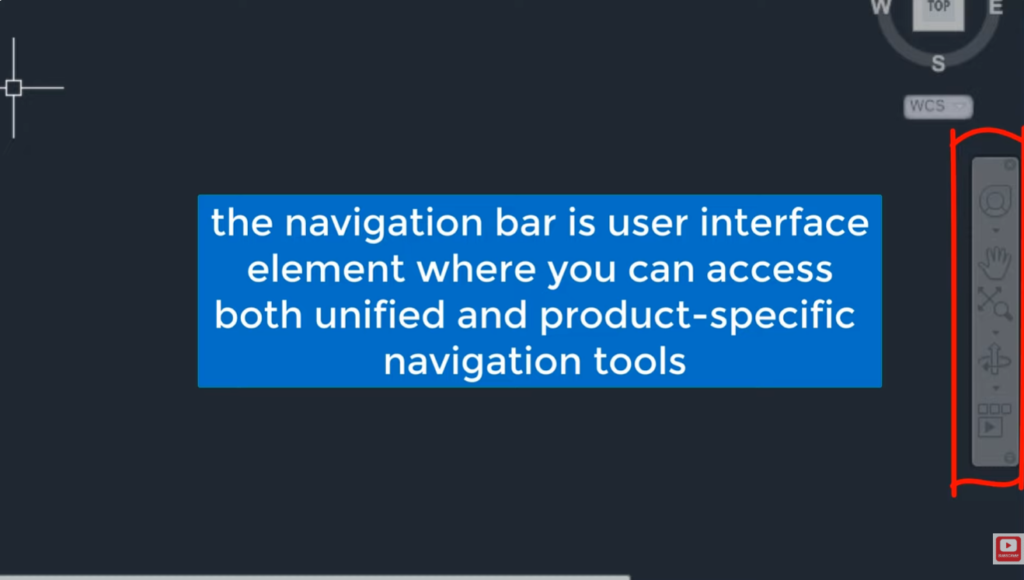
The Navigation Bar in AutoCAD is a toolbar that provides viewing and navigation tools.
It includes features such as Pan, Zoom, Orbit, and SteeringWheels.
It helps users move around and inspect drawings more efficiently.
To turn ON or OFF the Navigation Bar in AutoCAD:
Using the Command Line
- Type:
NAVBAR- Press Enter.
- Type:
ON→ to show the Navigation BarOFF→ to hide the Navigation Bar
- Press Enter.
Using the Ribbon
- Go to the View tab.
- In the User Interface or Viewport Tools panel, click Navigation Bar.
- Check it to turn it on, uncheck it to turn it off.
If the Navigation Bar is Missing
Type:
NAVBARand set it to ON. Autodesk also recommends checking the ViewCube settings if both the Navigation Bar and ViewCube disappear.
The Navigation Bar usually appears on the right side of the drawing area and contains tools such as:
- Zoom
- Pan
- Orbit
- SteeringWheels (in some workspaces)
Other courses: