The Navigation Bar in AutoCAD provides tools for viewing and navigating drawings.
It includes commands such as Pan, Zoom, Orbit, and SteeringWheels.
These tools help users move around and inspect 2D and 3D designs efficiently.
In this article:
AutoCAD Navigation Bar
What Is the Navigation Bar?
The Navigation Bar in AutoCAD is a vertical toolbar, usually located on the right side of the drawing area, that provides quick access to tools for navigating and viewing drawings and 3D models.
Its main purpose is to help users:
- Zoom in and out
- Pan around the drawing
- Orbit 3D models
- View drawings from different angles
- Navigate large and complex designs efficiently
In simple terms, the Navigation Bar helps you move around your drawing without changing the actual geometry.
Location of the Navigation Bar
Typically found:
- On the right side of the drawing window
- Near the ViewCube in 3D workspaces
The exact tools displayed depend on whether you are working in:
- 2D Drafting
- 3D Modeling
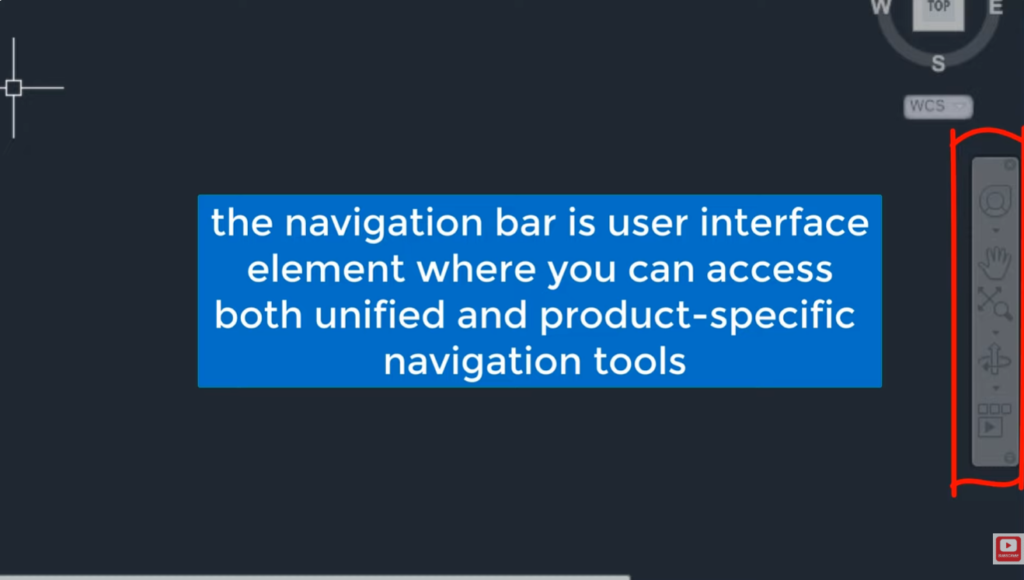
Main Tools in the Navigation Bar
The Navigation Bar may contain:
- Pan
- Zoom
- Orbit
- SteeringWheels
- ShowMotion
- ViewCube Integration
1. Pan Tool
Purpose
Moves the drawing view without changing the zoom level.
Think of it like sliding a sheet of paper across a desk.
How It Works
You can:
- Click Pan on the Navigation Bar
- Hold the mouse wheel and drag
Example
Suppose you’re viewing the left side of a large factory layout and want to see the right side without zooming out.
Use Pan to move across the drawing.
Benefits
✔ Faster navigation
✔ No change in scale
✔ Easy movement in large drawings
2. Zoom Tool
Purpose
Changes the magnification of the drawing view.
Zoom In
Makes objects appear larger.
Useful for:
- Small details
- Precise editing
Zoom Out
Makes objects appear smaller.
Useful for:
- Viewing entire layouts
- Understanding overall design
Zoom Extents
Displays the entire drawing on the screen.
Command
ZOOM
E
or click Zoom Extents.
Example
If you accidentally zoom into empty space, Zoom Extents quickly returns the view to the drawing.
Types of Zoom
Zoom Window
Select a rectangular area to enlarge.
Example
Zoom into a bolt hole detail.
Zoom Previous
Returns to the previous zoom level.
Zoom Real-Time
Continuously zoom in or out using mouse movement.
3. Orbit Tool
Purpose
Used primarily in 3D modeling.
Allows you to rotate the view around a model.
Example
Imagine examining a gearbox housing.
Orbit lets you see:
- Front
- Back
- Top
- Bottom
- Angled views
without moving the actual model.
Benefits
✔ Better visualization
✔ Easier inspection of 3D models
✔ Improved design review
Types of Orbit
Free Orbit
Rotate the model freely.
Constrained Orbit
Rotation is limited to specific axes.
Continuous Orbit
Model rotates continuously until stopped.
4. SteeringWheels
Purpose
Provides an advanced navigation interface.
Combines several navigation functions into a single tool.
Available Functions
- Zoom
- Pan
- Orbit
- Center
- Rewind
- Walk
Example
Useful when navigating large architectural or plant-layout models.
Types of SteeringWheels
Full Navigation Wheel
Includes all navigation tools.
Mini View Object Wheel
Focused on viewing objects.
Tour Building Wheel
Useful for architectural walkthroughs.
5. ShowMotion
Purpose
Allows users to create and view saved camera positions.
Applications
- Architectural presentations
- Building walkthroughs
- Design reviews
Example
Save multiple views of a building and switch between them quickly.
6. ViewCube Integration
Although technically separate, the Navigation Bar often works with the ViewCube.
What Is the ViewCube?
A 3D navigation tool located in the upper-right corner.
Available Views
- Top
- Bottom
- Front
- Back
- Left
- Right
- Isometric
Example
Click “Top” to immediately switch to a top view.
Navigation Bar in 2D Drafting
In 2D mode, commonly used tools include:
- Pan
- Zoom
- Zoom Extents
Orbit and advanced 3D tools may not be needed.
Navigation Bar in 3D Modeling
In 3D mode, commonly used tools include:
- Orbit
- Pan
- Zoom
- SteeringWheels
- ViewCube
These tools are essential for viewing models from different perspectives.
How to Turn the Navigation Bar On or Off
Method 1
Type:
NAVBAR
Press Enter.
Then:
ON
or
OFF
Method 2
Use AutoCAD settings to show or hide the Navigation Bar.
Mouse Shortcuts Related to Navigation
Most professionals use the mouse instead of clicking Navigation Bar icons.
Mouse Wheel
Scroll Forward
Zoom In
Scroll Backward
Zoom Out
Mouse Wheel Press and Hold
Pan
Shift + Mouse Wheel
Orbit (3D mode)
Benefits of the Navigation Bar
Faster Navigation
Quickly move around large drawings.
Better Productivity
Less time searching for parts of the drawing.
Improved 3D Visualization
Easier to inspect models from different angles.
User-Friendly
Provides visual navigation controls.
Real-World Example
Mechanical Engineering
A designer is working on a machine assembly containing 500 parts.
Using the Navigation Bar:
- Zoom into a bearing detail
- Pan to another section
- Orbit the assembly to inspect clearances
Without changing the actual model.
Architecture
An architect reviews a multi-story building model.
Using:
- Orbit
- ViewCube
- SteeringWheels
they can examine rooms, staircases, and elevations efficiently.
Summary Table
| Tool | Function |
|---|---|
| Pan | Move view |
| Zoom | Change magnification |
| Zoom Extents | Show entire drawing |
| Orbit | Rotate 3D view |
| SteeringWheels | Advanced navigation |
| ShowMotion | Saved camera views |
| ViewCube | Standard 3D viewpoints |
Conclusion
The AutoCAD Navigation Bar is a collection of viewing and navigation tools that help users move through 2D drawings and 3D models efficiently. Its main functions include Pan, Zoom, Orbit, SteeringWheels, and ViewCube integration, allowing users to inspect designs from different perspectives without modifying the actual geometry. Mastering the Navigation Bar is essential for working effectively with large engineering drawings, architectural plans, and complex 3D models.
Other courses: