Overview
What Does SOLIDWORKS Need?
For heavy 3D assembly modeling, focus on:
- Fast single-core CPU performance
- Dedicated NVIDIA GPU
- 32 GB RAM or more
- 1 TB NVMe SSD
- Good cooling for sustained workloads
- ISV-certified workstation GPU for professional use
For serious assemblies, 32 GB is a good practical starting point, while 64 GB is preferable for very large assemblies and simulation workloads.
Workstation vs Gaming Laptop
Workstation Laptop
- Professional RTX / RTX Pro GPU
- ISV-certified drivers
- Better suited to professional CAD workflows
- Usually more expensive
Gaming Laptop
- GeForce RTX GPU
- Excellent performance per rupee
- Often cheaper
- Not generally ISV-certified
Budget Tip: For students and moderate assemblies, a well-specced RTX gaming laptop can offer excellent value. For professional users working on critical or very large assemblies, a certified workstation is the safer choice.
Best Budget Workstation-Class Option
Lenovo ThinkPad P16 Gen 3
- Professional mobile workstation
- Designed for demanding CAD workloads
- Available with professional NVIDIA graphics
- Strong upgrade potential
- Suitable for large assemblies and engineering applications
Best for: Engineers who want workstation-class hardware without moving to the highest-end mobile workstations.
Best Value Alternative
ASUS TUF / Similar RTX Gaming Laptops
- GeForce RTX graphics
- Strong CPU performance
- 32 GB RAM configurations available
- Usually much cheaper than certified workstations
- Excellent choice for students and smaller engineering teams
A current 2026 comparison found an RTX 4070-equipped ASUS TUF configuration particularly attractive for budget-conscious SOLIDWORKS users, although professional users should note the lack of ISV certification.
Budget Specification Guide
| Component | Recommended |
|---|---|
| CPU | Core Ultra 7 / Core i7-HX or Ryzen 7/9 |
| GPU | RTX 4060 / 4070 or professional RTX |
| RAM | 32 GB minimum |
| Heavy Assemblies | 64 GB preferred |
| Storage | 1 TB NVMe SSD |
| Display | 15–16 inch, FHD+ or higher |
| OS | Windows 11 |
| GPU Type | GeForce for value / RTX Pro for professional CAD |
What About Heavy Assemblies?
For assemblies with hundreds to thousands of components, GPU power alone isn’t enough.
Prioritize:
CPU Single-Core Performance → RAM Capacity → GPU → SSD
Large assemblies can quickly consume memory, especially when SOLIDWORKS, Simulation and other applications are running simultaneously.
Best Choice by User
Engineering Student
→ RTX 4060/4070 gaming laptop + 32 GB RAM
Professional Designer
→ Mobile workstation + professional RTX GPU
Large Assembly User
→ Workstation + 64 GB RAM
Simulation / FEA User
→ High-end workstation + 64 GB or more
Maximum Value
→ Gaming laptop with RTX GPU
Final Recommendation
Best Budget: RTX 4060/4070 laptop with 32 GB RAM
Best Professional: Lenovo ThinkPad P16 / Dell Precision / HP ZBook class workstation
Best for Heavy Assemblies: Professional workstation with 64 GB RAM and certified NVIDIA graphics
Key takeaway:
Don’t choose a laptop based only on the GPU. For SOLIDWORKS, a fast CPU, sufficient RAM, powerful GPU and good thermal design work together to determine the real assembly performance.
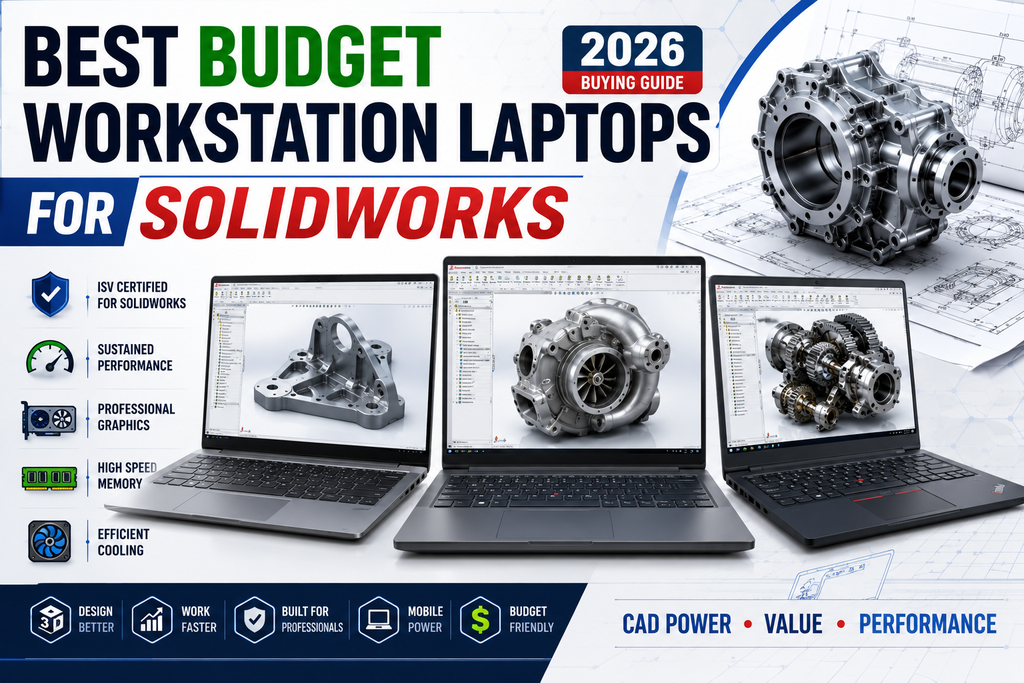
Best Budget Workstation Laptops for SOLIDWORKS and Heavy 3D Assembly Modeling
If you’re buying a laptop primarily for SOLIDWORKS 2026, especially for large assemblies, detailed parts, drawings, sheet metal, weldments and some simulation, the cheapest laptop is not necessarily the best value.
SOLIDWORKS officially recommends 16 GB RAM as the minimum and 32 GB as the recommended amount, an SSD, and—most importantly for professional use—certified graphics cards and drivers.
For heavy assembly work, I would prioritize the components roughly in this order:
CPU → professional/certified GPU → RAM → SSD → cooling/display.
What Does SOLIDWORKS Need?
Before looking at individual laptops, it helps to understand what actually affects SOLIDWORKS performance.
Recommended baseline for SOLIDWORKS 2026
| Component | Minimum/Basic | Recommended for Heavy Assemblies |
|---|---|---|
| CPU | Modern Intel/AMD x86-64 | High-performance Core Ultra 7/9, Core i7/i9 HX, or Ryzen 7/9 |
| RAM | 16 GB | 32 GB |
| Heavy assembly RAM | 16 GB | 64 GB preferred |
| GPU | Certified GPU recommended | NVIDIA RTX/RTX PRO workstation GPU |
| VRAM | 4 GB class | 8 GB preferred |
| Storage | SSD | 1 TB NVMe SSD |
| OS | Windows 11 64-bit | Windows 11 Pro 64-bit |
| Display | 15–16″ | 16″ QHD/WUXGA preferred |
| Cooling | Basic | High-performance workstation cooling |
SOLIDWORKS’ current system requirements list 16 GB RAM, with 32 GB recommended, and specifically recommend certified graphics cards/drivers and SSD storage.
CPU: One of the Most Important Components
A common mistake is to look only at GPU specifications.
For ordinary SOLIDWORKS modeling, many operations are heavily dependent on CPU performance, particularly single-thread responsiveness.
This affects:
- Sketching
- Feature rebuilds
- Editing features
- Regenerating models
- Assembly rebuilds
- Opening files
- Suppress/unsuppress operations
- Drawing updates
For that reason, a laptop with a very powerful GPU but a mediocre CPU isn’t necessarily a good SOLIDWORKS machine.
Good targets
For a budget workstation:
Intel Core Ultra 7 / high-performance H or HX processor
or
AMD Ryzen 7/9 HS/HX processor
For especially large assemblies:
Core Ultra 7/9 HX or comparable high-performance CPU
is preferable.
GPU: Workstation vs Gaming GPU
This is where the workstation-versus-gaming argument gets interesting.
SOLIDWORKS officially maintains a hardware certification database covering specific workstation models, graphics cards and drivers.
Professional workstation GPUs are designed around:
- CAD compatibility
- Professional drivers
- Stability
- Certified application support
- OpenGL/CAD workloads
- Enterprise support
For example, the SOLIDWORKS certification database contains workstation configurations from Dell, HP and Lenovo with professional GPUs and SOLIDWORKS 2026.
Workstation vs Gaming Laptop
Gaming laptop
Typical example:
Core i7/i9 + GeForce RTX 4060/5060/5070
Advantages:
- Excellent GPU performance per rupee
- High gaming performance
- Often cheaper
- High refresh-rate displays
- Large selection
- Easy to find in India
Disadvantages:
- GeForce drivers aren’t the same as professional workstation drivers
- Configuration may not be SOLIDWORKS-certified
- Some models prioritize gaming over sustained CAD workloads
- Cooling/noise can be aggressive
- Business support may be weaker
Mobile workstation
Typical example:
Core Ultra 7 + NVIDIA RTX PRO/RTX Ada + 32/64 GB RAM
Advantages:
- Professional graphics
- Certified hardware/driver combinations
- Better enterprise support
- Designed for sustained professional workloads
- Better fit for engineering departments
- Usually better serviceability
Disadvantages:
- More expensive
- Often heavier
- Gaming GPU laptops can deliver more raw GPU performance per rupee
- Some workstation models have relatively modest displays for their price
For professional SOLIDWORKS work
Workstation wins on compatibility and reliability.
For maximum performance per rupee
Gaming laptops can win.
Best Budget Workstation-Class Option
HP ZBook Power G11
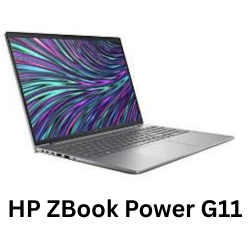
HP ZBook Power G11 A 16″ Mobile Workstation
₹3,42,515
The HP ZBook Power family is one of the most interesting choices when you want a genuine mobile workstation without moving all the way into ultra-expensive workstation territory.
A configuration with a Ryzen 7-class processor and professional NVIDIA graphics can make a strong SOLIDWORKS machine.
Features
- 16-inch workstation chassis
- Professional workstation positioning
- Strong CPU options
- NVIDIA professional graphics options
- 32/64 GB RAM configurations available
- Good upgrade potential depending on configuration
- Designed for engineering/software workloads
For heavy SOLIDWORKS work, I’d specifically target:
CPU: Ryzen 7/9 or Core Ultra 7-class
GPU: RTX 2000 Ada or newer RTX PRO equivalent
RAM: 32 GB minimum
RAM for large assemblies: 64 GB
SSD: 1 TB minimum
The exact configuration matters enormously, so don’t buy the lowest ZBook Power configuration simply because it carries the ZBook name.
Dell Precision 3591
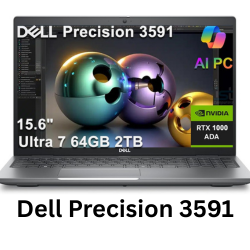
Dell Precision 3591
₹2,49,990
The Dell Precision 3591 is another good option if you want a genuine mobile workstation.
A current configuration available in the Indian market is listed with:
- Intel Core Ultra 7 165H
- 32 GB RAM
- 1 TB SSD
- NVIDIA RTX 500 Ada 4 GB
- 15.6-inch display
at around ₹2.5 lakh in the surfaced listing.
However, I would not consider the RTX 500 Ada configuration ideal for heavy assemblies. For serious SOLIDWORKS work, I’d try to configure the Precision with a stronger professional GPU if the budget permits.
The Precision family has the important advantage of being represented in SOLIDWORKS’ certified hardware ecosystem.
Lenovo ThinkPad P16s
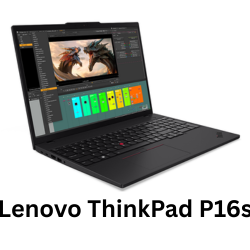
Lenovo ThinkPad P16s Gen 3
₹2,40,450
The ThinkPad P-series is another workstation-oriented option.
The P16s is attractive when portability matters more than maximum sustained performance.
However, for very heavy assemblies, I’d put a P16s below a higher-power ZBook Power or Precision configuration.
Why?
The P16s emphasizes:
- Mobility
- Battery life
- Business portability
- Workstation certification
Whereas heavier workstation models generally provide more thermal headroom.
Best for
- Students
- Design engineers who travel
- Moderate assemblies
- CAD + office work
- Portable workstation requirements
Less ideal for
- Huge assemblies
- Continuous simulation
- Long rendering workloads
- Heavy Visualize workloads
Gaming Laptops
This is where you can potentially save a lot of money.
Lenovo LOQ
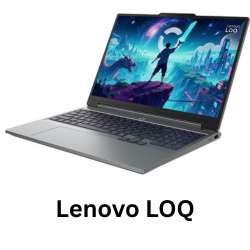
Lenovo LOQ
₹1,65,229
A gaming laptop such as the Lenovo LOQ with a modern Core i7-class processor and RTX 5060-class GPU can provide very strong hardware for the money.
That’s attractive if your budget is around the ₹1.5–2 lakh range.
But there’s a distinction:
Raw performance
Gaming laptop: ⭐⭐⭐⭐⭐
SOLIDWORKS certification
Workstation: ⭐⭐⭐⭐⭐
Price/performance
Gaming laptop: ⭐⭐⭐⭐⭐
Professional support
Workstation: ⭐⭐⭐⭐⭐
If you’re a student or independent designer and you’re comfortable with a non-certified configuration, the gaming laptop can be an excellent value.
If you’re buying equipment for a company where stability and support matter, I’d favor the workstation.
Best Budget Specification Guide
Instead of buying based on model name, use these specifications as your shopping checklist.
Under ₹1.25 lakh
Aim for:
- Core i5/i7 H-series or Ryzen 5/7 HS
- RTX 4050/4060 class
- 16 GB RAM
- 512 GB/1 TB SSD
But this is not recommendation for heavy assemblies.
Good for:
- Learning SOLIDWORKS
- Student projects
- Small assemblies
- Basic machine design
₹1.25–₹1.75 lakh
This is where gaming laptops become extremely attractive.
Look for:
- Core i7 H/HX
- Ryzen 7 HS/HX
- RTX 4060/5060 class
- 32 GB RAM
- 1 TB NVMe SSD
This can provide excellent SOLIDWORKS performance per rupee.
₹1.75–₹2.5 lakh
This is my preferred range for a serious individual SOLIDWORKS user.
Target:
CPU: Core Ultra 7 / Ryzen 7/9
GPU: RTX 4060/5060 or professional RTX-class GPU
RAM: 32 GB
SSD: 1 TB
Display: 16″ WUXGA/QHD
If you can find a properly configured Precision/ZBook/ThinkPad P-series workstation in this range, it becomes particularly interesting.
₹2.5–₹3.5 lakh
Now you can target a proper mobile workstation.
Ideal configuration:
- High-performance Core Ultra 7/9 or Ryzen 7/9
- RTX 2000 Ada / newer RTX PRO class
- 32–64 GB RAM
- 1 TB SSD
- 16″ professional display
For heavy SOLIDWORKS assemblies, 64 GB RAM + professional GPU can be a better investment than spending everything on an enormous GPU.
Above ₹3.5 lakh
You’re entering high-end mobile workstation territory.
At this point, look at:
- RTX 3000/4000-class professional GPU
- 64 GB RAM
- 2 TB SSD
- High-end HX processor
- 16-inch high-resolution display
You should only spend this much if your workload genuinely requires it.
What About Heavy Assemblies?
This is the most important part of your question.
“Heavy assembly” can mean very different things.
Small assembly
100–500 components
Almost any modern SOLIDWORKS laptop with 16–32 GB RAM can handle this reasonably well.
Medium assembly
500–2,000 components
I’d want:
- High-performance CPU
- 32 GB RAM
- Dedicated GPU
- 1 TB SSD
Large assembly
2,000–10,000 components
Now hardware selection becomes much more important.
I’d target:
- High-performance CPU
- 64 GB RAM
- Professional GPU
- 8 GB+ VRAM
- Fast NVMe SSD
- Excellent cooling
Very large assembly
10,000+ components
At this point, don’t simply throw more GPU at the problem.
You should also investigate:
- Large Design Review
- Lightweight components
- SpeedPak
- Selective loading
- Assembly structure
- Suppression strategies
- Simplified configurations
- Component display states
- PDM practices
SOLIDWORKS 2026 includes improvements around selective loading, which can help large assembly workflows.
RAM Matters More Than Many Buyers Think
For heavy assemblies, I’d divide laptops into three categories.
16 GB
Avoid for serious professional heavy assembly work.
It’s the official minimum, not the ideal target.
32 GB
Recommended starting point.
Excellent for most professional users.
64 GB
My choice for heavy assemblies.
Especially if you simultaneously run:
- SOLIDWORKS
- Chrome
- Excel
- Teams
- PDM
- Simulation
- Visualize
- PDF drawings
The additional memory prevents Windows from constantly relying on the SSD when your workload becomes large.
SSD: Don’t Buy a Hard Drive
For a modern SOLIDWORKS workstation, an NVMe SSD should be considered mandatory.
I’d recommend:
Minimum
512 GB NVMe
Recommended
1 TB NVMe
Heavy professional use
2 TB NVMe
Why?
SOLIDWORKS constantly interacts with:
- Part files
- Assembly files
- Drawing files
- Temporary files
- Toolbox
- PDM
- Simulation data
- Render files
SOLIDWORKS itself recommends SSD storage for optimal performance.
Best Choice by User:
| User | Best choice |
|---|---|
| Student | Gaming laptop |
| CAD learner | Gaming laptop |
| Freelancer | Gaming laptop / entry workstation |
| Small engineering company | ZBook Power / Precision |
| Professional mechanical designer | Precision / ZBook |
| Heavy assembly designer | 64 GB workstation |
| Machine design engineer | ZBook Power / Precision |
| Automation engineer | Premium workstation |
| CAD + simulation | Workstation with 64 GB |
| CAD + rendering | Strong RTX/RTX PRO GPU |
| Enterprise engineering department | Certified mobile workstation |
Summary:
For SOLIDWORKS 2026 + heavy 3D assemblies, I’d rank the approaches like this:
Best professional value
HP ZBook Power
A good balance between workstation certification, performance and cost.
Best enterprise-oriented alternative
Dell Precision 3591
Good choice when Dell support and workstation certification are priorities.
Best portable workstation
Lenovo ThinkPad P16s
Better when mobility is important, although I’d choose a more powerful P-series model for very large assemblies.
Best raw performance per rupee
Lenovo LOQ / similar gaming laptop
Particularly attractive when you need maximum CPU/GPU performance and don’t require a certified workstation configuration.
Final Recommendation
Buying a laptop specifically for SOLIDWORKS 2026 and heavy assembly modeling,
Around ₹1.5 lakh
Gaming laptop + RTX 5060-class GPU + 32 GB RAM + 1 TB SSD
Best performance per rupee.
Around ₹2–2.5 lakh
High-performance CPU + RTX 5060/5070-class GPU + 32 GB RAM
Excellent enthusiast/professional value.
Around ₹2.5–3.5 lakh
HP ZBook Power / Dell Precision / comparable workstation + professional RTX GPU + 32/64 GB RAM
This is my preferred category for professional SOLIDWORKS users.
For genuinely heavy assemblies
64 GB RAM + high-performance CPU + 8 GB+ professional GPU + 1 TB/2 TB NVMe SSD
That configuration is much more appropriate for serious large-assembly work than a flashy laptop with 16 GB RAM and a powerful gaming GPU.
And before buying a workstation, check the exact laptop + GPU + driver combination against SOLIDWORKS’ official Hardware Certification list. SOLIDWORKS explicitly maintains certification by system model, graphics card, SOLIDWORKS version and recommended driver; this is much more useful than judging a laptop solely by its component names.
Latest articles:
Best Budget Workstation Laptops for SolidWorks and Heavy 3D Assembly Modeling
Best Budget Workstation Laptops for SolidWorks and Heavy 3D Assembly Modeling Overview What Does SOLIDWORKS…
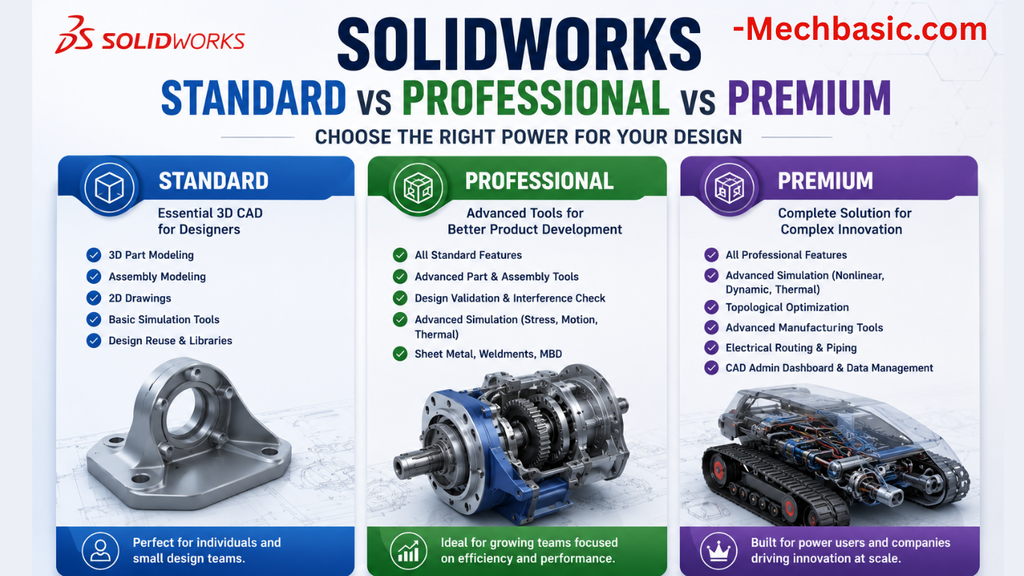
SolidWorks Standard vs Professional vs Premium: Full Feature Comparison
SolidWorks Standard vs Professional vs Premium: Full Feature Comparison Overview: SOLIDWORKS Package Overview SOLIDWORKS comes…
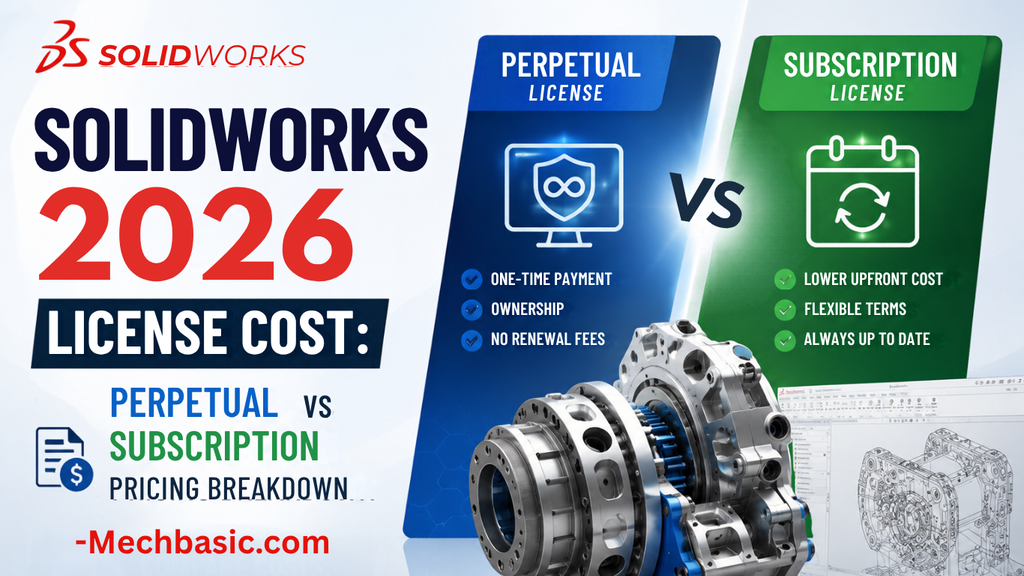
SolidWorks 2026 License Cost: Perpetual vs Subscription Pricing Breakdown
SolidWorks 2026 License Cost: Perpetual vs Subscription Pricing Breakdown Overview: SOLIDWORKS 2026 License Options SOLIDWORKS…
Flatness-GD&T | GD&T Tutorials
ANSI vs ISO Standards-Key Differences you need to know
Straightness-GD&T | GD&T Tutorials
Related Tags:
Categories: