Key Takeaways:
SOLIDWORKS Keyboard Shortcuts
Essential Shortcuts
| Shortcut | Function |
|---|---|
| Ctrl + N | New document |
| Ctrl + O | Open document |
| Ctrl + S | Save |
| Ctrl + Z | Undo |
| Ctrl + Y | Redo |
| Ctrl + Q | Force Rebuild |
| Ctrl + B | Rebuild |
| Ctrl + F | Find |
| Ctrl + P |
Modeling Shortcuts
- S – Shortcut Bar
- D – Move to confirm corner / shortcut access
- Ctrl + A – Select All
- Ctrl + C – Copy
- Ctrl + V – Paste
- Delete – Delete selected item
- Esc – Cancel current command
View & Navigation Shortcuts
- Spacebar – View Orientation
- F – Zoom to Fit
- Ctrl + Shift + Z – Zoom to Selection
- ↑ / ↓ / ← / → – Rotate view
- Middle Mouse Button – Rotate model
- Ctrl + Middle Mouse Button – Pan
- Mouse Wheel – Zoom
Sketch Shortcuts
- L – Line
- C – Circle
- R – Rectangle
- A – Arc
- S – Sketch Shortcut Bar
- Ctrl + Z – Undo sketch operation
Drawing Shortcuts
- Ctrl + Q – Rebuild drawing
- F – Zoom to Fit
- Spacebar – View Orientation
- Ctrl + S – Save drawing
Key Takeaway
Ctrl + S → Save
Ctrl + Z → Undo
Ctrl + B → Rebuild
Ctrl + Q → Force Rebuild
S → Shortcut Bar
F → Zoom to Fit
Spacebar → View Orientation
Middle Mouse → Rotate
In this article:
- SOLIDWORKS Keyboard Shortcuts
- Essential Shortcuts
- Modeling Shortcuts
- View & Navigation Shortcuts
- Sketch Shortcuts
- Drawing Shortcuts
- Assembly Shortcuts
- Shortcut Bar
- Rebuild Shortcuts
- Frequently Used View Commands
- How to Customize SOLIDWORKS Shortcuts
- Recommended Shortcuts to Learn First
- SOLIDWORKS Shortcut Cheat Sheet
- Frequently Asked Questions (FAQs)
- Conclusion
SOLIDWORKS Keyboard Shortcuts
SOLIDWORKS keyboard shortcuts help engineers, designers, and students work faster by reducing the need to repeatedly navigate through menus and toolbars.
Shortcuts are especially useful for frequently performed tasks such as:
- Creating sketches
- Selecting modeling tools
- Rotating and viewing models
- Zooming and panning
- Managing drawings
- Switching between views
- Opening common commands
SOLIDWORKS also allows users to customize keyboard shortcuts through the Keyboard section of the customization settings.
Essential Shortcuts
These are some of the most useful shortcuts to learn first.
| Shortcut | Function |
|---|---|
| Ctrl + N | New document |
| Ctrl + O | Open document |
| Ctrl + S | Save |
| Ctrl + Shift + S | Save As |
| Ctrl + P | |
| Ctrl + Z | Undo |
| Ctrl + Y | Redo |
| Ctrl + C | Copy |
| Ctrl + V | Paste |
| Ctrl + X | Cut |
| Delete | Delete selected item |
| Esc | Cancel/exit current command |
| Ctrl + A | Select all |
| Ctrl + F | Search SOLIDWORKS commands |
Tip: Some shortcuts can vary depending on the SOLIDWORKS version, keyboard customization, and active environment.
Modeling Shortcuts
Keyboard shortcuts can make 3D part and assembly modeling significantly faster.
| Shortcut / Key | Function |
|---|---|
| S | Shortcut Bar |
| D | Confirmation Corner / shortcut behavior in applicable contexts |
| Ctrl + B | Rebuild |
| Ctrl + Q | Force rebuild |
| Ctrl + Tab | Switch between open documents |
| Spacebar | Orientation / View Selector |
| M | Move component in applicable assembly workflows |
| Alt + drag | Move/rotate selected geometry or components in applicable contexts |
| Ctrl + drag | Copy selected items/components in applicable contexts |
The S Key
The S key is particularly useful.
Pressing S opens the SOLIDWORKS Shortcut Bar, providing quick access to commands relevant to the current task.
For example, while working on a part, it can provide rapid access to tools such as:
- Sketch
- Extruded Boss/Base
- Extruded Cut
- Fillet
- Chamfer
- Hole Wizard
View & Navigation Shortcuts
Efficient model navigation is essential when working with complex 3D designs.
| Shortcut | Function |
|---|---|
| Spacebar | View Orientation / Orientation Selector |
| Ctrl + 1 | Front view |
| Ctrl + 2 | Rear view |
| Ctrl + 3 | Left view |
| Ctrl + 4 | Right view |
| Ctrl + 5 | Top view |
| Ctrl + 6 | Bottom view |
| Ctrl + 7 | Isometric view |
| F | Zoom to fit |
| Z | Zoom in |
| Shift + Z | Zoom out |
Mouse Navigation
SOLIDWORKS is heavily optimized for mouse-based navigation.
Common controls include:
Middle mouse button → Rotate model
Middle mouse + Ctrl → Pan in applicable viewing workflows
Mouse wheel → Zoom
Exact mouse behavior can vary depending on settings and the active SOLIDWORKS environment.
Sketch Shortcuts
Sketching is one of the most important parts of SOLIDWORKS modeling.
| Shortcut | Function |
|---|---|
| S | Shortcut Bar |
| L | Line |
| C | Circle |
| R | Rectangle |
| A | Arc |
| P | Point |
| D | Smart Dimension in applicable sketch workflows |
| Esc | Exit/cancel current command |
| Ctrl + Z | Undo |
| Ctrl + A | Select all |
Useful Sketch Workflow
Instead of repeatedly selecting commands from the toolbar:
Press S → Select sketch tool → Create geometry → Apply dimensions → Add relations
This can significantly speed up sketch creation.
Drawing Shortcuts
SOLIDWORKS drawings require frequent view and annotation operations.
| Shortcut | Function |
|---|---|
| Ctrl + N | New document |
| Ctrl + S | Save |
| Ctrl + P | |
| Ctrl + C | Copy |
| Ctrl + V | Paste |
| Delete | Delete selected item |
| Esc | Cancel current command |
| S | Shortcut Bar |
Common drawing tasks include:
- Creating drawing views
- Adding dimensions
- Adding annotations
- Creating section views
- Creating detail views
- Working with BOMs
- Adding balloons
Many of these commands can also be assigned custom keyboard shortcuts.
Assembly Shortcuts
Assembly designers can also benefit from keyboard shortcuts.
| Shortcut | Function |
|---|---|
| Ctrl + Tab | Switch between open documents |
| S | Shortcut Bar |
| Spacebar | View Orientation |
| M | Move Component in applicable workflows |
| Alt + drag | Manipulate components in applicable workflows |
| Ctrl + drag | Copy components in applicable workflows |
For large assemblies, customizing frequently used commands can save considerable time.
Shortcut Bar
One of the most useful SOLIDWORKS productivity features is the Shortcut Bar.
Press:
S
The available commands change depending on the active environment.
For example:
Part Modeling
You may access:
- Sketch
- Extruded Boss/Base
- Extruded Cut
- Fillet
- Chamfer
- Shell
Assembly
You may access:
- Insert Components
- Mate
- Move Component
- Rotate Component
Drawing
You may access:
- Model View
- Section View
- Detail View
- Projected View
This makes the S key one of the most valuable shortcuts to learn.
Rebuild Shortcuts
When you modify a model, SOLIDWORKS may need to rebuild the feature tree.
Ctrl + B
Performs a standard rebuild.
Ctrl + Q
Performs a Force Rebuild, rebuilding the model more thoroughly.
This can be useful when:
- Features are not updating as expected
- Equations have changed
- Configurations need rebuilding
- You want to verify the feature tree
Frequently Used View Commands
For efficient modeling, learn these basic view controls:
Isometric View
Ctrl + 7
Useful for quickly returning to a standard 3D perspective.
Zoom to Fit
F
Fits the model or drawing content into the graphics area.
View Orientation
Spacebar
Opens the view-orientation controls.
How to Customize SOLIDWORKS Shortcuts
You can create your own keyboard shortcuts for frequently used commands.
Step 1
Open SOLIDWORKS.
Step 2
Go to:
Tools → Customize
Step 3
Open the:
Keyboard
tab.
Step 4
Search for the command you want.
For example:
Fillet
Chamfer
Hole Wizard
Measure
Step 5
Assign a keyboard shortcut.
Choose a key combination that is easy to remember and does not conflict with an existing shortcut.
Step 6
Click OK.
Your customized shortcut can now be used.
Recommended Shortcuts to Learn First
If you are a beginner, don’t try to memorize everything at once.
Start with:
| Shortcut | Why Learn It? |
|---|---|
| S | Opens Shortcut Bar |
| Ctrl + S | Save |
| Ctrl + Z | Undo |
| Ctrl + Y | Redo |
| Ctrl + Q | Force rebuild |
| F | Zoom to fit |
| Spacebar | View orientation |
| Ctrl + 1–7 | Standard views |
| L | Line |
| C | Circle |
| R | Rectangle |
| D | Dimension in applicable sketch workflows |
| Esc | Cancel command |
| Ctrl + Tab | Switch documents |
SOLIDWORKS Shortcut Cheat Sheet
General
Ctrl + N → New
Ctrl + O → Open
Ctrl + S → Save
Ctrl + Shift + S → Save As
Ctrl + Z → Undo
Ctrl + Y → Redo
Ctrl + C → Copy
Ctrl + V → Paste
Ctrl + X → Cut
Delete → Delete
Esc → Cancel
Modeling
S → Shortcut Bar
Ctrl + B → Rebuild
Ctrl + Q → Force Rebuild
Ctrl + Tab → Switch documents
Views
Spacebar → View Orientation
Ctrl + 1 → Front
Ctrl + 2 → Rear
Ctrl + 3 → Left
Ctrl + 4 → Right
Ctrl + 5 → Top
Ctrl + 6 → Bottom
Ctrl + 7 → Isometric
F → Zoom to Fit
Sketching
L → Line
C → Circle
R → Rectangle
A → Arc
P → Point
D → Smart Dimension in applicable sketch contexts
Frequently Asked Questions (FAQs)
1. What is the most useful SOLIDWORKS shortcut?
S is one of the most useful because it opens the Shortcut Bar and provides context-sensitive access to frequently used commands.
2. What is the shortcut for rebuild in SOLIDWORKS?
Ctrl + B performs a rebuild, while Ctrl + Q performs a Force Rebuild.
3. What is the shortcut for isometric view?
Ctrl + 7 switches to the standard isometric view.
4. What is the shortcut for zoom to fit?
F is commonly used for Zoom to Fit.
5. Can SOLIDWORKS shortcuts be customized?
Yes. Go to Tools → Customize → Keyboard to view and modify keyboard shortcuts.
6. Do SOLIDWORKS shortcuts work in every environment?
Not necessarily. Some shortcuts are context-sensitive, and available commands can differ between part, assembly, sketch, and drawing environments.
Conclusion
Learning SOLIDWORKS keyboard shortcuts can significantly improve modeling speed and productivity.
The most valuable shortcuts for beginners are:
S → Shortcut Bar
Ctrl + S → Save
Ctrl + Z → Undo
Ctrl + Q → Force Rebuild
F → Zoom to Fit
Spacebar → View Orientation
Ctrl + 1–7 → Standard Views
L → Line
C → Circle
R → Rectangle
Once these become familiar, you can customize additional shortcuts for the commands you use most frequently. This can make your part modeling, assemblies, sketches, and drawings much faster and more efficient.
SOLIDWORKS Design Help: Customizing Keyboard Shortcuts: Official Dassault Systèmes documentation on assigning custom hotkeys, searching command lists, and exporting key mappings.
Latest articles:
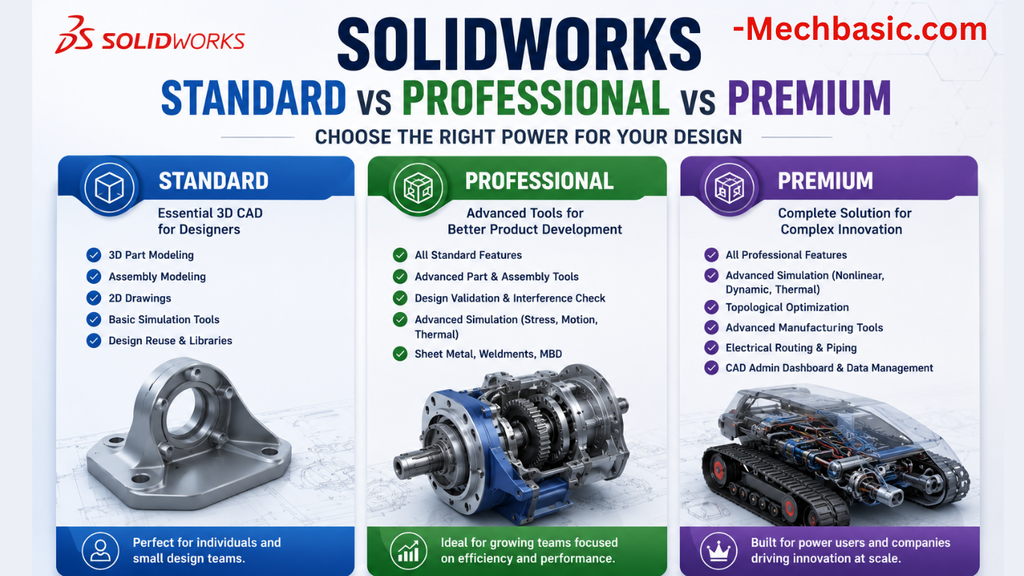
SolidWorks Standard vs Professional vs Premium: Full Feature Comparison
SolidWorks Standard vs Professional vs Premium: Full Feature Comparison Overview: SOLIDWORKS Package Overview SOLIDWORKS comes…
SolidWorks 2026 License Cost: Perpetual vs Subscription Pricing Breakdown
SolidWorks 2026 License Cost: Perpetual vs Subscription Pricing Breakdown Overview: SOLIDWORKS 2026 License Options SOLIDWORKS…
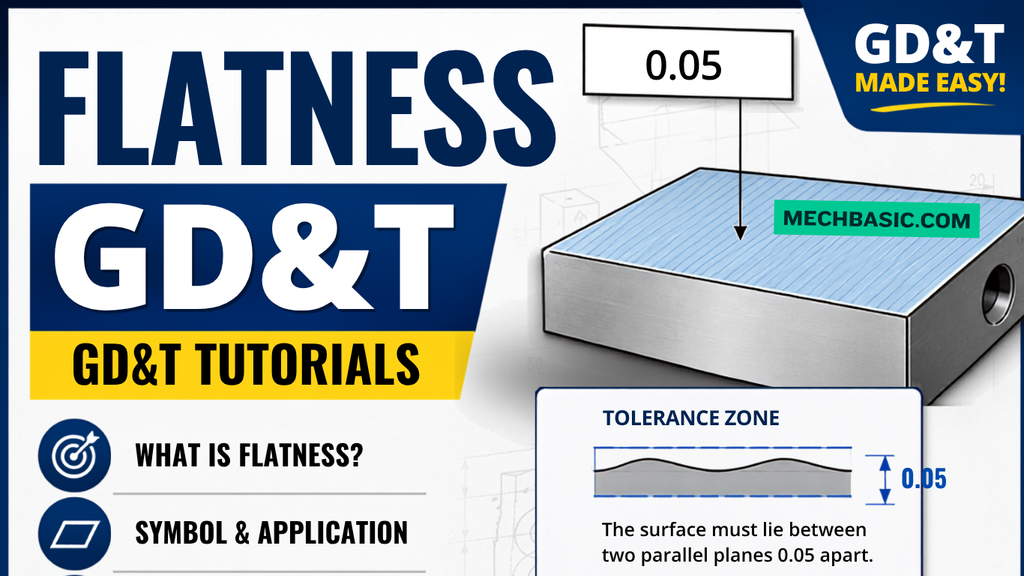
Flatness-GD&T | GD&T Tutorials

ANSI vs ISO Standards-Key Differences you need to know
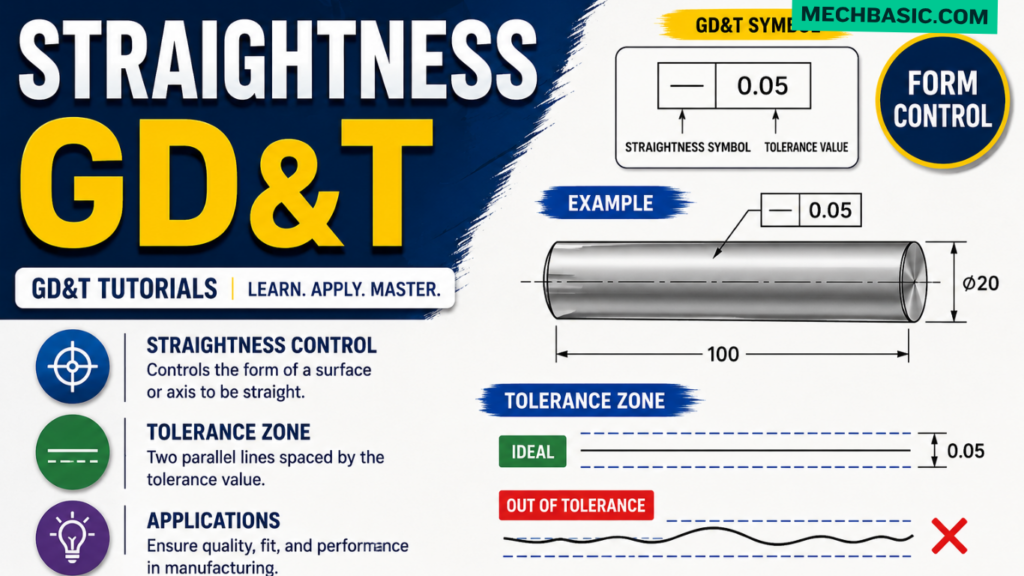
Straightness-GD&T | GD&T Tutorials
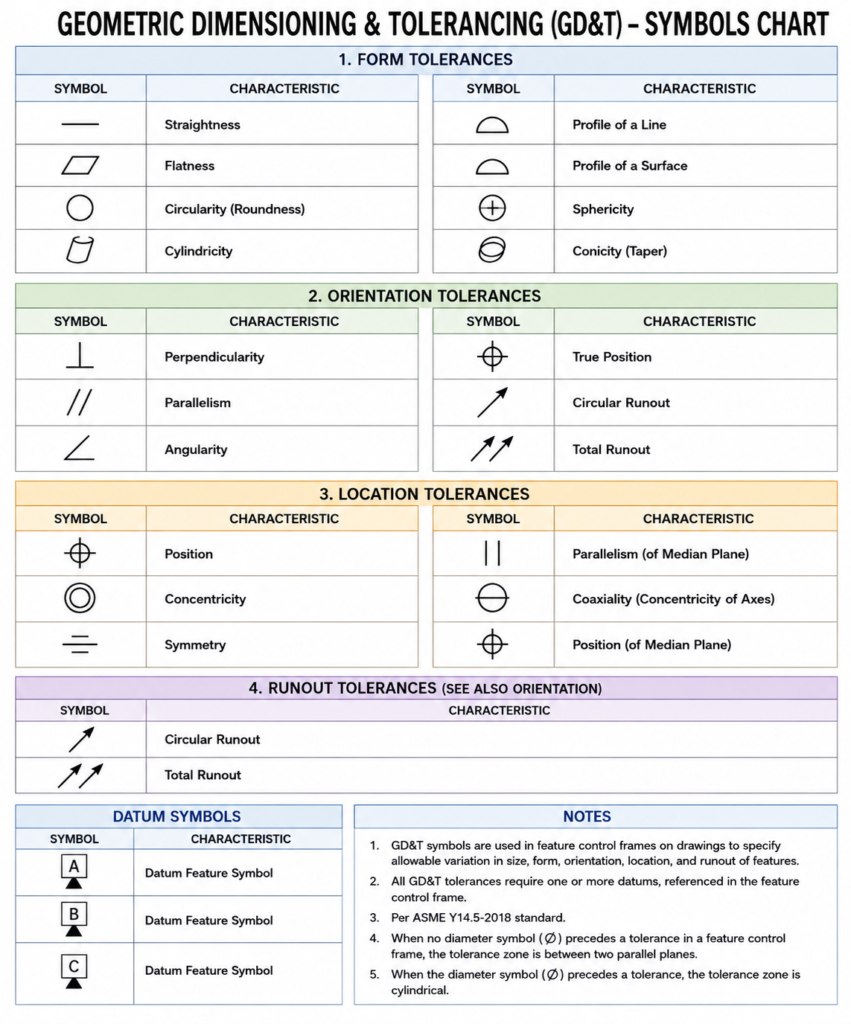
GD&T Symbols chart- Free download | GD&T
Geometric Dimensioning and Tolerancing (GD&T) is a standardized system used in engineering drawings to define…
Related Tags:
Categories: