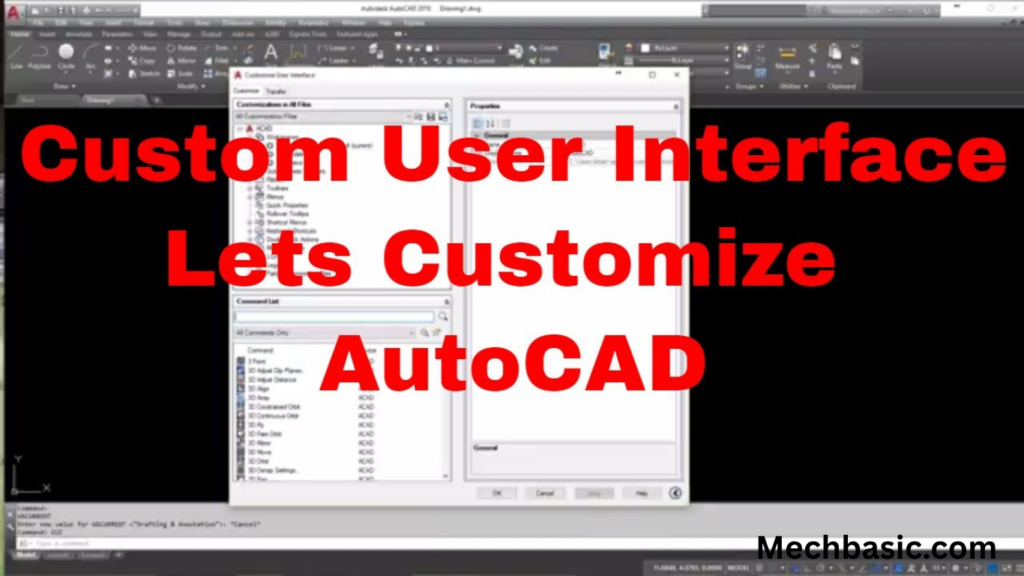
You can customize the AutoCAD user interface by modifying the Ribbon, toolbars, and Quick Access Toolbar.
The CUI (Customize User Interface) command is used to create and manage custom settings.
Customization helps improve productivity and match individual workflow requirements.
In this article:
- How to Customize the User Interface in AutoCAD
- Why Customize the AutoCAD Interface?
- 1. Customizing the Quick Access Toolbar (QAT)
- 2. Customizing the Ribbon
- 3. Creating Custom Toolbars
- 4. Customizing Workspaces
- 5. Customizing Keyboard Shortcuts
- 6. Creating Command Aliases
- 7. Customizing the Status Bar
- 8. Customizing Tool Palettes
- 9. Customizing Colors and Themes
- 10. Customizing Crosshair Size
- 11. Customizing Right-Click Menus
- 12. Using the CUI (Customize User Interface) Editor
- Recommended Customization for Beginners
- Recommended Customization for Mechanical Designers
- Advantages of Customizing AutoCAD
- Conclusion
How to Customize the User Interface in AutoCAD
Introduction
AutoCAD allows users to customize the user interface (UI) to improve productivity, reduce repetitive work, and create a workspace that matches specific job requirements.
You can customize:
- Ribbon tabs and panels
- Toolbars
- Quick Access Toolbar (QAT)
- Workspaces
- Keyboard shortcuts
- Command aliases
- Status bar settings
- Colors and themes
- Menus and palettes
Customization is especially useful for professionals who use AutoCAD daily.
Why Customize the AutoCAD Interface?
Benefits include:
✔ Faster access to frequently used commands
✔ Reduced mouse clicks
✔ Improved workflow efficiency
✔ Personalized workspace
✔ Better organization of tools
1. Customizing the Quick Access Toolbar (QAT)
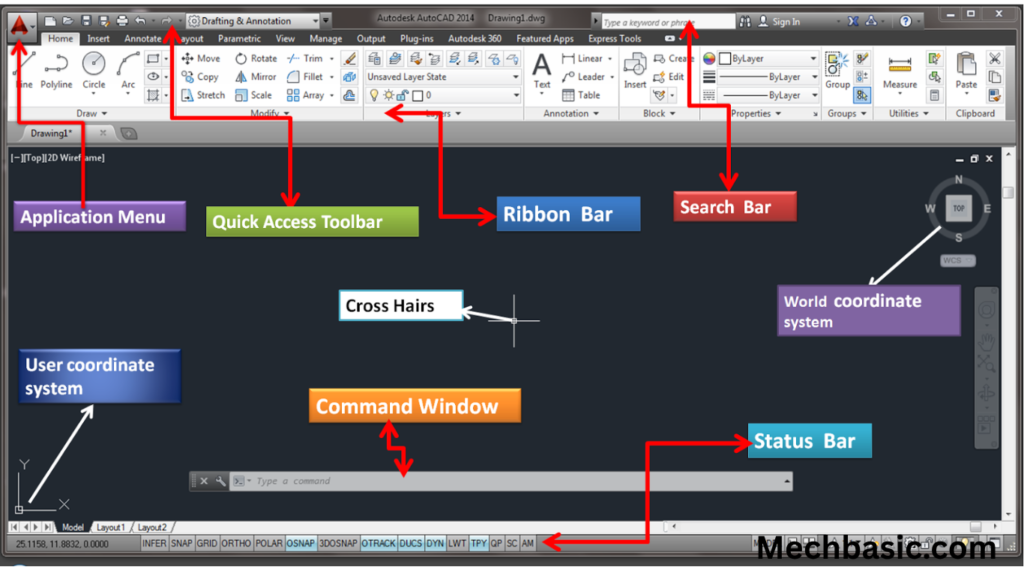
The Quick Access Toolbar is located at the top of the AutoCAD window.
Purpose
Provides one-click access to frequently used commands.
Common Commands Added
- Save
- Open
- Undo
- Redo
- Plot
- Layer Properties
How to Customize
Method 1
- Click the drop-down arrow on the Quick Access Toolbar.
- Select commands to show or hide.
Method 2
- Right-click a command in the Ribbon.
- Choose:
Add to Quick Access Toolbar
Example
If you frequently use “Layer Properties,” add it to the QAT for faster access.
2. Customizing the Ribbon
The Ribbon contains tabs such as:
- Home
- Insert
- Annotate
- View
- Output
What Can Be Customized?
Add Tabs
Create custom tabs containing your favorite commands.
Add Panels
Create custom panels for specific tasks.
Rearrange Commands
Move commands into more convenient locations.
Using the CUI Command
Type:
CUIand press Enter.
This opens the Customize User Interface Editor.
Example
Create a custom “Mechanical Design” tab containing:
- Line
- Circle
- Offset
- Trim
- Dimension
All in one place.
3. Creating Custom Toolbars
Toolbars provide quick access to commands.
How to Create
- Type:
CUI- Open the Toolbar section.
- Create a new toolbar.
- Add commands.
Example Toolbar
“Production Tools”
Contains:
- Save
- Plot
- Layer Manager
- Dimension
- Properties
4. Customizing Workspaces
A workspace controls which interface elements are displayed.
Common Workspaces
Drafting & Annotation
For 2D drawings.
3D Modeling
For 3D design.
Create a Custom Workspace
Steps
- Arrange toolbars and panels.
- Open Workspace Switching.
- Select:
Save Current As - Enter workspace name.
Example:
Mechanical Design WorkspaceBenefits
AutoCAD remembers your preferred layout.
5. Customizing Keyboard Shortcuts
Keyboard shortcuts improve speed.
Examples
| Command | Shortcut |
|---|---|
| Line | L |
| Circle | C |
| Move | M |
| Copy | CO |
| Trim | TR |
Modify Shortcuts
Type:
ALIASEDITor edit:
acad.pgpfile.
Example
Create:
BR = BREAKNow typing BR executes the Break command.
6. Creating Command Aliases
Command aliases are custom abbreviations.
Example
Instead of typing:
DIMLINEARCreate alias:
DLNow:
DLruns the command instantly.
7. Customizing the Status Bar
The Status Bar contains drafting aids.
Options
Enable or disable:
- Grid
- Snap
- Ortho
- Polar Tracking
- Object Snap
- Dynamic Input
Example
Mechanical drafters often keep:
✔ OSNAP ON
✔ ORTHO ON
✔ Dynamic Input ON
8. Customizing Tool Palettes
Tool Palettes store reusable content.
Can Store
- Blocks
- Hatches
- Commands
Open Tool Palette
Press:
CTRL + 3Example
Create a palette containing:
- Bolts
- Nuts
- Bearings
- Symbols
Then drag and drop into drawings.
9. Customizing Colors and Themes
AutoCAD supports different appearance settings.
Access
Type:
OPTIONSSelect:
Display Tab
Change
- Background color
- Crosshair color
- Interface theme
Popular Choice
Dark background because:
- Easier on the eyes
- Better visibility
10. Customizing Crosshair Size
Crosshairs help position the cursor.
Steps
- Type:
OPTIONS- Select Display.
- Adjust Crosshair Size slider.
Typical Setting
80%–100% for precision drafting.
11. Customizing Right-Click Menus
AutoCAD allows custom context menus.
Benefits
Quick access to frequently used commands.
Example
Right-click menu can include:
- Copy
- Move
- Rotate
- Properties
12. Using the CUI (Customize User Interface) Editor
The CUI Editor is the main customization tool.
Open
Type:
CUIFunctions
- Create ribbon tabs
- Create panels
- Create toolbars
- Modify menus
- Assign shortcuts
Example
Create a custom tab called:
Manufacturing ToolsContaining:
- Layer Manager
- Offset
- Trim
- Dimension
- Plot
Recommended Customization for Beginners
Quick Access Toolbar
Add:
- Save
- Undo
- Redo
- Layer Properties
Status Bar
Enable:
- OSNAP
- ORTHO
- Polar Tracking
Workspace
Use:
- Drafting & Annotation
Theme
Use:
- Dark Theme
Recommended Customization for Mechanical Designers
Create a custom toolbar with:
- Line
- Circle
- Offset
- Trim
- Extend
- Dimension
- Layer Manager
- Properties
This covers most daily drafting tasks.
Advantages of Customizing AutoCAD
✔ Faster drafting
✔ Reduced repetitive actions
✔ Easier navigation
✔ Better organization
✔ Increased productivity
✔ More comfortable working environment
Conclusion
AutoCAD’s user interface can be customized extensively through the Quick Access Toolbar, Ribbon, Toolbars, Workspaces, Keyboard Shortcuts, Tool Palettes, and the CUI Editor. Proper customization helps users access frequently used commands faster, reduces repetitive work, and significantly improves drafting efficiency. For beginners, simple customizations such as adding favorite commands to the Quick Access Toolbar, enabling drafting aids, and creating a personalized workspace can greatly improve the learning experience and daily productivity.
Other courses: