AutoCAD function keys provide quick access to commonly used features.
Examples: F1–Help, F3–Object Snap, F7–Grid Display, F8–Ortho Mode, F12–Dynamic Input.
These shortcuts improve drawing speed and productivity.
In this article:
- AutoCAD Function Keys (F1–F12)
- F1 – Help
- F2 – Text Window
- F3 – Object Snap (OSNAP)
- F4 – 3D Object Snap
- F5 – Isoplane Cycle
- F6 – Dynamic UCS (Dynamic User Coordinate System)
- F7 – Grid Display
- F8 – Ortho Mode
- F9 – Snap Mode
- F10 – Polar Tracking
- F11 – Object Snap Tracking (OTRACK)
- F12 – Dynamic Input
- Summary Table
- Most Frequently Used Function Keys
- Example Workflow
- Conclusion
AutoCAD Function Keys (F1–F12)
Function keys (F1 to F12) are keyboard shortcuts that quickly turn AutoCAD features on or off. Learning these keys can significantly improve drafting speed and productivity.
F1 – Help
Function
Opens the AutoCAD Help system.
Use
- Access tutorials
- Search commands
- Troubleshoot problems
Example
Press F1 while using a command to get information about that command.
Status
Not a toggle; it opens Help.
F2 – Text Window
Function
Displays or hides the AutoCAD Text Window.
Use
Shows:
- Command history
- System messages
- Previous command inputs
Example
If you want to review commands used earlier, press F2.
Status
Toggle On/Off.
F3 – Object Snap (OSNAP)
Function
Turns Object Snap ON or OFF.
Purpose
Allows precise selection of points on objects.
Common Snap Points
- Endpoint
- Midpoint
- Center
- Quadrant
- Intersection
- Tangent
Example
Drawing a line exactly from the center of a circle.
Status
Toggle On/Off.
F4 – 3D Object Snap
Function
Turns 3D Object Snap ON or OFF.
Purpose
Used mainly in 3D modeling.
Snap Types
- Vertex
- Edge
- Face center
Example
Selecting a precise corner of a 3D solid.
Status
Toggle On/Off.
F5 – Isoplane Cycle
Function
Switches between isometric planes.
Available Planes
- Left
- Top
- Right
Purpose
Used for isometric drafting.
Example
Drawing an isometric cube.
Status
Cycles through planes each time you press it.
F6 – Dynamic UCS (Dynamic User Coordinate System)
Function
Turns Dynamic UCS ON or OFF.
Purpose
Automatically aligns the UCS with selected 3D surfaces.
Example
Drawing directly on an angled face of a 3D object.
Status
Toggle On/Off.
F7 – Grid Display
Function
Shows or hides the drawing grid.
Purpose
Provides a visual reference for drawing.
Benefits
- Better alignment
- Easier sketching
Example
Like graph paper in the drawing area.
Status
Toggle On/Off.
F8 – Ortho Mode
Function
Turns Ortho Mode ON or OFF.
Purpose
Restricts cursor movement to:
- Horizontal (0°)
- Vertical (90°)
Example
Drawing perfectly straight walls or machine edges.
Benefits
Improves drawing accuracy.
Status
Toggle On/Off.
F9 – Snap Mode
Function
Turns Snap Mode ON or OFF.
Purpose
Moves the cursor in fixed increments.
Example
If snap spacing is set to 10 mm, the cursor jumps every 10 mm.
Benefits
Helps maintain consistent spacing.
Status
Toggle On/Off.
F10 – Polar Tracking
Function
Turns Polar Tracking ON or OFF.
Purpose
Guides the cursor along preset angles.
Common Angles
- 30°
- 45°
- 90°
- 120°
Example
Drawing a line exactly at 45°.
Benefits
Faster than manually entering angles.
Status
Toggle On/Off.
F11 – Object Snap Tracking (OTRACK)
Function
Turns Object Snap Tracking ON or OFF.
Purpose
Allows alignment based on existing snap points without drawing construction lines.
Example
Locating a point vertically above the center of a circle.
Benefits
Improves precision and reduces extra geometry.
Status
Toggle On/Off.
F12 – Dynamic Input
Function
Turns Dynamic Input ON or OFF.
Purpose
Displays command prompts near the cursor instead of only in the command line.
Example
While drawing a line, you can directly enter:
- Length
- Angle
- Coordinates
near the cursor.
Benefits
- Faster drafting
- Less movement between cursor and command line
Status
Toggle On/Off.
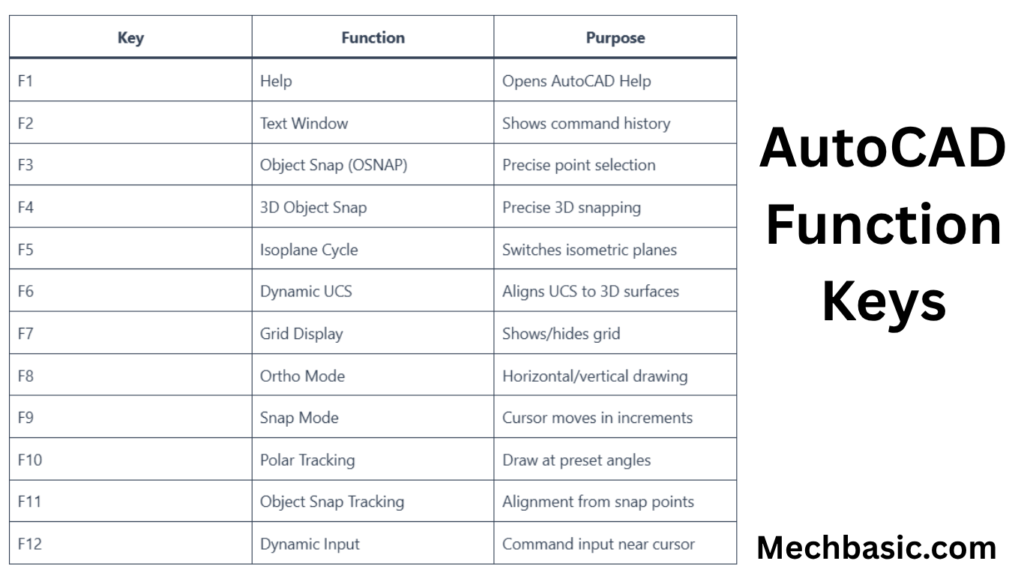
Summary Table
| Key | Function | Purpose |
|---|---|---|
| F1 | Help | Opens AutoCAD Help |
| F2 | Text Window | Shows command history |
| F3 | Object Snap (OSNAP) | Precise point selection |
| F4 | 3D Object Snap | Precise 3D snapping |
| F5 | Isoplane Cycle | Switches isometric planes |
| F6 | Dynamic UCS | Aligns UCS to 3D surfaces |
| F7 | Grid Display | Shows/hides grid |
| F8 | Ortho Mode | Horizontal/vertical drawing |
| F9 | Snap Mode | Cursor moves in increments |
| F10 | Polar Tracking | Draw at preset angles |
| F11 | Object Snap Tracking | Alignment from snap points |
| F12 | Dynamic Input | Command input near cursor |
Most Frequently Used Function Keys
For beginners and mechanical drafters, these are used the most:
F3 – OSNAP
Essential for accurate drawing.
F8 – ORTHO
Creates perfectly horizontal and vertical lines.
F10 – Polar Tracking
Useful for angled lines.
F11 – Object Snap Tracking
Helps align objects accurately.
F12 – Dynamic Input
Makes command entry easier and faster.
Example Workflow
Imagine drawing a machine bracket:
- Press F3 → Snap to exact endpoints.
- Press F8 → Draw straight edges.
- Press F10 → Draw angled supports.
- Press F11 → Align holes accurately.
- Press F12 → Enter dimensions near the cursor.
This combination greatly improves drafting speed and accuracy.
Conclusion
The F1–F12 function keys in AutoCAD are productivity shortcuts that control essential drafting features such as Help, Object Snap, Ortho Mode, Polar Tracking, Grid Display, Dynamic UCS, and Dynamic Input. Among them, F3, F8, F10, F11, and F12 are the most commonly used because they directly improve drawing precision, speed, and efficiency in everyday CAD work.
Other courses: